


· Photographer's Toolbox
· alloy photo
· John Beardsworth
· Capture Monkey
· lightroom-plugins.com
· Adobe Addons
metadatawrangler-20251223.205.zip
· FAQ
· Version History
· Update Log via RSS

· Installation instructions
· “Donationware” Registration Info
· More Lightroom Goodies
· All-Plugin Update Log via RSS
· My Photo-Tech Posts
· My Blog
This “export filter” plugin for Adobe Lightroom Classic allows you to strip selected metadata components from images as they are exported. You can use it, for example, to remove the embedded thumbnail and any Lightroom develop-history metadata, while retaining other metadata, such as the exposure settings, lens information, copyright, etc.
You can also inject/overwrite certain metadata fields (title, caption, etc.) with image data from your Lightroom catalog.
This plugin works in Lightroom Classic, and older versions as far back as Lightroom 3, though some features depend on the version of Lightroom.
The same download works for both Windows and Mac. See the box to the upper right for the download link (in orange) and installation instructions.
(Note: Please see the FAQ and known issues before reporting bugs.)
Overview
Here's a screenshot showing the options and features of the Metadata Wrangler as it appears in the Export Dialog after the plugin has been installed and added to the export. In the screenshot, the plugin's local “Touch of Privacy” preset has been selected; items that the plugin will remove are presented in red.
(screenshot as of plugin version 20190106.174)
Get ready to scroll....

Wow.
The bulk of the dialog is for selecting which bits of metadata to remove from, or leave alone in, the exported copy. Other sections toward the bottom are extra helper features (discussed here), and to compose/overwrite/delete some metadata fields (discussed here).
What metadata you choose to strip – and to leave intact – can vary greatly depending on your intended use. For example, it makes sense to strip at least the embedded thumbnail from small exports that are themselves intended to be used as thumbnails. In such a case, it may well make sense to strip everything but copyright information, to keep the file size small.
On the other hand, it may well make sense to preserve most metadata on images intended for upload to a photo-sharing site, yet remove the embedded thumbnail that does little but increase the file size (and hence the file-upload time).
In any case, only the exported copy of the image is affected; both the original image and the Lightroom library are never changed by this plugin.
It's a “Filter”
I call the Metadata Wrangler an “export filter”, but in the official Lightroom vernacular, it's a “post-process action”. The point is that unlike a full export plugin (such as my “Export to Flickr” plugin), this filter (post-process action) can be used with any export or Publish operation in Lightroom. It can be used in conjunction with the standard “Files on Disk” export, in conjunction with one of my other plugins (e.g. “Export to Zenfolio”, “Export to PicasaWeb”), or any other third-party export or publish plugin.
Installation and Activation
Before it can be used as part of an export, the plugin must of course first be installed into Lightroom: general Lightroom plugin Install instructions.
Then, for any particular export or Publish Service, the plugin must be explicitly included as part of the export. Here's an example showing the Export dialog set to a standard hard-disk export:
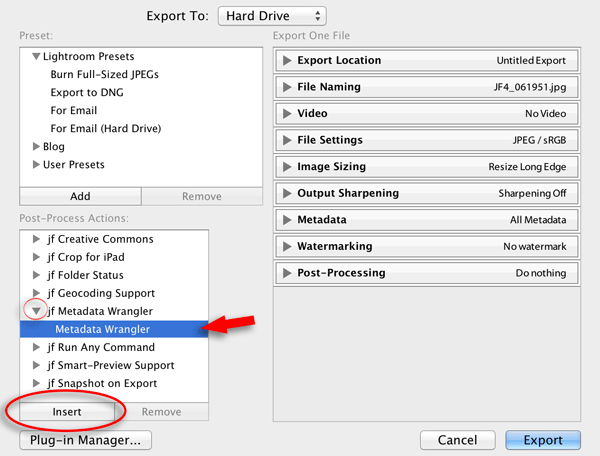
About to Insert
The list of filters (“post-process actions”) provided by your currently-installed plugins is shown in the lower left of the dialog. If you don't see that “Post-Process Actions” section, it means that the plugin has not been installed properly, or has been installed but is currently disabled. Revisit the Plugin Manager to make sure the plugin is both installed and (in the middle-right section of the dialog) enabled.
A Lightroom plugin can provide more than one filter, though the Metadata Wrangler has only the one.
(I would have liked to separate the various parts of the huge Metadata Wrangler dialog into more-easily-managed separate components that could be included or excluded individually as the user sees fit, but unfortunately this plugin was developed before Lightroom allowed multiple sections, and can't be converted to use multiple sections without breaking existing user's Export presets, preferences, and Publish setups.)
Anyway, in the screenshot above, the “jf Metadata Wrangler” label next to the small red circle is the name of the plugin, while the blue-highlighted “Metadata Wrangler” below it is the name of the filter the plugin offers. Select that filter and click the “Insert” button to include the filter as part of the export being configured....
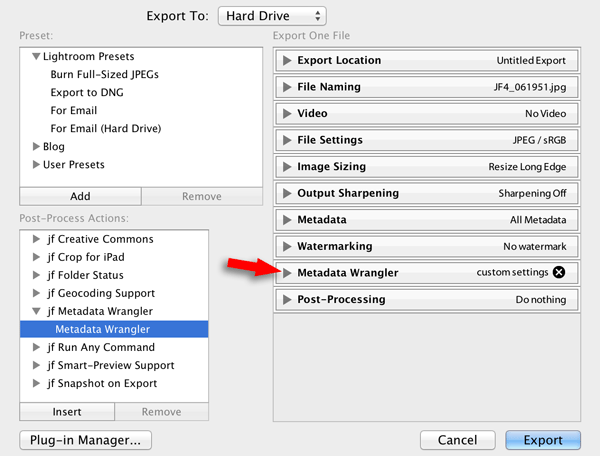
Newly-Added Section
In the screenshot above, a “Metadata Wrangler” section has been added to the export (I added the red arrow to the screenshot to highlight its location). Clicking on that section header opens up the section to display the long list of options seen in the overview above.
At this point, you're ready to configure the plugin to do what you want it to do on this particular export.
(Pro tip: saving your configuration settings as part of an export preset can make exports you commonly do much easier. For Publish, the specific configuration settings are saved with each Publish Service.)
Metadata Can Be a Bit Tricky
I don't know that there's a good reason for it, but it's turned out that image-file metadata formats have grown into somewhat of a mess. Luckily, Phil Harvey has created the most excellent exiftool library that makes this plugin's work much easier. It's the same metadata-handling library used for the back end of my online Exif viewer. I pass along half of any gifts I receive in relation to this plugin to Phil.
Nevertheless, some of the “metadata mess” remains exposed to you, the user, as evidenced by the mishmash of XMP blocks. Here's part of the Metadata Wrangler in Lightroom's export dialog dealing with XMP blocks....
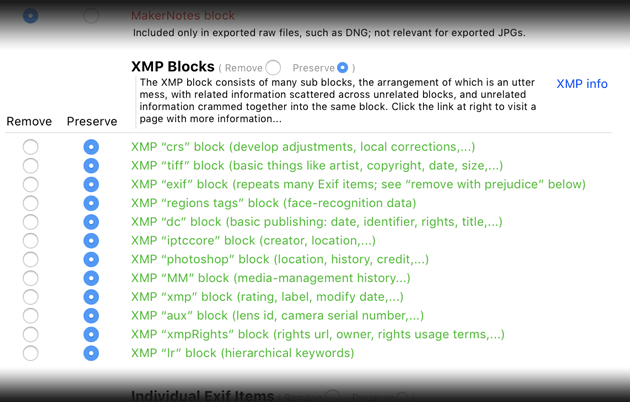
You can have all XMP data preserved or stripped by clicking on the “preserve” or “remove” next to the “XMP Blocks” label at the top, but if you want to be selective, you may have to do some research to see in which block or blocks the data you're interested in lies. It's a bit cryptic for the non-engineer, but the XMP-block info at the exiftool site lists exactly what fields are in each block. (The “XMP Info” button in the dialog links to that page as well.)
Two of the XMP blocks are fairly straightforward. The XMP “crs” block contains all the information about Lightroom develop adjustments (crop, exposure, localized corrections, etc.). You'll want to strip this block if you want to hide – or just don't feel the need to include with the image – all the develop changes you've made to an image.
The XMP “exif” block contains a repeat of most of the Exif data represented individually lower in the dialog. I'm not sure that there's 100% coverage, but I generally strip it unless I intend the exported image to be for some kind of archive.
Presets
The Metadata Wrangler supports its own preset mechanism. The dropdown near the top of the Metadata Wrangler export-dialog section allows you to create and recall presets of exclude/preserve decisions:
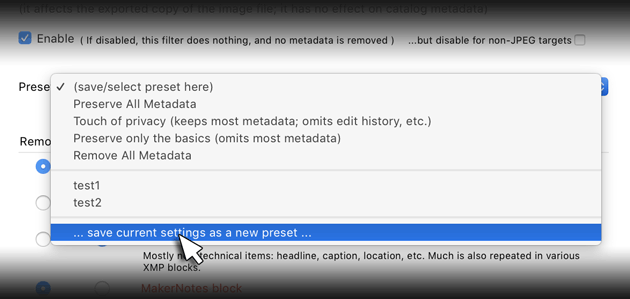
“Preserve All Metadata” and “Remove All Metadata” are standard presets that adjust the settings to save/remove all metadata. You can create a new preset by making some change to the dialog settings, then choose “save current settings as a new preset”.
The current settings for the Metadata Wrangler are also part of any Lightroom Export Preset that you create while the Metadata Wrangler is installed and enabled. Note that the individual settings are saved to the Lightroom export preset, rather than any Metadata Wrangler preset name that might be in effect. This means that if you create a Lightroom Export Preset and then later change the meaning of a Metadata Wrangler preset, that change is not reflected back into the Lightroom Export Preset. (This paragraph is a bit confusing, sorry.)
Metadata Not Explicitly Listed...
The bottom of this section includes a catch-all item that governs how the whole plugin approaches its work:

When “Remove” is selected here, all metadata is removed, and then only items explicitly listed as “Preserve” elsewhere in the dialog are added back. Conversely, when “Preserve” is selected, the items explicitly listed as “Remove” are manually removed from the exported image.
I believe that the end result is always the same – that all metadata that could be in the image is listed earlier in the dialog – but I've included this option as a “just in case”. When I'm exporting small images for use as thumbnails on my site, for example, I strip everything except what I explicitly want to keep: the ICC Color profile, and the copyright/artist information.
Removing What's There
It's important to keep in mind exactly what the main section of this plugin does: it removes metadata placed into the exported copy by Lightroom when Lightroom created it. As discussed below, this plugin can add/modify some fields after the fact, but it's important to keep in mind what data Lightroom adds to begin with.
Lightroom's standard “Metadata” section of the Export/Publish dialog is where you specify the base metadata that Lightroom should include in the exported copy, and it's from that copy that this plugin then removes metadata you tell it, at least if it's still there.
If in that standard “Metadata” section you tell Lightroom to include “Copyright Only”, then most of the Exif/XMP/IPTC data does not find its way to the exported copy to begin with, so there's little available for this plugin to remove besides the copyright data (and the embedded thumbnail and the embedded color profile).
Personally, when I use this plugin (which is always), I generally leave the “Metadata” section configured to include “All Metadata”, then use this plugin to decide what I really want to keep.
Other Features
The dialog then continues with sections for additional features.
Lightroom generally strips location data from areas marked “private” in the Map Module. If Lightroom's all-or-nothing approach is too aggressive, and you'd like to (for example) keep the textual city and state, even if you've removed the exact latitude and longitude, you can restore those items to the exported copy here:

Then we have some special keyword handling:
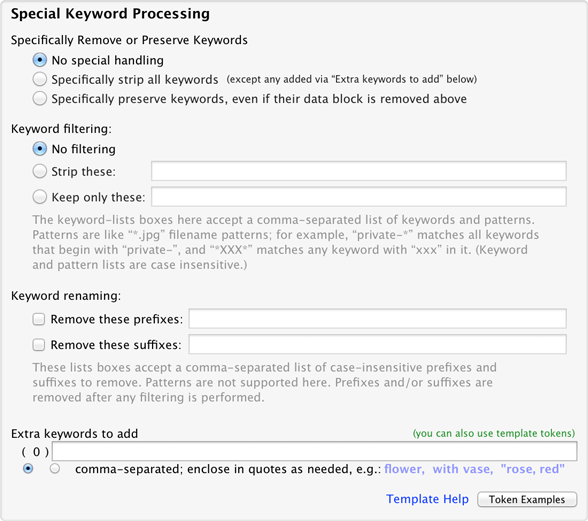
The last part of the keyword section allows you to insert keywords into the exported copies. Because this supports template tokens, you can move other image metadata into keywords. For example, “{City},{State},{Country}” would add the city/state/country metadata of each image into its keywords, and “{Make} {Model}” would add one keyword built from the camera's make and model.
Normally, location-related tokens have no value if the image is in an area marked “private” in the Map Module, but the overrides in the previous section also apply here. (Also see the token docs for other ways to override a private location.)
Finally in this section, a few miscellaneous options:
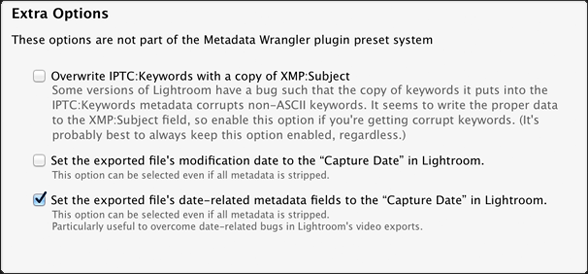
Adding Data
After this plugin has removed whatever metadata you've asked it to remove from the exported copy, you can have it then add (or overwrite) certain fields — such as Title and Caption — with data crafted from your Lightroom catalog, via the template tokens that my plugins support.
This might be useful if the normal export/publish doesn't provide enough flexibility in constructing the (for example) Title as you like.
Final Forceful Removal of Specific Fields
Despite the complexity of the controls above, sometimes it's not fine-grained enough to remove specific fields without removing others, so this section lets you list list ExifTool tag names to be removed.
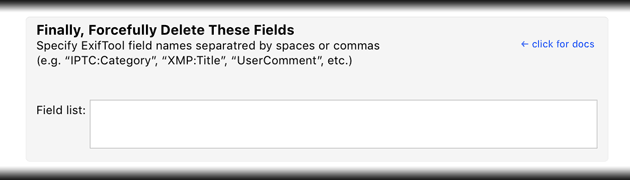
Field names can include their group prefix, such as “EXIF:DateTimeOriginal” or “XMP:Copyright”, or can exclude a prefix (e.g. “Copyright”) and remove the field from all groups it might be found in.
You can inspect an exported copy to see its field names with my Image Metadata viewer, a local install of the ExifTool command-line program, or even by loading it back into Lightroom and inspecting it with my Image Metadata Viewer plugin.
Additionally, the following field names are handled specially:
| Special Field Name | What it Removes |
|---|---|
| Dates | Any dates/times related to the image. |
| Software | Any mention of the creation software (Lightroom) |
(Let me know if I've missed any fields that should be covered by these.)
Availability
This plugin is distributed as “donationware”. I have chosen to make it available for free — everyone can use it forever, without cost of any kind — but unless registered, its functionality is somewhat reduced after six weeks.
Registration is done via PayPal, and if you choose to register, it costs the minimum 1-cent PayPal fee; any amount you'd like to add beyond PayPal's sliding fees as a gift to me is completely optional, and completely appreciated.
Note: a Lightroom major upgrade, such as from Lr10 to Lr11 de-registers the plugin in the upgraded version, so if you want to maintain registration, a new ($0.01 if you like) registration code is needed in the upgraded version. It makes for a hassle every couple of years, I know. Sorry. See this note for details.
For details on plugin registration and on how I came into this hobby of Lightroom plugin development, see my Plugin Registration page.
As I mentioned above, this plugin relies heavily on the ExifTool library, so I have decided to pass along half of any gifts related to this plugin to the ExifTool library's author. If you choose to send a gift when you register, it'll be handled automatically, but if you send a gift any other time (they're always welcome 🙂 ), please let me know so I can share your kindness with Phil. In either case, a big thanks from Phil, too.
Version History
(
Update Log via RSS
)
| 20251223.205 |
Enhanced some debug logging. |
| 20251102.204 |
Upgraded to the embedded copy of ExifTool to version 13.40. |
| 20240912.203 |
Upgraded to the embedded copy of ExifTool to version 12.76. |
| 20231011.203 |
CachedImagePreviewsFile token. Upgraded to the embedded copy of ExifTool to version 12.67. |
| 20230406.202 |
Don't crash even if Lightroom sends a video despite being told not to in the Export dialog. |
| 20220611.201 |
Oops, broke things on Windows with previous update. |
| 20220611.200 |
Removed a bunch of debug logging that was slowing down the LUA token.Newline Upgraded to the embedded copy of ExifTool to version 12.42. Handle the XMP:WeightedFlatSubject field. |
| 20220211.199 |
Don't crash on Windows when trying to debug-log the file's date. |
| 20220120.198 |
Whack-a-mole with PayPal's random changes. |
| 20220119.197 |
Added the WEEKNUM token, along with DAYNUM, weeknum, and daynum. |
| 20220114.196 |
Better handle when a target destination is unmounted during an export. |
| 20211219.195 |
Warn when PayPal seems to have given a bogus code in the web-confirmation page. |
| 20210613.194 |
Had to revert ExifTool to version 11.70 for the time being, until I can get 12.25 working on Windows. |
| 20210612.193 |
Better debug logging trying to track down why the plugin suddenly doesn't work on some Windows systems. Fixed a problem with filters on the {Keyword} token. |
| 20210610.192 |
Fixed that the Province template token did not respect the plugin-specific geo-privacy settings. Fixed an issue with the {Newline} token, and added {Comma}, {Hyphen}, and {Space} for good measure. Fixed an issue with Keyword preservation not working. Upgraded to the embedded copy of ExifTool to version 12.25. |
| 20210415.191 |
Added 'separated by' to the People token. Added the ImageViewDirection and ImageViewBearing tokens. Reworked the Keywords token to better accept filters. working around 'constant table overflow' error |
| 20201103.190 |
Added the PF filter to turn typographic fractions into plain-ASCII fractions. |
| 20201017.189 |
Updates for Lr10 Added the SpeedKnots token. |
| 20200915.188 |
Fixed a bug with the "Forcefully Delete These Fields" stuff. Allow quoted tag names, and to report when tag names have a space. Added support for files beyond 4GB. Worked around an "unknown key captureTime" error. Added the {PlusCode} and {GeoHash} tokens. |
| 20200706.187 |
Completely redid the "Ensure all included create-date related metadata fields equal Lightroom's Capture Date" stuff to be more robust in cases where timezones have changed between the photo capture time and export time. Some of the filename-related tokens could be incorrect in rare situations. |
| 20200319.186 |
Work around a Windows bug related to canceling out of the registration dialog. Added some extra debug logging to note whether the plugin is enabled. Revisited the Add/Overwrite section yet again... under the hood, this is a can of worms, because image metadata is a can of worms. Try to be smarter about which tags to fill in, and which not to, based on what other sections of metadata are being excluded. |
| 20191031.185 |
Certain date tags still weren't being preserved with a particular set of settings. I don't know why I can't get this right. Maybe this time I have. |
| 20191029.184 |
Upgraded to the embedded copy of ExifTool to version 11.70. |
| 20191001.183 |
Dates wouldn't be preserved with a particular set of settings. |
| 20190917.182 |
Fixed that the "delete with prejudice" doesn't go so far as to override the explicit adding of metadata. |
| 20190903.181 |
Added the LensInfo template token. Updated the Exposure token to allow customization. More token work: added {Urls}, and updated {ISO} and {Copyright} to allow customization. Added the {RelativeFolder} token. |
| 20190817.180 |
Added "Artist" to the "Add/Overwrite" section, and updated the internals so that when overwriting an item, it overwrites all copies of that item in the metadata (e.g., when updating the "Caption", the tag actually filled in is "EXIF:ImageDescription", but if "IPTC:Caption-Abstract" and/or "XMP:Description" exist, they are also filled in). Also fixed the "Speed" item in this area. |
| 20190810.179 |
Fixed the SST1 and SST2 tokens. |
| 20190731.178 |
Updated the PublishCollectionName token (and CollectionNames and CollectionFullNames) to remove the MIRROR: prefix from the name that mirrored collections within my Collection Publisher plugin automatically get. Updagted display text to make the file OS timestamp option more clear. Try harder to figure out the date/time of a video file. Changed the meaning of the “Set the exported file's date-related metadata fields to the "Capture Date" in Lightroom.” option, so that it normally no longer adds fields that wouldn't otherwise be there. If other options leave the fields, this option then ensures that the date in the field is that seen in Lightroom. However, if the two Exif date fields are not explicitly removed, and this option is turned on, and none of the date fields are actually originaly present in the exported copy, the plugin will try to fill at least one of them in. This is to try to get around wonky issues that Lightroom has with video files. Now include removal of XMP:MetadataDate/tt>, XMP:HistoryWhen, and some video-realted modify-date fields when removing the "Modify Date" field. |
| 20190709.177 |
Fixed handling of videos when skipping them. |
| 20190708.176 |
Added functions uc(), ucFirst(), lc(), and lcFirst() to the LUA token. |
| 20190623.175 |
Updated the keyword-related tokens to accept standard filters. Work around a bug that sometimes causes plugins to be disabled when starting Lightroom via clicking on a catalog file. Fix an "Unknown key: captureTime" crash. Added the GPSCoords token. Fixed a problem related to template tokens and photos without capture times. Upgraded to the embedded copy of ExifTool to version 11.50. Fixed a bug whereby the "delete with prejudice" feature didn't work. |
| 20190106.174 |
Reshuffled the order of things in the dialog to put the "Extra Options" (that are not part of the plugin's preset system) at the bottom. Fixed the plugin's preset system to include some recently-added stuff that had been inadvertently excluded. This includes having the "Preserve All" preset turn on all the Location Privacy overrides. Added the "Forcefully Delete These Fields" section. |
| 20190104.173 |
Now writes the AmbientTemperature Exif field, taking the value from the custom "Temperature" field of my Geoencoding Support plugin. |
| 20181226.172 |
| 20181114.171 |
Updated all the text-input boxes within the "Special Keyword Processing" section to also support plugin templates. Previously, only the final of the five had that supprt. Fixed a problem with the SpeedKPH token. |
| 20181106.170 |
Added the PEOPLE variable to the LUA token. |
| 20181015.169 |
Updates for Lr8 (Lightroom Classic CC Version 8). Added hierarchical options to the Keywords token. Added the special PP() function to the LUA token. |
| 20181011.168 |
Try to work around a Lightroom bug related to photo timezones and how Lightroom handles accessing plugin data. |
| 20181004.167 |
Upgraded to the embedded copy of ExifTool to version 11.01. Added the 'nicknames' modifier to the {People} token. |
| 20180922.166 |
It seems that sometimes Lightroom deletes temporary folders out from under the plugin. Try to mitigate the damage from that. Added the SST1, SST2, and SS3 tokens to the template tokens that the plugin understands. |
| 20180906.165 |
Build-system optimization |
| 20180811.164 |
Fixed a situation where forcefully-removing keywords would inexplicably cause others to reappear. Upgraded to the embedded copy of ExifTool to version 11.01. |
| 20180701.163 |
Added some extra debug logging. |
| 20180625.162 |
Worked around a problem on Windows where non-ASCII filenames sometimes caused problems. Removing the caption with prejudice now works. Fixed a bug when 'Token Examples' invoked in certain situations. Clicking on the version number in the Plugin Manager now copies version info to the clipboard Updated the PublishCollectionName token to allow numeric arguments along the lines of the CollectionName token. Added the folowing template tokens: {home}, {desktop}, {temp}, {pictures}, {documents} , IptcDateTakenAdded the 'PCH' variable to the {LUA} tag. Upgraded to the embedded copy of ExifTool to version 11.00. |
| 20180413.161 |
Work around a bug in Lightroom that causes all filter plugins to fail )-: —Jeffrey |
| 20180306.160 |
Upgraded to the embedded copy of ExifTool to version 10.82. Added a bunch of token filters: F2D F2S F2X B2D B2S B2X S2X A2D A2S A2X |
| 20180304.159 |
The previous update causes problems for some users, due to a nasty bug in Lightroom. This update tries to work around it. |
| 20180218.158 |
When a photo has speed and bearing data (from my Geoencoding Support plugin), it's added to the photo unless those fields are marked for removal. Added the {CollectionNames} and {CollectionFullNames} tokens to the data templates that my plugins understand. |
| 20171207.157 |
Updated the Keywords token, and added the KWf function to the {LUA} token. |
| 20171019.156 |
Oops, more Lr7 stuff. |
| 20171019.155 |
Updates for Lr7 Better handle some character-encoding issues related to template tokens. Allow the "If Exists" feature of Templat Tokens to work with the PluginProperty token. |
| 20170917.154 |
Add support to get around a recently-discovered bug in Lightroom which can allow some "Person" keywords to be exported even when "Remove Person Info" is selected for an export. Metadata Wrangler will now forcefully remove Person keywords when "Remove Person Info" is selected; it's automatic, so simply upgrading to this version should work around the bug for all export/publish operations that use Metadata Wrangler. |
| 20170710.153 |
Fixed a bug introuded the other day in template tokens, related to Windows filenames. |
| 20170621.152 |
Added the "only if it has a value" feature to template tokens. Updated the {FolderName} token to allow {FolderName=1} (rather than requiring the plus as in {FolderName=+1}) |
| 20170610.151 |
Upgraded to the embedded copy of ExifTool to version 10.55. |
| 20170530.150 |
Enhanced the FolderName token |
| 20170521.149 |
Added the Newline template token. |
| 20170424.148 |
Upgraded to the embedded copy of ExifTool to version 10.50. |
| 20170309.147 |
Upgraded to the embedded copy of ExifTool to version 10.40. Added the following tokens to the template tokens that my plugins understand: Artworks, ArtworkTitle, ArtworkCopyright, ArtworkSource, ArtworkCreator, ArtworkDateCreated, ArtworkInventoryNum |
| 20170227.146 |
If the "Enable" checkbox was cleared, the plugin was crashing the export. Added "ISO8601Date" to the template tokens that my plugins understand. |
| 20170126.145 |
Add [...] support to various keyword "filename-pattern" patterns. Switch the log-sending mechanism to https. |
| 20161203.144 |
Sigh, I left some debug logging in there that won't work on all systems. |
| 20161201.143 |
Some combinations of keyword-handling options could get confused and improperly leave some keywords in the result. |
| 20161127.142 |
Added some extra debug logging. |
| 20161127.140 |
Create destination folders if needed (something apparently Lightroom doesn't do for us in certain situations). Upgraded to the embedded copy of ExifTool to version 10.36. |
| 20161109.139 |
Ensure that any failure of the Metadata Wrangler process is not silent. Report if Lightroom or another plugin silently fails to provide an image file to Metadata Wrangler. Upgraded to the embedded copy of ExifTool to version 10.26. Added the following tokens to the templates that my plugins understand: FileModYYYY, FileModYY, FileModMM, FileModDD, FileModHH, FileModMIN, FileModSS, FileYYYY, FileYY, FileMM, FileDD, FileHH, FileMIN, FileSS, {FilenameNumber}, Weekday, Wday, weekday, wday. Better support for network shares on Windows. Fixed a bug with the keyword tables in the LUA token. |
| 20160409.138 |
Added ChildOf and DescendantOf filters to the {Keywords} and {KeywordsAll} template tokens that my plugins understand. Fixed how custom {People} formatting works with people keywords that have no birthday associated with them. Try to avoid yet another place where Lightroom gets hung because it can't handle certain kinds of dialogs at the same time. Upgraded to the embedded copy of ExifTool to version 10.10. Added Russian-langauge support for the People-Support |
| 20151129.137 |
If the plugin is applied to a file format that ExifTool can't handle (e.g. AVI movies), instead of aborting, just let the user know that from now on they'll be silently ignored. |
| 20151028.136 | Added some extra debug logging. |
| 20151019.135 |
The {People} token wasn't working properly for some keywords without a registered birthday. |
| 20151010.134 |
Added the ability to update/create some metadata fields. Handle catpure-date times prior to 1970. Upgraded to the embedded copy of ExifTool to version 10.00. |
| 20150808.133 |
Added a variety of tags to the "delete with prejudice" list for "Software" (such as "CreatorTool" and "HistorySoftwareAgent") |
| 20150731.132 |
Added the ability to set image/video create-date metadata. |
| 20150517.131 |
Fixed the "SpecPeople:259: attemt to index al nil value" error. |
| 20150516.130 | Added some debug logging to try to track down a People-related error... |
| 20150513.129 |
Added the "XMP region block" to the list of items that can be explicitly removed or preserved. This is where LrCC/6 puts the results of its face-recognition scans. |
| 20150206.128 | Videos used to be skipped, but now they're at least attempted. Some video metadata can't be altered, though. |
| 20150205.127 |
In the POODLE-vunerability dialog, display a raw URL of a page on my site that discusses the issue, so that folks can be independently sure that the dialog is indeed from me and not malware. |
| 20150130.126 | Build update. |
| 20141219.125 |
Upgraded to the embedded copy of ExifTool to version 9.76. |
| 20141019.124 | Windows Only: Add a one-time check for the POODLE security vulnerability, and alert the user if it exists. |
| 20141006.123 | Work around a bug in Lightroom that caused the new stuff added yesterday to break the export dialog on Windows. |
| 20141005.122 | An update to the add-keywords stuff just added: settings in the Location Privacy Override section now controls whether tokens like "City" have values. If an image is private, the value will be empty, unless overridden. |
| 20141005.121 | Added the ability to add keywords via my plugins' template token language. |
| 20140924.120 | If the metadata-removal command failed, in some edge cases the plugin would crash instead of properly reporting the error |
| 20140902.119 | New build system |
| 20140807.118 | When writing non-coordinate metadata, give the option among writing to XMP, IPTC, or both. |
| 20140806.117 | Added the ability to ensure non-coordinate metadata is present in images even when marked Private in Map. |
| 20140731.116 | Registration fix for Lr5.6 |
| 20140729.115 | Previous updates broke support on Lightroom 2 |
| 20140720.114 | More Creative-Cloud support. |
| 20140715.113 |
Fixed an issue with Creative-Cloud revalidation. |
| 20140712.112 |
Lr5.5 and later Creative-Cloud installs can now revalidate themselves if needed. |
| 20140710.111 | Sigh, had a bug in the Creative-Cloud support. |
| 20140708.110 |
Now supports Lr5.5+ Creative-Cloud Installs. |
| 20140704.109 | Sigh, introduced an error for some folks with the rebuild the other day. |
| 20140630.108 | Build-system update |
| 20140605.107 |
Upgraded to the embedded copy of ExifTool to version 9.60. |
| 20140510.106 |
The character-coding designation was being removed in some cases. Upgraded to the embedded copy of ExifTool to version 9.53. |
| 20140422.105 |
Fixed a bug in the "smoother revalidation" stuff recently added. |
| 20140417.104 |
Upgraded to the embedded copy of ExifTool to version 9.53. Make the revalidation process smoother, especially for folks using Lr5.4 and later. |
| 20140313.103 | Special keyword handling didn't necessarily work with non-ASCII characters. |
| 20140204.102 |
Upgraded to the embedded copy of ExifTool to version 9.46. |
| 20131102.101 |
Update for OS X Mavricks. Updated the Image::ExifTool library to version 9.39. |
| 20130626.100 | Removed a reference (in Lr4+) to the "shadow data" maintained (in Lr2/Lr3) by my geoencoding plugin. |
| 20130613.99 | Better support for plugin revalidation. |
| 20130611.98 | Yet another Lr5 update |
| 20130524.97 | Apparently, a recent change broke things on Lr2, which some folks apparently still use. |
| 20130508.96 | Some more DNG-related updates, incuding a warning in the dialog about the dangers of removing metadata from DNGs. |
| 20130508.95 | Updated ExifTool to support modern DNGs, and some extra stuff to help remove metadata from DNGs. (That last bit is a work in progress... some metadata still isn't being removed properly.) |
| 20130501.94 | Update for Lr5 |
| 20130412.93 | Build system update. |
| 20130328.92 | Fix for the registration system. |
| 20130209.91 | More build-system maintenance |
| 20130209.90 | More build-system maintenance |
| 20130206.89 | Added the xmpMM section to the list of XMP sections the plugin deals with. |
| 20130201.88 |
Upgraded to the embedded copy of ExifTool to version 9.15. |
| 20130110.87 | The "strip keyword suffixes" feature was broken. |
| 20121217.86 |
Tidied up some of the debugging/logging code. Upgraded to the embedded copy of ExifTool to version 9.09. |
| 20121101.85 | If a file can't be updated due to permission problems, perhaps it's because the OS is still holding the file open, so pause and retry a couple of times. |
| 20120608.84 | Fix an "attempt to perform arithmetic on field" error. |
| 20120526.83 |
Update to handle the Mac App Store version of Lightroom. Upgraded to ExifTool 8.92 |
| 20120430.82 |
Tweak for Lr4.1RC2. Enhanced the send-log dialog to hopefully make reports more meaningful to me, yielding, I hope, the ability to respond more sensibly to more reports. |
| 20120330.81 | Update to handle 4.1RC |
| 20120318.80 |
Found a way around the restriction of working with network shares on windows (paths that begin with \\), and also fixed problems related to non-ASCII in file and path names. Wasted all day on this hairy area in Windows. Ugh. Upgraded to ExifTool version 8.84. |
| 20120309.79 | Update to the debug logging to better track down timing issues that might arise. |
| 20120306.78 |
More on the march toward Lr4, including upheaval in the code to handle Lightroom APIs being discontinued in Lr4. |
| 20120114.77 |
More tweaks for Lr4b. |
| 20120112.76 |
Update for Lr4 beta: explain in the plugin manager that the plugin can't be registered in the beta. Updated Image::ExifTool to version 8.75. |
| 20111210.75 |
Updated Image::ExifTool to version 8.68. Had issues with the registration button sometimes not showing. Added a system-clock check and reports to the user if the system clock is more than a minute out of date. An incorrect system clock can cause problems with various kinds of communication and authentication with some of my plugins, so I've just gone ahead and added this to every plugin. |
| 20111025.74 |
When doing a plugin upgrade, offer the ability to flush all the old copies of the plugin. Change how perl is called under the hood on OSX. |
| 20110628.73 |
Added some new Exif fields (Camera Serial Number, Camera Owner, Lens Make, Lens Model, Lens Serial Number, Lens Stats, and a bunch of GPS-related fields) and re-organized the presentation to suit. Folded the various sub-second-time fields into their respective date/time fields. Cleaner this way. Upgraded to the embedded copy of ExifTool to version 8.60. |
| 20110518.72 | Tried to make the "remove with prejudice" option more prejudice, searching in more metadata groups for items to delete. Also, made it so that removing "CreateDate" with prejudice now removes "DateCreated" wherever it might be, as well as "TimeCreated", "DigitalCreationDate", and "DigitalCreationTime". |
| 20110419.71 |
Added some extra debug logging to try to track down a Lightroom-hang issue. Upgraded to the embedded copy of ExifTool to version 8.50. |
| 20110203.69 | Fixed (hopefully) a problem some have encountered when running a second time on a Windows install of Lightroom. Upgraded to the embedded copy of ExifTool to version 8.40. |
| 20100829.68 | Made the revalidation process much simpler, doing away with the silly need for a revalidation file. |
| 20100820.67 | Discovered a bug in my plugin build system that caused horribly difficult-to-track-down errors in one plugin, so am pushing out rebuilt versions of all plugins just in case. |
| 20100812.66 |
Bumped up version of ExifTool to version 8.25. Added code to allow plugin revalidation after having been locked due to a bad Lightroom serial number. |
| 20100625.65 | Yikes, shaking out some more build issues. |
| 20100624.64 | Discovered a nasty build bug; pushing a new version in case it affects this plugin. |
| 20100608.63 |
This version can be registered in Lightroom 3. It can run in Lightroom 2 or Lightroom 3; it does not work in the Lr3 betas. It uses my new registration system when run on Lightroom 3, which avoids some of the silly issues of the old one. Please take care to note the details on the registration page: use of this version (or later) of the plugin in Lightroom 3 requires a new registration code, even if you had registered some older version of the plugin. |
| 20100516.62 | Update for the Lr3 beta. |
| 20100301.61 |
Did some internal housekeeping on the code to tidy up some messy handling of plugin presets. Added a couple of extra built-in presets ("Touch of privacy", "Preserve only the basics") to give new users some starting points. Also, the "set file modification date" option was advertised to not be part of the plugin preset system, but it actually was. Fixed that, so now it is indeed not part of the preset plugin system. |
| 20100218.60 | Minor tweak for LR3b. |
| 20100205.59 |
I didn't like how the special keyword stuff I added a few versions ago felt, so I redid it from scratch, and added the ability to strip or preserve specific keywords (and/or keywords matching filename-like patterns). I also added the ability to remove keyword prefixes or suffixes, thinking that it might be useful. For example, you might have a set of keywords for one stock agency, e.g. agency1-flower, agency1-dog, and another set for another (agency1-rose, agency1-happy dog, and use the new functionality on export for the first agency by stripping all keywords other than ones that match agency1-*, and then removing the agency- prefix. Personally, I don't use keywords, so I don't know whether any of this is actually useful. Let me know. Warning: when hierarchical keywording is enabled (in the standard export-dialog “Metadata” section), I'm not exactly sure what semantics would make most sense for the keyword filtering and prefix/suffix removal features, so whatever it does in this version is likely not useful, and likely to change in a future version. If you use hierarchical keywords a lot and have thoughts about how this would work best, please drop me an email. |
| 20100205.58 | oops |
| 20100201.57 |
Added an option to have the plugin ignore output files that are not JPEG (such as when you export to DNG, or export a raw file with a file-settings format of "Original". |
| 20100201.56 |
Added new special-case handling for keywords. Keywords can be embedded in three different metadata blocks, and if you merely want to suppress keywords for a particular export, deleting all three blocks can be more than you want, so a new tri-state option for keywords, toward the bottom of the list, has been added. By default it's set to do nothing, but you can set it to explicitly preserve or remove the keywords in all their forms. It seems to be working, but do give it a test to be sure. Completely changed how the one-click upgrade applies the newly-downloaded zip file, in the hopes that it'll work for more people. Rather than unzipping over the old copy, it now unzips to a temporary folder, then moves the old folder out of the way and the new folder into place. Prior versions' folders are now maintained (with the version number in the folder) in case you want to revert a version; you may want to clear them out from time to time. Of course, it won't take affect until you try to upgrade after having upgraded to or beyond this version. |
| 20091205.55 | Minor internal debugging tweaks. |
| 20091022.54 | Added a first draft of some rudimentary support for Lightroom 3 Beta. See this important note about plugin support in Lightroom 3 Beta and Lightroom 3, including future plans for features and my registration system. |
| 20090903.53 | I'm back from a long trip and starting up the plugin machinery again. This version adds the "lr" XMP section (which is the "keywords as Lightroom hierarchy", if you enable that in the "Metadata" section), and fixes a crash that some Windows users ran into when the combination of selected items could sometimes create a command line longer than Windows could handle. |
| 20090701.52 |
Upgrading the built-in version of ExifTool to include support for DNG 1.3, required to work with for DNGs made with Lightroom 1.4. Enhanced the one-click upgrade stuff quite a bit, now detecting ahead of time when it will fail because the plugin is installed where Lightroom can't write (if Lightroom can't write to it, it can't update itself). I also added a progress bar, and now download in smaller chunks to avoid 'out of memory' errors on the larger plugins. Do remember that this new functionality becomes available after you upgrade to or past this version, when you then upgrade with it. |
| 20090521.51 | Fixed a "loadstring" error some users got. |
| 20090510.50 | Added a link in the Plugin Manager to the plugin's update-log RSS feed. |
| 20090507.49 |
Added an option to "remove Exif items with prejudice". When enabled, marking an Exif item for removal also removes the item from other places it might be found, including the XMP "exif" block, inside an embedded thumbnail (which is unlikely, but possible in some strange cases where you're exporting an original that was originally imported with a metadata-laden thumbnail), etc. Added remove/preserve buttons to the overall "Individual Exif Items" header. Made the "Set the exported image file's modification date to the image date" option part of the preset state (so that it's value is saved and restored along with all the other settings). |
| 20090425.48 | Tweaked how the plugin tries to update itself during the one-click upgrade process, to hopefully get things working for those few Windows users that have never had it work. Crossing fingers. We'll see. |
| 20090423.47 | Changed the way files are updated, to avoid a potential problem (not yet actually seen) when exporting huge 100MB+ files. Also added a boatload of verbose debugging when the "extended logging" is checked in the Plugin Manager. |
| 20090314.45 | As requested, there's now an option to set the file date of each exported image file to the image date. If the image has "shadow GPS data" (from my geoencoding-support plugin) that includes a date, then that's used because it'll be the most accurate, having come from a GPS tracklog. Otherwise, the DateTimeOriginal or DateTimeDigitized metadata value is used. |
| 20090313.44 | It seems that PayPal doesn't give everyone a "Unique Transaction ID" in the registration confirmation mail; some people get a "Receipt Number". So, the registration dialog now accepts that as well. |
| 20090228.43 | Fixed a bug that caused a plugin crash if my server couldn't be reached during registration. |
| 20090223.42 | A little boo-boo in the previous version would make it look like unregistered versions couldn't even work for less than 10 photos after the trial period. It would work, but told you it wouldn't. Fixed in this version. |
| 20090222.41 |
NOTE: you may need to restart Lightroom after installing to this (or a later) version from the previous (or an earlier) version. Please try a restart if you get an error the first time you try to use the plugin. As per the ongoing discussion on my blog, with this version this plugin moves over to a "donationware" model, in which the plugin remains free, but registration eventually becomes required (and an eventual donation hoped for 🙂 ). For details, see Lightroom Plugin Development: Now With Added Encouragement. (For info about what drove this decision, see What To Do When a Hobby Becomes Work?) The plugin no longer expires, and correspondingly, I will not pay much attention to reports of bugs that have already been fixed, so please check your version and the version history before submitting bugs or feature requests. There was a lot of internal upheaval in the code, so I expect that some boo-boos my surface. If something breaks for you with this version, please let me know, but until I fix it, feel free to revert to the previous version. One bug fix in this release: I fixed, I think, the inability to write data to images whose filenames have non-ASCII characters. Working on this bug is a perfect example of why I'm moving to a donationware model: this non-ASCII-filename situation doesn't impact me, personally, but I spent 8+ hours today tracking down the problem (Windows is horrid) and MacGyvering a solution. I hope it works for everyone. |
| 20090129.40 | More debugging for an edge-case error one user is getting. |
| 20090128.39 | Small housekeeping update for the new locales supported by Lightroom 2.3. |
| 20090121.38 |
The metadata wrangler doesn't seem to work on Windows when the destination images are written to a \\hostname share, so I now disable the export if it detects this situation. If you map the share to a local drive letter, it should be able to work. If anyone knows why cygwin Perl can't access a filename like "\\host\path\file.jpg", please let me know. |
| 20090116.37 | It turns out that the automatic upgrade stuff doesn't work if the plugin folder has been renamed from its original. That should generally not happen, but it's possible, so the plugin now checks its own location reports the issue to the user if it finds it. |
| 20090115.36 | Added more debugging-log stuff to the 'Upgrade Now' button action, to try to understand why it doesn't work for some people. |
| 20090110.35 | Added a checkbox in the Plugin Manager to turn on enhanced debugging (more stuff in the plugin's debugging log), and added a button in the same place that sends your log to me. Particularly for “the upgrade button doesn't work” and “error while uploading” type issues, this should be useful for debugging. |
| 20090107.34 | Updated the ExifTool install that the plugin uses to Version 7.60, which corrects some problems that a few plugin users were seeing while working with certain Canon image files. |
| 20081221.33 | A message was not reporting the proper data on certain kinds of errors. |
| 20081210.32 | Things seem to have settled down, so pushing back the expiration for several months... |
| 20081124.31 | Perhaps fixed a problem whereby the "Upgrade Now" button didn't work for some Windows users. We'll see whether it works when those users upgrade from this version to whatever version is next. |
| 20081122.30 | No problems from the upheaval recently, so pushing back the expiration a bit. |
| 20081121.29 | Try#3 at this fix. Perhaps I shouldn't be programming when I have a cold.... |
| 20081120.28 | Grrr, build problem held back the fix in .27. This should actually have the fix this time. |
| 20081120.27 | Fixes the Undefined subroutine &Digest::MD5::md5 error that some people are seeing. |
| 20081119.26 | Added some more logging to help debug the Undefined subroutine &Digest::MD5::md5 error that some people are seeing. |
| 20081117.25 | No new functionality in this version, but a huge upheaval in the underlying code to repair an unfortunate design choice I made early on in the development that had limiting consequences I'd not foreseen. There are likely bugs introduced in this version, and as such, it has a short expiration date to encourage updates as those bugs are reported and fixed. If you do run into an error, please send (via email) the log referenced in the upper-right of the Plugin Manager. Thanks. |
| 20081113.24 | Added "enabled" to the status line when it's enabled, just to be clear. Attempted to address a problem that I didn't think could happen, but apparently has. |
| 20081031.23 | Fixed a but wherein keywords were getting flattened in some situations. |
| 20081030.22 | Added a bit of logging to try to track down a problem. |
| 20081004.21 | Fixed a situation that might have caused trouble when running two exports in tandem. |
| 20080923.20 | Sigh, just realized that the "check for new version" stuff did break in 2.1. Totally my fault, sorry. Fixed. |
| 20080923.19 | Arrrgh, my plugin build system has been broken since returning to Kyoto two weeks ago, thereby causing new installs of this plugin to not work. Sorry! Should be fixed now. |
| 20080916.18 | Finally have the upgrade button working on both Win and Mac. Since I returned home last week, I now have access to both kinds of machine for the first time since LR2 was released. I can sum up the 5 hours I spent wrestling with the unzip code in three word: I hate Windows. Microsoft owes me five hours of my life back. Note that you may have to install this one by hand in order to get the newly working upgrade button... it's the next upgrade that should be easy-as-click. |
| 20080831.17 | Handle a race condition in the upgrade logic that sometimes results in a superfluous "You have version XYZ, but version XYZ is now available" message |
| 20080831.16 | Made the switch among presets a bit more efficient, and perhaps fixed a bug related to the preset name not updating in response to changes made in the various selections when switching among Lightroom export presets. (I say perhaps because I could no longer replicate the bug I thought I was seeing, but I don't think I changed anything that would have fixed it, so maybe there really was no bug in the first place? I dunno. In any case, it's fixed. 🙂 ) |
| 20080828.15 | Minor tweaks |
| 20080828.14 | A few more tweaks to report a failed upgrade attempt a bit more clearly |
| 20080828.13 | When upgrading, ignore a status of “50” (which means “out of disk space”) from the unzip the plugin performs. It seems Windows often reports this status even when there's plenty of disk space left, so until I can understand it better, I'll just ignore that code. |
| 20080817.12 | Lots of little tweaks as I cleaned things up. Added a bunch of stuff to the Plugin Manager, including a “What's New” button that shows up next to the “Upgrade Now” button when a new version is available. |
| 20080814.11 | Fixed infinite cycle of 'assert' messages one might get in odd situations |
| 20080811.10 | Moved and renamed the debugging logs to a temporary folder, and added log Show/Delete buttons to the plugin's custom section of the Plugin Manager. |
| 20080808.9 | Fixed the "LrShell" problem while using the one-click plugin upgrade. |
| 20080807.8 | Fixed the "strict.pm" error that Windows users were seeing. |
| 20080807.7 | Updated the plugin links to refer to the proper page, rather than my blog. |
| 20080806.6 | An attempt to fix the "Access to undefined global: quote" bug.... we'll see. |
| 20080731.5 | Fruits of the debugging... should now work for more people |
| 20080730.4 | More debugging stuff... |
| 20080730.3 | Added more debugging to the log file ("lr-plugin.log" in the Documents/MyDocuments folder) to help debug when things don't work. |
| 20080729.2 | Cosmetic change: swapped the section-heading "preserve" / "remove" buttons to match the order of the columns. |
| 20080729.1 | Initial public release |
See the known issues before reporting bugs. Also, when reporting bugs, please include the OS, the version number of Lightroom, and the version number of the plugin. Seriously. I need the full version number or I likely can't do anything but ignore the message.
For some time now whenever I have the metadata wrangler enabled (only setting the file modification times, no actual changes to the metadata otherwise being made) exporting videos just seems to hang when the progress bar is full. Lightroom sits in that state until I stop the export. This is on OSX on a 2018 Macbook Pro fully up to date Lightroom, plugin and OSX (though this has been happening for months now).
Can you try with a short video, and then after it’s been hung “long enough”, send the plugin log? Thanks. —Jeffrey
hi, i’m having an issue when using metadata wrangler with just default options and only the “add/overwrite metadata in the exported copy” options “caption” and “title” enabled. result is that the creator metadata seems to be truncated after around 30 characters. i have prepared a screenshot here:
http://previews.3dworks.com/screenshots/screenshot_20190130_Export_One_File.png
on the left side you see the result of the exported file metadata without and with wrangler in mac preview.
could this get fixed or is it a know issue which need some workaround?
kind regards markus gröteke
This seems to be an issue with how Preview displays its information. I did a test and saw the same results you did, but the actual Contact data in the file is exactly the same. It seems that Preview decides to truncate the display for some reason, perhaps due to other metadata having been being added or removed. In any case, it seems to be a Preview display issue, and not an actual problem with the data. —Jeffrey
Dear Jeffrey,
the extra option ‘set the exported file’s modification date to the “Capture Date” in Lightroom seems to use wrong values for video.
upgrading to plugin version metadatawrangler-20190106.174 din’t fix it. I am on Lightroom 6.8
Original File Panasonic .mts:
File Modification Date/Time : 2018:02:25 14:34:58+01:00
File Access Date/Time : 2018:03:12 08:27:05+01:00
File Creation Date/Time : 2018:02:24 14:28:40+01:00
Date/Time Original : 2018:02:19 11:04:12+00:00
Lightroom shows 2018-02-19 as Capture Time
But the exported file gets 2018:03:12 08:27:05 as files’s modification date
What would be awesome if you could expose exiftool and add a field for custom exiftool commands
like
“-MediaCreateDate<lightroomcapturedate" "-MediaModifyDate<lightroomcapturedate"
because Lightroom messes up the video metadata what I am trying to do is set file modification date in your plugin
and then start exitfool in a batch to set the the metadata from files' modification date, would be better if I could just put the right values on export.
I’ve put out a new version of the plugin that should, hopefully, address this. —Jeffrey
Release notes: 20151129.137
If the plugin is applied to a file format that ExifTool can’t handle (e.g. AVI movies), instead of aborting, just let the user know that from now on they’ll be silently ignored.
I understand ExifTool can’t handle AVI movies.
Currently AVI files are skipped by metadatawrangler and an error popup window saying “AVI silently ignored” is shown to the user. Furthermore apparently an error is reported to the calling Lightroom plugin. Thus the LR post-process action will fail for every AVI file. In the consequence the main LR plugin is unable to process any AVI files. I don’t like that.
Metadatawrangler should not report an error to the post-process action API for AVI files. Showing an error popup windows saying “AVI silently ignored by metadatawrangler” is enough. Please don’t break my workflow.
— Martin from Germany using Metadata Wrangler 20190106.174
The error you’re seeing is from Lightroom, not the plugin. Even if you remove Metadata Wrangler from the export, the post-process actions will not fire for those videos. This doesn’t happen with all AVI files…. some AVI files are more unsupported than others, it seems. In any case, unfortunately, since this is a Lightroom thing and not a plugin thing, there’s not much I can do about it. )-: —Jeffrey
Hello,
I’m attempting to use the Finally, Forcefully Delete These Fields part of your plugin. I’m able to successfully delete the meta data field Location from an image. I’m unable to delete the meta data field Sub-location from an image. I can successfully delete Sub-location from the image using exiftool at the command line. I’m on Win 10, latest version of your plugin. I reviewed the docs here: http://regex.info/blog/lightroom-goodies/metadata-wrangler#delete and your FAQ here: http://regex.info/blog/lightroom-goodies/faq . Thinking the issue might be the hyphen, I searched both docs for “hyphen” and “dash” but couldn’t find anything. Could you please advise on why Sub-location isn’t being deleted?
It turned out to be the combination of a couple of bugs in my plugin conspiring against you here. I’ve pushed out a new version that should work. Thanks for the report. —Jeffrey
Writing to you from Prestatyn, North Wales in the UK
I have just installed MetaData Wrangler for use with the WordPress.com plugin and Lightroom. All I want to do is change the Caption to provide information about the camera, lens exposure and ISO so without changing anything else in MW I ticked the box for Caption in the Add/Overwrite section and added the following {CameraName} + {Lens} – {Exposure} ISO{ISO}
It just doesn’t seem to work. Am I missing something?
Best Regards
Mike
It should work in that it should insert that data into the “Caption” Exif field of the image file presented to the next link in the export chain (the WordPress.com plugin, presumably), but whether they actually look at the information in the file is unknown. They may well just ignore the file and pull data from the Lightroom database, which is pretty reasonable. But you’ll have to ask them… —Jeffrey
Currently using Lightroom Classic 8.3, Metadata Wrangler 20190708.176 + Collection Publisher 20190708.101 on Windows 10.17763 (x64)
1. Create a collection that includes video files
2. Publish said collection using Collection Publisher (CP) + Metadata Wrangler (MW)
3. In CP, make sure “Include Video Files” with “Original Unedited file” format _IS_ selected
4. In MW, make sure “… disable for Non JPEG targets” _IS_ selected
5. Refresh/Update and Publish
6. Notice Error Pop Up In Windows – “video file format is not supported” (all lower case)
Error Log from MW:
—————-
Plug-in error log for plug-in at: K:\Pictures\ZZZ – Lightroom\metadatawrangler-jfriedl.lrplugin
**** Error 1
This plug-in’s post-processing task did not finish successfully.
video file format is not supported.
—————-
7. Repeat the above, but this time with CP “Include Video Files” _NOT_ selected
8. Notice only pictures in publish destination, and no errors encountered.
And yes, this happens on all kinds of video files, not just MP4, but M4V, AVI, etc. What I haven’t tried is to disable MW completely but include video files. However, I feel, that defeats my purpose of using both plugins together.
I would expect that when I set such settings:
a) CP will just do a “Copy” of said video files, and no post processing will be done on them at all
b) MW will ignore them, since they are non JPEG targets and not try to do anything with them at all
Hope you can take a look at this.
Thanks for all your hard work, BTW, been using your plugins since LR3.
Thanks for the report… I was able to figure out my mistake. I just pushed a new version that should work. —Jeffrey
Ah, Jeffrey, I upgraded to Version 20190709.177 of Metadata Wrangler, and unfortunately, it still doesn’t work. This time, I also tried to unselect “Enable” in MW (Meaning, “this filter does nothing and no metadata is removed”) and it doesn’t work either. The same error occurs “video file format is not supported” and processing stops.
I’m not sure if it is relevant, but if there are 10 photos in the collection, and the video was “photo no 5”, then the first 4 would be ok, it would generate the error on the video, and then the rest of the photos (6 to 10) would not get processed at all.
I hope you can figure out what’s up with this, I’m trying to re-publish my entire collection, and I don’t really want to have to make special arranements to handle the video files that are in here. 🙁
Please send a plugin log after encountering the error, and I’ll take a look. —Jeffrey
Hi Jeffrey,
As you know, there are three date fields in EXIF for a photo:
* DateTime
* DateTimeOriginal
* DateTimeDigitized
The first one (DateTime) is usually set to the last modified time – eg. if I use Lightroom to export a JPG, it sets the DateTime to the current time, and doesn’t touch the other two date fields, which remain set to the time the photo was taken on my camera.
I’m using Metadata Wrangler 20190709.177 and I enabled this setting:
Set the exported file’s date-related metadata fields to the “Capture Date” in Lightroom
But after I exported some JPGs, I found that the DateTime field was not set to the capture date of the photo. Rather, the DateTime field remained set to the current time, ie. the time of the export. Is that intentional, or a bug?
For me it’s important to be able to set the DateTime field to that of the capture date, because I then copy my exported JPGs to my Android phone and view then in the Google Photos app. And (to my annoyance) the Google Photos app lists photos chronologically based on the DateTime field, which means they are out of order for me – I’d like to have them listed in the order they were taken on the camera.
Could you kindly modify the plugin so it also changes the DateTime field too?
I’m using Lightroom Classic 8.3.1 on Windows 10.
I’ve put out a new version of the plugin that should address this. It won’t add a DateTime field if it’s not there, but if it is, it’ll be sure to set it to the capture time, if you enable the proper option. (There’s a similar option related to the operating system timestamp; make sure to pick the other one.) —Jeffrey
Hi Jeffrey, recent versions of Metadata Wrangler (20190731.178, 20190709.177, 20190708.176, and possibly 20190623.175) are failing to overwrite items listed in the “Add/Overwrite..in the exported copy” section of Wrangler configuration. The first one, Caption, always works. Title, Headline, and Job Identifier do not work: the field is always empty (confirmed in Adobe Bridge and by re-importation to Lightroom). See notes below for nuances of the failures. I haven’t checked the other fields.
I’ve been using the same Wrangler preset for years. Version 20190106.174 worked, and the problem arose in either 20190623.175 or 20190708.176. I don’t have the old versions to test (going forward I am not “cleaning up old versions” on upgrades). Currently using LR 8.3.1 on Win10 x64, build 201905241238-dcd7e2de. I sent a debug log of an earlier instance using “send to Jeffrey” sometime in July.
Interestingly, if you “preserve” the XMP-dc block, then Title gets overwritten properly. (The override field says “{Title} jigger” and the output includes the “jigger”.) If I uncheck “remove EXIF items with prejudice” then both Title and Headline get overwritten properly. The way I understand overwrites *should * work is that the overwrites will always be in the output no matter what is selected above it in the configuration. All options after the Add/Overwrite are (and always have been) empty/unchecked.
–Matt
Good points, thanks. I think it should work properly now in the version that I just released. —Jeffrey
Thanks for the update, but there no change to behavior described. The “title” override simply does not appear in XMP:Title, as it used to do. I tried looking at a debug log, which is very verbose and I don’t have the original lua code, but I couldn’t find any red flag, the correct Title seems to be reported everywhere in parallel with correct Caption which does come through properly. Let me know what I can provide that may help.
I hate to ask this, but are you sure you’re using the new version of the plugin? Just be sure, please upgrade to the latest pushed out since (with unrelated changes), and send the plugin log after. Perhaps also send a copy of the export preset you’re using…. —Jeffrey
I am unsure what happened but the metadata wrangler no longer updates the caption when I export images. It worked flawlessly for quite some time.
Here’s my template to replace the caption.
{Title?{Title} — } {CameraName?{CameraName}} {Lens? + {Lens}} {Date? — {Date}} {Month} {YYYY}
System specifics.
Jeffrey Friedl’s “Metadata Wrangler” Export Filter
Version 20190917.182
Lightroom Classic version 8.4.1
macOS Mojave 10.14.6 (18G95)
iMac (27-inch, Late 2013)
3.5 GHz Intel Core i7
32 GB 1600 MHz DDR3
NVIDIA GeForce GTX 780M 4 GB
Please send a plugin log the nest time you see this, and I’ll take a look. —Jeffrey
Hello Jeffrey,
Could there an issue with the latest version of Metadata Wrangler (on latest Lightroom Classic)? For a certain bunch of regular photo updates I’m used to cut out a lot of exif data. But I always leave in “DateTimeOriginal”. That’s not working anymore. I recently updated the plugin. I had to deactivate Metadata Wrangler (and saw file size increasing way too much), because a script on my site uses that information.
Could you look into this?
Best regards,
RobBT
This was a bug on my part…. it should be working again in the version that I just pushed out. —Jeffrey
Hello Jeffrey,
Thanks for the update. “DateTimeOriginal” is back.
Best regards,
RobBT
Hello Jeffrey,
I just give the MetadataWrangler a try (the latest and greatest version 20191029) and I realized that the “Date Time Original Exif-Tag” is not copied to the published image. The “Original Date/Time” entry in the Metadata Wrangler configuration Dialog is set to “preserve”. The “Digitized Date/Time” entry is copied, though. Any idea what’s going wrong?
Another question:
I am wondering if the Metadata Wrangler could be used as some kind of standalone plugin to just update the metadata of already exported/published images. This would save a lot of time when it comes to just publish modified metadata. As far as I have learned from playing around with the Lightroom SDK for creating a publish provider, it seems that it’s not possible to skip the actual rendering process before the filters can do their work.
So, I am wondering if you could provide a Metadata Wrangler based plugin just creating some scripts ready to feed to Exiftool.
Thanks for your help
Jacques from Berlin
Thanks for the report. The date stuff has been somewhat of a nightmare because of how the various options interact under the hood in unexpected ways. I think I’ve got it working now. About the other idea, other plugins can keep exported copies up to date (e.g. my Folder Publisher plugin); I don’t think I’ll be working on a standalone version of this plugin. —Jeffrey
Hi Jeffrey,
I just found your blog and your LR plug-ins and I want to say “Thank You!”
I have been trying to use the Metadata Wrangler to investigate an issue I seem to be having with LR (v5.7) exporting some image metadata. Specifically, when I export the a as a DNG the resulting image file retains the “Orientation” tag (Exif Tag 0x0112 – an IFDO tag that may also be in the tiff group). However, any other file format (including tiff) the tag seems to be stripped. The original NEF file contains the orientation tag but what I really need is for the exported jpeg files to retain the information. I was hoping that your plugin would allow me to force LR to include the orientation tag but this does not seem to be the case. Can you suggest something that might enable me ensure that the orientation tag is included in my exported files?
The orientation tag is intended to tell image viewers (such as Lightroom) how to interpret the pixels, but for most exported formats the proper orientation is baked into the exported pixels, so there’s no need. In fact, having an orientation tag in an image for which the orientation has already been baked in would cause it to be displayed incorrectly. —Jeffrey
Hello Jeffrey, thank you for this fantastic plugin!
I just played with the template tokens and found that location related tokens like {City}, {Country} etc. do no work, when this metadata is provided by LR Address Lookup (location data is shown in italic). It does however work when this information was entered manually (location data is shown normally). I am guessing this is by design and there is no workaround? I am using the latest versions of LR Classic and your plugin.
All the best and kind regards from Vienna, Austria.
Robert
When the location is in italic, it’s what Adobe calls a “location suggestion”, and it remains a suggestion until you confirm it by putting cursor focus to the field and hitting “return’. However, if you visit the “metadata” tab of the catalog-settings dialog, you can have suggested locations included in the export, so that sounds like what you’re looking for. —Jeffrey
Jeffrey, thank you for responding to my question regarding empty location metadata when using template tokens in combination with LR location suggestions.
The setting you suggested to enable – “Export address suggestions whenever address fields are empty” is/was already enabled for my catalog. Also, I am not able to confirm the suggested data by just pressing Enter/Return in the specific location field. The value just switches back to the italic suggestion when I leave the field. The field content only changes if I manually enter some text and then press Enter.
Anyway, this is not a deal breaker for me, it just would have made my life easier if it was possible to use the location suggestions for the template tokens. Thanks again for looking into this.
Best regards,
Robert
Ah, I guess that preference option doesn’t apply to plugin access to metadata, sorry. I never use Lightroom’s built-in reverse geocoding (I use my own plugin’s), so I’m not familiar with its details… —Jeffrey
Hi Jeffrey,
Can you help me with this? I’d like to export photos for my website. These photos only should include the title, description, copyright and my address (creator address). How can I achieve this preferably?
Thanks,
Michael
It should be pretty simple: have the plugin omit everything except for the items that you specifically want. —Jeffrey
Hello Jeffrey
I’m using Metadata Wranger in combination with Collection Publisher. Recently I created my own preset within the Metadata Wranger Plugin. Now I’d like to save this preset and import it in another catalog. Unfortunately I was not able to find the file on my computer. Is this preset only stored in the catalog and cannot be exported or saved (for backup reasons)?
Thanks,
Michael
Metadata Wrangler presets are stored in Lightroom’s preferences, so they should be available to all catalogs on the samee computer… —Jeffrey
Hello Jeffrey,
I’m using CollectionPublisher and MetadataWrangler since years now to export both pictures and video files. So far everything was working fine, however on bigger video files I get the following log file entry from Metdatawrangler, hence exiftool:
> Writing tmp file [C:\Users\Heiko\AppData\Local\Temp\LR-2.tmp.mp4]
> done[0]
> D:\ProgrammeManuell\Grafik\Lightroom\LightroomPlugins\metadatawrangler-jfriedl.lrplugin\doit: couldn’t WriteInfo(C:\Users\Heiko\AppData\Local\Temp\LR-2.mp4, C:\Users\Heiko\AppData\Local\Temp\LR-2.tmp.mp4): End of processing at large atom (LargeFileSupport not enabled)
It seems that there is an option “LargeFileSupport” in exiftool to support Metadata handling with large files like video files.
Please could you add this option “LargeFileSupport” in the invocation string of exiftool in Metadatawrangler ?
I did not find an option in the plugin configuration where one could add additional options like this.
I only found an option to entirely turn off MetadataWrangler on all non-JPG output files, but this is not really what I want.
Reference for a discussion by Phil Harvey about “LargeFileSupport”:
https://exiftool.org/forum/index.php?topic=3916.0
I can provide a respective log file for analysis if needed (only a few kB in size).
Best regards, Heiko
I’ve just pushed out a new version with this support. Thanks for the doc links. —Jeffrey
Hi Jeffrey,
We are giving Wrangler a try in combination with Vlad’s NextGEN Gallery Export. The explicit piece we are using is Extra keywords to add. What we want to do is populate the NexGEN Gallery tags field with data other than the Keywords field. So what I’m doing is 1) Keep only these filter, which is blank 2) Extra keywords to add, using the {Instructions} token. The desired data is put in the Instructions field. And this seems to be working. Wrangler adds quite a bit of time to the export process, which is understandable considering all it’s doing. My question, is there an easier, maybe quicker, way to get just the {Instructions} to the keywords, and not bother with any of the other data?
Thanks,
Bob
(Sorry for the delay in responding.) By far the biggest use of time is in the overhead of launching an executable to do its work, and in making the new copy of the image. All the actual data wrangling that the plugin does doesn’t add much time at all, so I don’t see a way to speed things up, sorry. —Jeffrey
Hi Jeffrey,
Thank you for your amazing efforts in regards to all your lightroom plugins for the photography community.
I am trying to target the removal of specific metadata which is presented on Flickr via your TextWrangler LR plugin.
I have successfully suppressed one item ‘Marked’, via the field, forcefully deleting the field i.e. ‘XMP:Marked’.
However, attempts to do the same with other fields, fail and the metadata remains.
I have looked at the documentation and tried variations e.g. XMP: XResolution or exif: XResolution all to no avail.
I have also used your metadata viewer and searched for fields to ensure they can be targeted, some data is available some not (why is this?), but the ones that are available, still can’t be suppressed.
The data I am trying to suppress includes:
* X-Resolution
* Y-Resolution
* YCbCr Positioning
* Exif Version
* Components Configuration
* Flashpix Version
* Interop Index
* Interop Version
* Envelope Record Version
* Coded Character Set
* Application Record Version
* Object Name
* By-line
* XMPToolkit
Thanks
Tom
Many of those fields are not actually there, but are simply derived from defaults or are computed by the software that’s showing you the metadata. “By-line” is definitely not among those, so you’d want to remove “iptc:By-line”. But perhaps it would work better for you to use Metadata Wrangler’s “delete everything but what I explicitly allow” option… —Jeffrey
HI Jeffrey,
Thanks for all the work you’ve done to make this plugin awesome! It’s a big help.
Last year I wrote a comment here about the fact that the DateTime field was not being updated to match the capture date, when I exported JPGs using this plugin:
http://regex.info/blog/lightroom-goodies/metadata-wrangler#comment-59219
The DateTimeOriginal and DateTimeDigitised fields would match the capture date, but not the DateTime field itself.
Unfortunately this is still happening today, as you can see from this screenshot of the EXIF data of a test photo (screenshot from the IrfanView image viewing app):
https://pasteboard.co/JEAWcnB.png
I’m currently using Lightroom Classic 10.1 and Metadata Wrangler 20201103.190, and I have enabled the setting “Ensure all included create-date related metadata fields equal Lightroom’s Capture Date”.
I’m happy to provide you with an test DNG file, JPG file, and Lightroom catalog containing the test file, if that helps.
I appreciate that this topic is very difficult to fix (based on comments you’ve made here about it). I would be super happy if there was any chance to fix this, though, as the DateTime field is used by apps like Google Photos to sort its photos chronologically.
Thanks!
Dates in Lightroom are a quagmire. No fewer than ten different date-related metadata fields are made available to plugins, but whether they all are there, or agree with each other, or contain the same amount of precision…. is not something one can predict. What I’ve come up seems to work (in most cases?); if you have one that’s not working, please send an email with a catalog that includes the test images, and a note explicitly listing the dates seen in what exported fields, and how they differ from what you expect. Thanks. —Jeffrey
I am using
{Title?{Title}{Newline}}{Caption?{Caption}{Newline}}{YYYY}-{MM}-{DD}{Newline}{LUA=return KWf(“%s”, ” “) } {OtherCategories}
for the title field. The problem is, that {Newline} inside {Title?{Title}{Newline}} and {Caption?{Caption}{Newline}} is ignored. Otherwise it works fine.
Should this work?
Thanks
Wilhelm
It should work; I’ve pushed out a new version of the plugin where it actually works. 😀 —Jeffrey
Thank you for the Wrangler, from Poway California.
I have been using Metadata Wrangler for years but just recently tried to preserve a few special keywords. I have not been able to get it to work. I have a key word “FM Site Prep” that I apply to files that I am preparing to post on a photo site. When I export the RAW file to a JPEG I use an Export with Metadata Wrangler. I eliminate all keywords but I want to keep only the keyword “FM Site Prep”. I select “Specifically preserve keywords, even if their data block is removed above”, and then “Keep only these” and put “FM Site*” in the box. I have tried the following (with and without quotes) “FM Site Prep”, “*FM Site*” and “FM Site*”. None of them seem to work. I check the RAW file and the keyword is present, but the exported JPEG never has the keyword. I am puzzled. What am I doing wrong?
Dave
This was an error in the plugin; I’ve pushed out a fixed version. Thanks for the report. —Jeffrey
Hi Jeffrey,
I have a bunch of jpeg images that I would like to edit in Lightroom. These images all contain a jpeg comment in the field identified as “file:comment” by exiftool. Lightroom doesn’t read this field and when you export the edited image the comment is missing. Can your plugin copy this field from the original image to the exported image?
Thanks.
Carl
You can copy that JPEG field into a Lightroom field with the Write Data Field function of my Bag-o-Goodies plugin, and then use that Lightroom field in your export. Or, you might consider using my Run any Command plugin to invoke Exiftool on the exported copy, to inject the comment field copied from the master image. —Jeffrey
Error when trying to export. JF Metadata Wrangler Plugin version 20210613.194. Lightroom version: Adobe Photoshop Lightroom Classic 11.0.1. macOS Catalina 10.15.7.
Received the following error: An error occurred while attempting to run one of the plug-in’s scripts.
Could not load script PluginManager.lua
Thanks,
Greg
That sounds like the plugin got deleted after being installed, or a bad unzip, or something like that. Perhaps just try deleting the whole plugin (your data won’t be affected) and download/unzip/install a fresh copy. —Jeffrey
Hi, Jeffrey — I’m writing from Minneapolis, Minnesota. I’ve used your plugins for years; they’ve helped me immensely.
I’m cleaning up my Lightroom catalog, and, in the process, have noticed that there is a ton of metadata from plugins I used to use but no longer do. Do you know if there a straightforward way to remove that superfluous metadata? I’d be grateful for any pointers!
Many thanks,
André
Lightroom doesn’t provide anything, so it would be up to each plugin to provide something to flush its data. Some of my plugins do (via a special section in the Plugin Manager), but not all. If you’re speaking of one of my plugins and it doesn’t have it, let me know which one and I’ll see whether I can add it. —Jeffrey
Hey there, thanks for all your hard work! I’ve been looking through your version updates and info for the metadata wrangler and I don’t think I see what I’m looking for. I’m helping someone come up with a new file naming convention and folder system, but all of their files have unique naming descriptors that would really help in finding them later.
I need a way to write the file name to the keywords, or better yet, to the description or caption metadata fields (really anything searchable). is there a way to do this?
thanks!
Xander
If you want to write these into the catalog (as opposed to only into exported copies), use the “Write Data Field” feature of my Bag-o-Goodies plugin —Jeffrey