


· Photographer's Toolbox
· alloy photo
· John Beardsworth
· Capture Monkey
· lightroom-plugins.com
· Adobe Addons
folder-publisher-20231011.129.zip
· FAQ
· Version History
· Update Log via RSS

· Installation instructions
· “Donationware” Registration Info
· More Lightroom Goodies
· All-Plugin Update Log via RSS
· My Photo-Tech Posts
· My Blog
This Lightroom “Publish” plugin for Adobe Lightroom Classic allows you to export copies of your Lightroom photos to disk in a folder hierarchy that mimics the folder hierarchy in your Lightroom catalog. I've found it very useful in mirroring my Lightroom catalog as small JPGs on my wife's computer.
This plugin works in Lightroom Classic, and older versions as far back as Lightroom 3 (though some features depend on the version of Lightroom).
The same download works for both Windows and Mac. See the box to the upper right for the download link (in orange) and installation instructions.
This is a sister plugin to my Collection Publisher plugin (which is similar to this plugin, except that plugin mirrors a collection hierarchy instead of a folder hierarchy).
Unlike a normal export, this Publish service allows you to create an ongoing relationship between the photo in Lightroom and the copy on disk. The tree on disk is refreshed for any changes (new images, removed images, and image changes) each time you “Publish”.
The plugin is normally used in the following pattern:
- Initial setup of the publish service.
- Populate the default collection with image you want to mirror, or create a smart collection that identifies the images you want to mirrors.
- “Publish” them, causing copies of the images to be reflected into a hierarchy on disk matching the folder hierarchy in Lightroom.
- Going forward, any time changes are made (images updated, added, or removed), “Publish” causes those changes to be reflected on disk.
Publish-Service Setup
When setting up a new publish service, you first assign a name, though you can leave it blank if you'll only have one...

You indicate where published copies are to be placed by specifying the root of the publish tree. When first setting up a new publisher, you'll likely want to pick an empty folder as the root.

The next sections are all part of the standard Lightroom export. In them you decide the size and quality of the published copies...
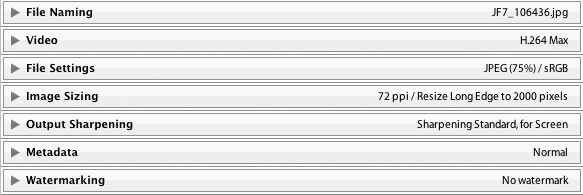
The next two sections shown in the example aren't included unless you specifically add them:

They're from my crop for iPad and Metadata Wrangler plugins; I use them in my exports to allow me extra control of what metadata is included in each exported copy, and in the case of my iPad portfolio, special iPad-specific crops so that some images better fill the screen.
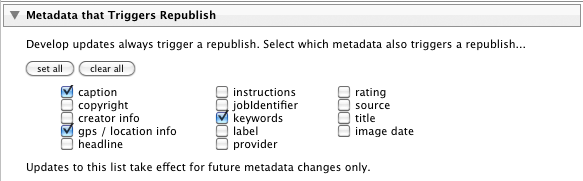
The next section controls what changes in Lightroom should cause published images to be slated for republish.
Then we have a plugin-specific seciton on file renaming that gives much more flexability than Lightroom's standard “File Naming” section, should you need it:
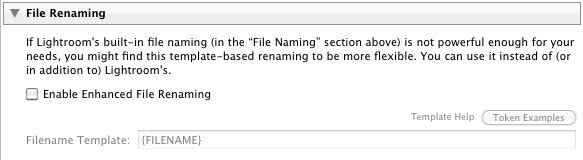
This allows you to have the files for the exported copies named derived from image matadata using template tokens that are processed on the fly for each image.
The next section provides a way to do an FTP sync of the published copies, should you need it. Photo-viewing iPad apps tend to allow updates via FTP sync, so this section is convenient for that.
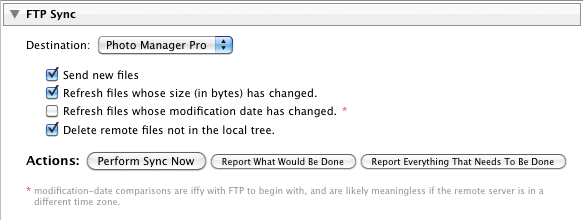
It's here as a convenient tool rather than an actual part of the configuration; the FTP sync is never automatic... it happens only when you launch it manually from the Publishing Manager.
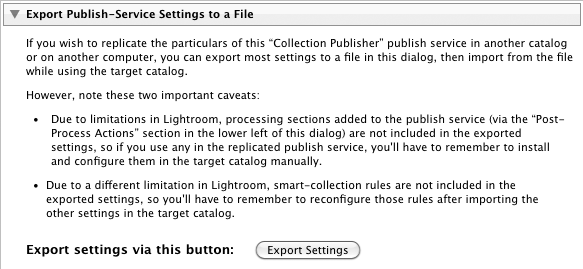
The plugin also provides a way to import and export settings, making it easier to set up comparable publish services on multiple catalogs (such as when part of your library is on your desktop, and part on your laptop, as is my case).
When first setting up a service, you'll have the ability to import settings...
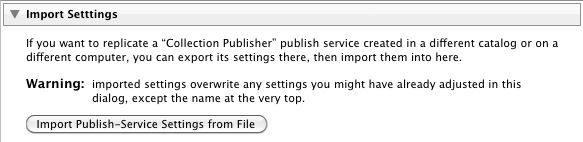
... but once it's been set up the first time, after that the section allows for export:
Collection Setup
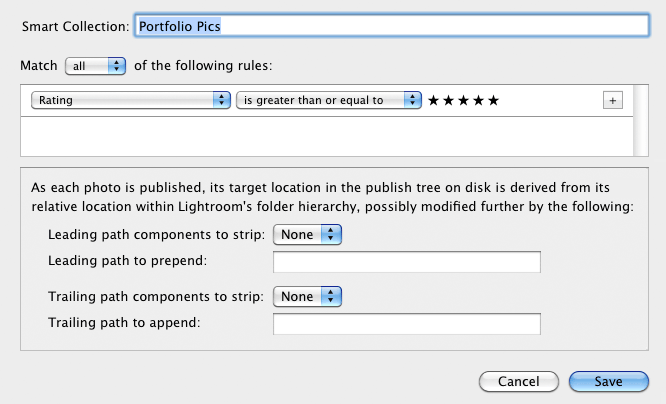
Once you've got the publish service created, you can drag images into the default collection, or you can create your own collections, including “smart collections” that identify images to include via rules (e.g. “all five-star images”).
The default publish location for any image in any collection is that its folder structure in Lightroom is replicated and placed starting at the root folder chosen when you set up the publish service. However, you can modify aspects of how image locations are mapped when you create/edit a collection:
Special "Smart Preview Export" Mode
The plugin, in Lightroom 9.2 or later, includes a special mode to export Lightroom's "smart preview" files, DNG-format reduced-quality (reduced-size) versions of the master original image files. These files include no Lightroom updates (image or metadata edits). This mode might be useful for a kind of lightweight backup.
This mode can be turned on only when a publish service is being created. For a publish service that has this mode active, standard publish options related to the export image files — format, size, quality, metadata, etc. — are still presented, but play no part in the actual publish operation because the plugin . (I would like to make them disappear just for this mode, but Lightroom's plugin infrastructure doesn't allow for it.)
This experimental mode has been hacked into the plugin in a pretty sloppy way, just to see whether it's useful. At this point, the publish service, like all publish services, moves edited files back into the "files to republish", even though such edits within Lightroom don't affect the published output of this plugin as they do all other plugins.
Availability
This plugin is distributed as “donationware”. I have chosen to make it available for free — everyone can use it forever, without cost of any kind — but unless registered, its functionality is somewhat reduced after six weeks.
Registration is done via PayPal, and if you choose to register, it costs the minimum 1-cent PayPal fee; any amount you'd like to add beyond PayPal's sliding fees as a gift to me is completely optional, and completely appreciated.
Note: a Lightroom major upgrade, such as from Lr10 to Lr11 de-registers the plugin in the upgraded version, so if you want to maintain registration, a new ($0.01 if you like) registration code is needed in the upgraded version. It makes for a hassle every couple of years, I know. Sorry. See this note for details.
For details on plugin registration and on how I came into this hobby of Lightroom plugin development, see my Plugin Registration page.
Version History
(
Update Log via RSS
)
| 20231011.129 |
CachedImagePreviewsFile token. Upgraded to the embedded copy of ExifTool to version 12.67. |
| 20230318.128 | Extra debug logging to try to track down an error. |
| 20230316.127 |
Some debug logging wasn't robust in the face of Lightroom's inability to render an image. |
| 20230210.126 |
Oops, wasn't working in very old versions of Lightroom. |
| 20230123.125 |
Fixed a bug in the edit-collection dialog. |
| 20220615.124 |
Found a bug with the setting of the file date on Windows. |
| 20220606.123 |
Upgraded to the embedded copy of ExifTool to version 12.42. |
| 20220516.122 |
Fixed a crash that happens when Lightroom can't render a DNG. |
| 20220309.121 |
Work around a bug in Lightroom 11.2 that causes publishing to get stuck. The workaround is to switch the view away from the collection being published. If the user does that switch manually, the bug goes away. This plugin update notices if the bug is being triggered, and if so, momentarily switches the view to the quick collection and back. Removed a bunch of debug logging that was slowing down the LUA token.Newline |
| 20220303.120 |
Added some extra debug logging. Added a button to recreate the target folder if it's not found. |
| 20220129.121 |
Added some extra debug logging. |
| 20220120.120 |
Whack-a-mole with PayPal's random changes. |
| 20220119.119 |
Added the WEEKNUM token, along with DAYNUM, weeknum, and daynum. |
| 20211219.118 |
Warn when PayPal seems to have given a bogus code in the web-confirmation page. |
| 20210721.117 |
Don't crash when the plugin is told not to handle videos, but a video is included in the export anyway. Fixed that the Province template token did not respect the plugin-specific geo-privacy settings. Upgraded to the embedded copy of ExifTool to version 12.25. Fixed an issue with the {Newline} token, and added {Comma}, {Hyphen}, and {Space} for good measure. Fixed a problem with filters on the {Keyword} token. |
| 20210503.116 |
Added an experimental Smart-Preview-Export Mode. Reverted the name-conflict workaround added in 20190815.103 for versions of Lightroom that have had that bug fixed. |
| 20210415.115 |
Added 'separated by' to the People token. |
| 20210302.114 |
Reworked the Keywords token to better accept filters. |
| 20210211.113 |
Fixed the plugin crashing in the face of a failed video render. |
| 20210116.112 |
Try to work around filename issues on Windows when trying update the filesystem time. working around 'constant table overflow' error Added the ImageViewDirection and ImageViewBearing tokens. |
| 20201103.111 |
Added the PF filter to turn typographic fractions into plain-ASCII fractions. |
| 20201017.110 |
Updates for Lr10 Be more aggressive in trying to figure out the capture time of photos when trying to set the export file time to the capture time. Added the SpeedKnots token. Worked around an "unknown key captureTime" error. Added the {PlusCode} and {GeoHash} tokens. Handle FTP errors better. |
| 20200604.109 |
Added some extra debug logging. |
| 20200516.108 |
Oops, one wasn't offered the ability to change the root of the publish tree if the original folder no longer existed. |
| 20200421.107 |
Fixed a reporting error with the new find-misshing-published-photos feature. |
| 20200414.106 |
Added the ability to find missing published photos and have them marked for republish. Some of the filename-related tokens could be incorrect in rare situations. |
| 20200328.105 |
Fixed a bug WRT database access while moving the destination root. Work around a Windows bug related to canceling out of the registration dialog. Added some extra debug logging to note whether the plugin is enabled. |
| 20191029.104 |
Upgraded to the embedded copy of ExifTool to version 11.70. Added special {AbsSequenceFirst=####"} and {AbsSequenceAppend=####} tokens. Added the LensInfo template token. Updated the Exposure token to allow customization. More token work: added {Urls}, and updated {ISO} and {Copyright} to allow customization. Added the {RelativeFolder} token. |
| 20190815.103 |
Work around a bug in Lightroom related to filename conflicts (where two exported files have names that differ only in lettercase). Fixed the SST1 and SST2 tokens. |
| 20190801.102 |
Fixed a bug in the name-change scan. |
| 20190731.101 |
Updated the PublishCollectionName token (and CollectionNames and CollectionFullNames) to remove the MIRROR: prefix from the name that mirrored collections within my Collection Publisher plugin automatically get. |
| 20190708.100 |
Newline token. Fixed a problem related to template tokens and photos without capture times. Upgraded to the embedded copy of ExifTool to version 11.50. Added functions uc(), ucFirst(), lc(), and lcFirst() to the LUA token. |
| 20190514.99 |
Added the ability to notice when files have their filename or folder changed. Fixed an issue with {SequenceFirst}. Work around a bug that sometimes causes plugins to be disabled when starting Lightroom via clicking on a catalog file. Fix an "Unknown key: captureTime" crash. Added the GPSCoords token. |
| 20190308.98 |
Updated the keyword-related tokens to accept standard filters. |
| 20190307.97 |
Upgraded to the embedded copy of ExifTool to version 11.30. |
| 20190228.96 |
| 20190114.95 |
Added some extra debug loging. If the plugin's attempt to create a folder fails, try again a few times before actually reporting the failure. Added the PEOPLE variable to the LUA token. Fixed a problem with the SpeedKPH token. |
| 20181015.94 |
Updates for Lr8 (Lightroom Classic CC Version 8). Added the special PP() function to the {LUA} token. Added hierarchical options to the Keywords token. Try to work around a Lightroom bug related to photo timezones and how Lightroom handles accessing plugin data. |
| 20181004.93 |
Added the 'nicknames' modifier to the {People} token. Added the SST1, SST2, and SS3 tokens to the template tokens that the plugin understands. |
| 20180906.92 |
Try to avoid having unexpectedly-long error messages create too-big a dialog. |
| 20180803.91 |
Limit the amount of temporary disk used by Lightroom before handing files off to the plugin. |
| 20180608.90 |
Added some extra debug logging. Clicking on the version number in the Plugin Manager now copies version info to the clipboard Updated the PublishCollectionName token to allow numeric arguments along the lines of the CollectionName token. Added the folowing template tokens: {home}, {desktop}, {temp}, {pictures}, {documents}, IptcDateTaken Added the 'PCH' variable to the {LUA} tag. |
| 20180420.89 |
Fixed a bug when 'Token Examples' invoked in certain situations. Added a bunch of token filters: F2D F2S F2X B2D B2S B2X S2X A2D A2S A2X |
| 20171229.88 |
Updates to the data templates that my plugins understand: updated the Keywords token, added CollectionNames and CollectionFullNames tokens, and added a bunch of stuff (KWf, CN, CFN, CNf, CFNf) to the {LUA} token. |
| 20171019.87 |
Oops, more Lr7 stuff. |
| 20171019.86 |
Updates for Lr7. Better handle some character-encoding issues related to template tokens. Allow the "If Exists" feature of Templat Tokens to work with the PluginProperty token. Update registration support to handle a stupid bug at PayPal that PayPal refuses to fix )-: |
| 20170705.85 |
Fixed a bug introuded the other day in template tokens, related to Windows filenames. Added extra debug-logging to track down a timing issue. |
| 20170621.84 |
Added the Newline template token. Enhanced the FolderName token Added the "only if it has a value" feature to template tokens. |
| 20170309.83 |
Added the following tokens to the template tokens that my plugins understand: Artworks, ArtworkTitle, ArtworkCopyright, ArtworkSource, ArtworkCreator, ArtworkDateCreated, ArtworkInventoryNum |
| 20170224.82 |
Couldn't set the exported-copy file date older than about 50 years ago; fixed. |
| 20170216.81 |
The rules about what characters are disallowed in a folder name were too aggressive, so relax them. Fixed a bug with the keyword tables in the LUA token. Added Weekday, Wday, weekday, wday, and ISO8601Date to the list of template tokens that my plugins understand. Switch the log-sending mechanism to https. |
| 20160905.80 |
Better support for network shares on Windows. |
| 20160828.79 |
Added the following tokens to the templates that my plugins understand: {FilenameNumber}, FileModYYYY, FileModYY, FileModMM, FileModDD, FileModHH, FileModMIN, FileModSS, FileYYYY, FileYY, FileMM, FileDD, FileHH, FileMIN, FileSS. |
| 20160430.78 |
Fix to get around a Mac display issue with Lr6 on OSX. Added Russian-langauge support for the People-Support Added more debug logging to track down some issues. |
| 20160217.77 |
Added ChildOf and DescendantOf filters to the {Keywords} and {KeywordsAll} template tokens that my plugins understand. Fixed how custom {People} formatting works with people keywords that have no birthday associated with them. Try to avoid yet another place where Lightroom gets hung because it can't handle certain kinds of dialogs at the same time. |
| 20151115.76 |
If there's an error exporting one particular image, try to continue with others and merely have Lightroom report a summary of errors at the end. Added support for sequence numbers on publish. See the "sequence numbers" link in the "Enhanced File Renaming" section of the dialog. Added {SpeedKPH} and {SpeedMPH} to the list of template tokens supported by my plugins. The {People} token wasn't working properly for some keywords without a registered birthday. |
| 20150831.74 |
Allowed the Enhanced File Renaming to actually create sub-folders under where an image would normally be placed. |
| 20150517.73 |
Fixed the "SpecPeople:259: attemt to index al nil value" error. |
| 20150222.72 |
If the root folder of the publish tree had a very long name, the view/change buttons would be pushed off the edge of the screen. |
| 20150219.71 |
In the "Enhanced File Renaming" section, add the ability to override the extension on the exported filename. |
| 20150206.70 |
In the POODLE-vunerability dialog, display a raw URL of a page on my site that discusses the issue, so that folks can be independently sure that the dialog is indeed from me and not malware. |
| 20150131.69 |
Updated the camera-name code to try to guess the actual camera model of Hasselblad H5D files, since in their infinite wisdom Hasselblad decided to encode three distinct models with the same internal code, making it impossible to know for sure what camera produced a given image file. |
| 20150103.68 |
Fix to the date_diff() function supported by the LUA template token. |
| 20141215.67 | Added a bit more debug-logging for when a file copy can't be done. |
| 20141019.66 | Windows Only: Add a one-time check for the POODLE security vulnerability, and alert the user if it exists. |
| 20141005.65 | Clicking on the blank area next to the upper-right [Publish] button caused an error dialog to display. |
| 20140923.64 | Added the LrMD5, LrLocalization, LrSystemInfo, and LrMath packages to the {LUA} template token. |
| 20140922.63 | Workaround for a Lightroom bug that causes the plugin to croak on certain folder names. |
| 20140920.62 | Some extra debug logging to track down a problem. |
| 20140902.61 | New build system |
| 20140802.60 |
Made the {GPSAltitude}, {Altitude}, and {GPSCoordinates} tokens subject to the geo-privacy settings like the other geo-related tokens. |
| 20140731.59 | Registration fix for Lr5.6 |
| 20140720.58 | More Creative-Cloud support. |
| 20140715.57 |
Fixed an issue with Creative-Cloud revalidation. |
| 20140712.56 |
Lr5.5 and later Creative-Cloud installs can now revalidate themselves if needed. |
| 20140710.55 | Sigh, had a bug in the Creative-Cloud support. |
| 20140708.54 |
Now supports Lr5.5+ Creative-Cloud Installs. |
| 20140704.53 | Sigh, introduced an error for some folks with the rebuild the other day. |
| 20140630.52 | Build-system update |
| 20140613.51 |
Added date_diff() and raw_time_diff() functions to the special {LUA} token understood by the plugin. |
| 20140612.50 | Under some error conditions plugin would crash instead of presenting the proper error message. |
| 20140509.49 |
Added new tokens to the template language the plugin understands: LrVersion, LrVersionMajor, LrVersionMinor, LrVersionRevision, LrVersionBuild, Location, CatalogName, CatalogPath, OperatingSystem, OS Added new token filters: NS and LO |
| 20140423.48 | Fix a location-related template-token bug introduced in a recent build. |
| 20140422.47 |
Fixed a bug in the "smoother revalidation" stuff recently added. |
| 20140417.46 |
Enhancements to the FTP stuff: take care not to work with "." and ".." that some servers return. The {Empty} template token wasn't working properly. Make the revalidation process smoother, especially for folks using Lr5.4 and later. |
| 20140410.45 |
Added an option to limit the overall depth of the publish tree. |
| 20140321.44 |
Internally track whether exports are via the master image or via a smart preview. In the future this may allow for a "republish those for which a master is now available" feature. Worked around a mysterious "attempt to get length of a nil value" bug. |
| 20131213.43 | Added {PublishCollectionName}, {PublishCollectionDepth}, and {PublishServiceTitle} tokens to the preset templates. See template-token web page for important restrictions. |
| 20131102.42 | Update for OS X Mavricks |
| 20131010.41 | Yikes, it seems that version 20130905.36 broke the "Metadata that Triggers Republish" section, clearing all items you might have had set (well, all but Caption). Sorry about that. Please visit the "Metadata that Triggers Republish" section to reconfigure to your liking. |
| 20130926.40 | Oops, fix a bug introduced in the previous update |
| 20130925.39 |
The 'Template Examples' dialog had been broken. Deprecated 'Folder' and 'Path' tokens in preference to 'FolderName' and 'FolderPath' tokens. |
| 20130923.38 |
Added a bunch of tokens to the preset templates supported: ExportFormat, ExportColorSpace, ExportBitDepth, ExportQuality, ExportSharpeningLevel, ExportSharpeningMedia, IpernityUrl, GoogleDriveUrl, and TumblrUrl. Additional debug logging. |
| 20130909.37 |
Work around a Lightroom bug concerning the determination of whether a photo is offline. |
| 20130905.36 |
Respond more gracefully when enhanced file renaming can't come up with something valid. Added an "Ask" option to the "Export with Smart Previews?" section, so one can be alerted to the situation at each export. Fixed the KW/KWE tables in template tokens; they had been broken when using load for the script. |
| 20130708.35 | Fixed a crash during certain file-renaming attempts where originals no longer existed. |
| 20130630.34 |
When "Format" is "ORIGINAL" (meaning to spit out the original image pixels with new metadata, instead of the developed version with new metadata), the plugin didn't handle XMP sidecars properly at all. Now it does. You now have control over the file time of exported copies (set to the image capture time, or the time of export). |
| 20130620.33 | Allow published copies to remain on disk even if a photo is deleted from Lightroom. |
| 20130613.32 | Better support for plugin revalidation. |
| 20130612.31 | A failure for the plugin to copy a file on disk resulted in a plugin crash instead of the appropriate error message display. |
| 20130612.30 |
Added the ability in Lr5 to export images even if the master image file is not available, so long as there's a smart preview available. |
| 20130611.29 | Yet another Lr5 update |
| 20130610.28 | Final update for Lr5 |
| 20130513.27 | More changes for the root-selection problem... really seems to be a bug in Lightroom, but it's hard to tell because I can't replicate the bug myself. |
| 20130501.26 | Update for Lr5 |
| 20130412.25 | Build system update. |
| 20130329.24 |
More with with the code that handles changing the root of the publish tree. |
| 20130220.23 |
Added support for some new template tokens: FlagStatus (requires Lr4.1 or later), and for Lr3 and later, a bunch of IPTC extended metadata: AdditionalModelInfo, CodeOfOrgShown, DigImageGUID, Event, ImageSupplierImageId, MinorModelAge, ModelAge, ModelReleaseID, ModelReleaseStatus, NameOfOrgShown, PersonShown, PlusVersion, PropertyReleaseID, PropertyReleaseStatus, and SourceType. |
| 20130209.22 | More build-system maintenance |
| 20130206.21 | Tweak for my registration system |
| 20121210.19 | Added some extra debug logging. |
| 20121024.18 | Allow Video to be FTP'd as well. |
| 20121009.17 |
Workaround for an "attempt to call field 'getProgressScope'" bug introduced in Lr4.2. Disallow DPX video export because it breaks things. Enhance the {EMPTY} template token so that it interrupts the squelching of superfluous joining characters. |
| 20121004.16 | Oops, the file-extension thing got worse, not better... reverting that change. |
| 20121003.15 |
Work around a "situation" (likely Lr bug) where exported video loses its file extension. More debug logging for the elusive "no root folder" problem. |
| 20120821.14 |
Updates to the environment in the {LUA} token (in the template tokens in my plugins) to include photoTime() and currentTime(), and other changes to match the updated docs at that link. . |
| 20120810.13 | Added some debug logging to try to track down an error |
| 20120722.12 | More debugging for the "choose a root folder" bug that seems to still affect a few folks. |
| 20120531.11 | Oops, I was moving the original XMP file (when the Publish format was "Original" instead of copying it. Fixed. |
| 20120529.10 |
Finally tracked down why the plugin had problem with Windows network shares. Ended up filing three separate bug reports with Adobe, but in the end was able to work around the bugs, so hopefully it's working now. Update to handle the Mac App Store version of Lightroom. |
| 20120510.9 |
Tweak for Lr4.1RC2. Added the ability to move/reset the root folder. As a byproduct, this should allow the "choose a root folder" situation to be repaired. In some crazy file-renaming situations, the plugin could get confused about the file extension. Enhanced the send-log dialog to hopefully make reports more meaningful to me, yielding, I hope, the ability to respond more sensibly to more reports. Added to the template tokens supported by the plugin: {FullMasterFile}, {FullMasterFolder}, {FullExportedFile}, and {FullExportedFolder} |
| 20120330.8 | Update to handle 4.1RC |
| 20120315.7 | Add some extra debug logging to try to track down some network-folder errors. |
| 20120309.6 |
Update to the debug logging to better track down timing issues that might arise. |
| 20120228.5 |
Wasn't handling some kind of file-rename templates properly. Now handles things much more gracefully when some files are offline when the publish is started. Better support for video in Lr4. |
| 20120224.4 | A few bug and Lr4 fixes, and some extra debug logging. |
| 20120217.3 | Didn't handle XMP sidecars correctly when publishing original raw files. |
| 20120217.2 | Discovered why "metadata that triggers a republish" wasn't reliable, and fixed it. |
| 20120213.1 | Initial release, evolving from my earlier tree-publisher plugin, which dated back to the summer of 2010. |
Is it possible to use template tokens in the elements of the path which will be prepend or append to the root path as provided in a given collection settings? I tried to use {YYYY} , but this template was not resolved into actual years when I kicked off publishing. What is wrong? Thanks!
No, sorry, template tokens are not supported there. I wanted to have them supported, but I ran into some technical problems in how Lightroom allows plugins to access photo data, and wasn’t able to resolve them. )-: —Jeffrey
I want to report a bug with unicode folder names, and feature of setting file date.
To reproduce:
– Publish a video file that reside in folder that contains unicode characters (I suppose it also reproduces with jpeg).
– In publish settings, select “Explicitly set date to photo capture date”
– The exported file will get current date set as file creation date.
– In log, there appears error with “setdate: bad arg pair time”, I suppose due to file name.
Will be grateful if you look at it.
log = “Start of execution
ARG[1451046154]
ARG[D:\Pictures.publish\My Photos\2015-12-25 ???? ??????\MVI_0155.mp4]
No conversion needed for: D:\Pictures.publish\My Photos\2015-12-25 ???? ??????\MVI_0155.mp4
d:\Pictures\Lightroom\Plugins\folder-publisher-jfriedl.lrplugin\setdate: bad arg pair time[1451046154] file[D:\Pictures.publish\My Photos\2015-12-25 ???? ??????\MVI_0155.mp4]
”
status = 1
Can you send the full plugin log, as described here? Thanks. —Jeffrey
I have problems to publish my photos of a sub-folder in the same personalized order, when I select different origins. I mean, I select for publication the folder of the year, with different months and topics inside. The customized order of my photos in each topic is lost during publication.
Is there some way to keep the photos in my custom order?
Thank you very much.
It’s almost impossible. The plugin publishes photos in the order that they’re presented in Lightroom, but the ordering that the copies are made for local disk is not usually reflected in how the OS (Finder or Windows Explorer) presents photos in a folder. Usually it’s done via filename sort, so if you arrange for output filenames that sort in the same order as the order you want, it’ll work, and this is pretty easy using the “Extended File Renaming” tools of the plugin, but then it all falls apart once new photos are added, since the plugin won’t rename older photos to account for the reordering. It’s a tough nut to crack. —Jeffrey
Hello,
I sent a message before but I’m not quite sure if you got it. Using the watch folder system. Can I have one file go in and export the same file but with many different profiles applied to that one photo.
So another words. One photo goes in. 20 photos come out and each photo has a unique profile apply to it.
Thanks
No, sorry, I can’t think of any way to do this. You’d need to make 19 virtual copies, apply the develop presets to them, and somehow (perhaps via keywords and smart collections?) get them into different publish collections for export. It might be possible with a custom plugin, but I’m not sure. —Jeffrey
Is there a possibility to publish multiple folder trees with different image sizes? An example would be a full size export + a 4k export for quick browsing. Lightroom 9 introduced something called multi-batch exports – I wonder if that can work with a publisher plugin like this
Thanks for a great plugin, much better than anything else
You can do this by setting up multiple Publish Services, with the only difference between them the different image-size settings. It’d be nice if one publish service could do multiple sizes, but Lightroom doesn’t allow for it. —Jeffrey
Hi Jeffrey,
first of all – thanks for your work, the Folder Publisher plugin is exactly what I have been looking for.
However, after a few successful runs with small data sets it failed when I tried to apply it to a collection of ~25K items. It only published the very first item (which was a video incidentially) and then kept running and running without adding new items to the target folder on my external drive. It kept adding new converted items to the internal temp folder, however – I stopped the publishing process when this folder reached 1.3K items / 11.3GB. The temp folder name is a UUID without the enclosing {} that most other folders have.
I am running LR 6.14 on Windows 10. The issue seems very similar to the one Fraser reported on 2020-06-02. Did you find a solution for that one?
Thanks,
Martin
I’m going to guess that the 2nd item is a video that the system is crunching away on at the same time that less-crunch things are being generated by other threads. Lightroom can take a VERY long time on videos….days. Perhaps try without videos first? As for the buildup, the plugin instructs Lightroom to not render so far ahead, but Lightroom seems to ignore it. (If trying again without videos doesn’t solve it, perhaps send a plugin log with another recap once it’s gotten into that stuck state.) —Jeffrey
Hi Jeffrey,
I’m facing the same issue as http://regex.info/blog/lightroom-goodies/folder-publisher#comment-60302 since now several months. I’m not really able to export my folders since the export process stucks after the 1st or 2nd file.
I do have photos & videos. But I don’t understand the fact that this is a pure lightroom issue. If within lightroom I export a heavy video it does it within 10 seconds and 3 minutes, my computer including video card is optimized for photos & videos.
In this very precises moment, the plugin is running for 14 hours and still blocked (not sure if it’s blocked in the 1st or 2nd file), the log file timestamp of Folder Publisher hasn’t changed since now 13 hours. And Lightroom is using 0.3% of CPU. Overall my computer is using 2% of CPU. And I still have 10GB of free RAM out of 32GB.
I made a further test. I checked in the log file what is the last filename of a photo or video. It was a video, let’s say “video.m2ts”. Without stopping Folder Publisher export, I exported the video video.m2ts usinf File -> Export in Lightroom and it took 10 seconds.
What else can I do to troubleshoot ?
I’m using LR Classic 10.2 and plugin 20210302.114 (I upgrade regularly to see if the issue is solved).
Many thanks and kind regards,
Rafael
Greetings from North Carolina – your plugins are life-savors (zenfolio, geotag, folder pub).
Still using 6.14.
I think there’s a problem with recent version of Folder Publisher (20210302.114) as it no longer preserves the original file creation date no matter how it is set in the settings menu. Explorer shows it as the current date and time. Folder set is created on a Synology NAS which confirms what Explorer shows.
Reverted back to 20201103.111 which works just fine. Looking at my files it seems to have changed after December 25. Also shows that I installed two updates since then (20210116.112 and 20210211.113) but I have not checked them to see what they do (but I can if it’s helpful).
Would you mind sending a plugin log with .114 after a failure to set the time? Thanks. —Jeffrey
Just downloaded / installed Export Publisher in LR Classic R10.2 and pointed Plugin Manager to the folder-publisher-jfriedl.lrplugin folder. The Plugin Manager shows the plugin and related graphics, but the new plugin is not displayed in the Export To drop-down list. Restarting LR and reinstalling the plugin didn’t resolve the issue.
What steps did I miss?
Thx –don
That plugin is a Publish-only plugin; it’s not applicable to Export. You’ll find it in the Publish panel, in the lower-left of Library. —Jeffrey
Dear Jeffrey
A few days ago I’ve sent a message regarding the issue http://regex.info/blog/lightroom-goodies/folder-publisher#comment-60302.
I’ve done a few more tests for troubleshoot. Among all the tests I’ve done, here you are one that could help : a run was blocked for more than 24 hours on a single video. I stopped and restarted then 5 times, and it still was blocked on the same video. I had then the idea to remove the files from the jFolder Published collection, and add them again. I ran well, less than 10 seconds per video.
It seems then than sometimes a file stay in a wrong state in the plugin. Removing the files and adding them again solves the issue. Until next time, of course.
If I can investigate further please let me know.
Best
Rafael
That’s some good sleuthing. Unfortunately, the “stuck” is happening within Lightroom itself, and not the plugin, so there’s not much I can do. If you can replicate the problem in a small catalog, perhaps you could send it to me so that I can try to replicate it here (or send it to Adobe so that they can replicate it, which would be the ideal way toward a solution). —Jeffrey
Please setup your https:// website redirection – modern Firefox (86)+ forces https – and your website can no longer be accessed as that is just a blank holding page!
Try turning “HTTPS-Only Mode” off. HTTP and HTTPS servers are separate, just like HTTP and FTP, so blindly assuming that they are the same seems ridiculous. I’ve had separate trees on them for two decades and merging them is not reasonable. —Jeffrey
Hello Jeffrey,
I have been using the plug in LZA HDD TREE for many years. It has not been supported for a long time, but it still works with Lightroom Classic.
I would like to use your Folder Publisher as it has some very good features. For example, the scan for changed file names and folders.
What I personally miss and what is important for me would be the option of LZA HDD TREE to delete leading folders. E.g. to export the folders and files in D:\Pictures\2021\Africa to the existing folder “Pictures” on a network share. This must then look like \\server\Pictures\2021\Africa.
The export path must therefore be shortened by “1” directory. The number is selectable.
LZA offers an extensive selection of metadata fields, which should cause or prevent a new publication. This is very helpful.
Do you know LZA HDD TREE. If not, please write me how I can send it to you. It can no longer be found on the internet.
Best regards
Rainer
Translated with http://www.DeepL.com/Translator (free version)
Folder Publisher can ignore leading components: it’s an option on the “Create Collection” dialog. —Jeffrey
Good morning Jeffrey,
Your Folder Publisher Plugin works very nicely for me and I have 50k+ pics. So to maintain full functionality going forward, I tried to register the “Folder Publisher” Lightroom plug-in and received an error saying “The plugin is not able to contact Jeffrey’s server”. I am sure I have internet connectivity from my machine, and I am hoping you can help me complete the registration now that I have donated 😉
Thank you.
Best,
Peter
Perhaps it was some kind of temporary problem between you and me? Or, as per this FAQ, it could be some kind of security app on your system blocking Lightroom. I’ve had no other reports of problems recently…. —Jeffrey
Hi,
another one from me:
I use the Folder Publish plugin to automate exporting images for my clients. I have a hierarchical keyword tree in the fashion of
META > customer > Jeffreyfor that.Using the enhanced Renaming Feature of this plugin, I use that Keyword to create the directory path, where the export should be stored:
{Keywords:ChildOf=customer}/{FolderName}/{PublishServiceTitle}/{FILENAME}resulting in the image being stored as,
Export Folder/Jeffrey/20210713 Fancy Job/Web/Super Cool image 1234.jpgSometimes it happens, that I sell an image to multiple customers. In in that case, I’d like to be able to just tick another box for another keyword, re-publish some collections and everything is fine, say I add
META > customer > ABC News.Currently, the Keyword Token takes all keywords that the filter applies to and creates a comma separated list of them. Because of that, images with multiple customer keywords are exported as
Export Folder/ABC News, Jeffrey/20210713 Fancy Job/Web/Super Cool image 1234.jpgIt would be really cool, to have a second keyword token that behaves differently. Instead of returning a string containing all possible keywords, it would create an array of exports to make, like
Export Folder/ABC News/20210713 Fancy Job/Web/Super Cool image 1234.jpgAND
Export Folder/Jeffrey/20210713 Fancy Job/Web/Super Cool image 1234.jpgIs Lightroom capable of doing this? It might be better to not export the image multiple times, but to export it once and then copy it.
You might be able to handle this with my Run Any Command plugin, if you can write a program that looks at the image metadata and can detect that it should have been written out to multiple places, and then make the appropriate copy/copies. —Jeffrey
Hi there, sorry to bother you. I’ve been using folder publish for years, on huge libraries (180k pics) with no problems.
No I have this error that can’t fix. I did everything:
“Cant update this collection.” warning window, with a file name (always video file, which I don’t include in the exports) and “it doesn’t seem to exist”.
And it halts.
Would you mind sending the plugin log when you next encounter this error? Could it be that the video is somehow included in the publish without you realizing it, such as being hidden inside a stack? —Jeffrey
From Elgin, IL. Have used still using several of your plugins. Excellent work and thank you!!
Question re “Folder Publisher”.
Working with it to better understand it before I buy and build too much yet.
You mention in the description:
“ The default publish location for any image in any collection is that its folder structure in Lightroom is replicated and placed starting at the root folder chosen when you set up the publish service. ”
Is that Folder Structure in Lightroom the structure in the catalog or structure I would build in the app?
I’m not understanding something.
Thank you sir!!
Sincerely
Scott
The plugin is free, so you can just give it a try, but in short the plugin replicates the folder structure that already exists on your disk, the one with your master images, as presented in Lightroom. —Jeffrey
Hi Jeffrey!
First, a big thank you for your precious work I appreciate for many years now.
I guess you know that LR 11 has been released and your plugins does not seem to work anymore with this new version. Do you plan to update them for LR 11? If yes, do you have a date?
Cheers
All my plugins should work in Lr11. Only very old versions of them might not. —Jeffrey
Writing from SW-Germany. You may look for “Folke Olesen” on Strava.
I use collction as well as folder publisher since year. For me a must have for lighroom and all worked well for years.
Current environment: Windows 10, Lightroom Classic 11, export to qnap NAS. All SW up-to-date.
The problem occurs in folder publisher with smart collections since some time, definitely before the update to Lightroom V 11:
– All colletions published one by one, works fine.
– Done some work on the photos and look into publication service. The section re-publishing is populated with photos without any reason the I can deduce.
– Clicking into the published photos, more appear in the section for re-publishing.
– Other sections like photos to publish and photos to remove are fine
I have the German version, here my translation: “re-publishing” = “Erneut zu veröffentlichende geänderte Fotos” and “published photos” = ” Veröffentlichte Fotos”.
Any idea what is going wrong? Any hint what to check/test? Would be great to fix.
Cheers Folke
Unfortunately, this is a known issue with Lightroom since Publish Services were introduced, though it’s not known what causes it, nor how to get around it. Images sometimes just magically move to the republish area. I’ve begged Adobe to add hooks to let me debug it, to no avail. )-: —Jeffrey
Hi Jeffrey,
Can you make it possible to use a relative path in the ‘ root of publish tree’?
example: ~/Documents/Tree instead of /Users/Me/Documents/Tree
In this case it would be easier when you have to transfer your lightroom library to another username
MTIA, Vaans
It’s not impossible, but I doubt it’s worth the work; how often does one need to transfer a library to another username? (Prior to your comment, I would have guessed “never”…) —Jeffrey
Hi Jeffrey,
Actual transfer is not needed that much. But when you share a library with two or more users (like on a Google Drive), than it would be very helpful to use relative paths. I think that scenario would occur more?
Vaans
Hi Jeffrey,
After having a corrupted LR-Catalog yesterday, I need to build up again from the old Catalog to a new one. Currently I’ve a Problem with Importing of the jf Folder Publisher.
I’ve set up 4 Publish Services. The export of these Services worked fine. Importing however gives some Problems. The first one worked smoothly (besides the fact that smart-collection rules are not included 🙁 ). It is not possible to import a second jf Folder Publisher Settings File, because there is only the option to Export the settings of the newly created second Service.
Is there a Solution or Workaround for this?
Best regards,
Sjoerd
The “import” option shows up only when creating a publish service, so right click on the first publish service’s title and choose “Create another Publish Service…” —Jeffrey
Jeffrey, I have not found a comment above with my same issue. I just upgraded to your latest version of Folder Publisher and I am not getting an exact match of the original LR file names when I have a duplicate filename in another folder somewhere. I have thousands of duplicate names across my LR catalog and am happy with this and really need this. This is a real killer to me that the file names are now changing – I was expecting this tool to create the identical file name structure after the export. Did I miss a switch somewhere to do this? Windows and LR have no issues with duplicate file names if in other folders, I am surprised the export feature has this issue. Maybe you already have a utility to fix the file names and will I have this same issue with duplicate folder names (like “misc”)? I am sure I am simplifying things but can’t your utility just start at the top folder and export the files and then go on the the next folder so it will not care about files in other folders?
Another question I have is about speed of this process. I have 90,000 photos that I have collected for 20 years so the early ones are 500KB .jpg and the last 25% or so are 24 to 43 MB .dng files. I have a I7/4.0GHz processor and 16GB memory and have only gotten through 50% of the export after 14 hrs – does this seem reasonable or is this due to all of the duplicate file names?
I appreciate any help you can provide for my issues.
George
The renaming done due to duplicate names is something Lightroom does under the hood before passing control over to the plugin. Internally behind the scenes, Lightroom dumps the exported files into one temporary folder, so it feels that they must be renamed to avoid one export clobbering the other, but it doesn’t feel strongly enough about it to actually let the plugin know that this has happened. However, if you just want the files to be named the same as their respective master, enable the plugin’s “Enhanced File Renaming” and use the {LibraryFilename} template, and that’ll get around the problem.
As for the speed, Lightroom seems to want to do a lot of background housekeeping, including comparing target names against all the others, and it doesn’t seem to be all that efficient as the number of files gets bigger. One way around it is to select a group of files (say, 10,000 at a time) and hold down the alt/option key to turn the [Publish] button into [Publish Selected], and do it in batches that way. It may end up being much faster. —Jeffrey
Just registered your Collection Publisher. Very useful. Thanks.
I’ve noticed that by mistake, I have a couple of images where the file name ends with a space eg filename .jpg. I’m finding that those files have been published as filename_.jpg
I did some digging, and it seems that this is a Lightroom artifact. You can get around it by using “{LibraryFilename}” in the extended-renaming section of the publishing dialog. —Jeffrey
Is there a way to manually mark images for Republish? I just changed the GPS data for a group of images. But since I didn’t have “GPS” as one of the triggers that causes republish, it didn’t notice the change. I changed the trigger so that *next time* it will notice the change, but I have no way to manually mark that group for republishing.
Select them, right click, and choose “Mark to Republish”. —Jeffrey
Hi, sorry to disturb. I am wondering if I can use this to solve, or at least address, something I’m a bit stuck on.
Using Plugin to Copy Filtered/Selected Original Picture Files to Mapped Cloud Drive
I have about 2TB of pictures (on a NAS), and a small number of LR catalogs (v6.14, on Windows 10 PC) indexing them. The catalogs don’t overlap. I have enough cloud storage to hold a backup of only some of the pictures. Bandwidth is also rather a limitation. So what I’d like to do is “publish” the original image files, in folder structure, but only according to a LR filter like two stars or above. That way I have a cloud backup of the best ones.
It’s quite possible you might point out a much better way of doing it. I’m fairly handy with batch files, and C++, but I suspect it would be a high-effort, low quality path.
Details: I have a batchfile/scheduler backup for the LR catalogs to NAS, and thence to Cloud. I think LR lets me filter pictures & publish. I understand that plugin uses LR’s folder structure not the disk’s – that’s fine, mine are very similar. I gather from other comments you can gracefully reapply duplicated file names (common in my partner’s case).
I don’t understand at present if your plugin can unconditionally “publish” the files in their *original* form, obviously that’s vital in my case.
Does that make sense? Do you think the plugin is appropriate for the job?
Many thanks if you can help, sorry for wasting your time if not!
Cheers
The plugin can’t do what you’re looking for, sorry. There’s a Smart-Previews-Export mode that is sort of close. Or, you could set the File Format to “ORIGINAL”, which in Lightroom inexplicably means “original undeveloped pixels from the master file, with updated metadata from the catalog”. Neither is exactly what you’re looking for. However, I bet you could get exactly what you want by having the plugin export low quality versions of the images, and then use my Run Any Command plugin to copy over the master source image file to the target destination. It might be worth a shot. —Jeffrey
Hi ,
unfortunately process after app. 20 pictures still stops. I use lightroom 11.2 (Win11) and your latest version of folder publisher. I can only start process again when I close LR and open it again. Any hints to improve ? E.g. settings in LR ?
Best regards
Thomas
I’m told that this bug will be fixed in the next release of Lightroom (which is hopefully soon!) —Jeffrey
Folder Publisher has stopped working for me. I am trying to publish a little over 6000 photos. When started, it publishes about 6 photos and then stops converting. Windows 11’s task manager shows that that all 20 cores of the CPU are running at 100% and that the source hard drive is readingat a rate of 30 to 70 megabytes per second and 100% active time. The destination drive, however, shows no activity. If left to continue a long time, Lightroom usually crashes. The crash in the event viewer states this:
Faulting application name: Lightroom.exe, version: 11.4.1.1, time stamp: 0x62b5cdb3
Faulting module name: ntdll.dll, version: 10.0.22000.708, time stamp: 0xb998b765
Exception code: 0xc0000374
Fault offset: 0x000000000010c729
Faulting process id: 0x393c
Faulting application start time: 0x01d8938ce67c86b4
Faulting application path: C:\Program Files\Adobe\Adobe Lightroom Classic\Lightroom.exe
Faulting module path: C:\WINDOWS\SYSTEM32\ntdll.dll
Report Id: fec0f8d5-6003-4bf9-9eeb-a583a2e2b071
Faulting package full name:
Faulting package-relative application ID:
The version of Lightroom that I am using is 11.4.1.
Any suggestions?
Frank
I’m getting some reports that Lightroom 11.4 is crashing when trying to publish large groups of photos. With any plugin. I’ve heard that reverting to 11.3 fixes the problem. Please submit crash reports to Adobe… I don’t have the skill to debug actual crashes. Be sure to mention that it worked in 11.3 and now fails in 11.4, as that kind of bug is one that gets their attention. —Jeffrey
Just made a PayPal, payment, I’m from essex England, if I pay as a gift payment it’s usually free but as it’s a different currency PP charge the same as the donation in fees, horrendous, so sent as a normal transaction, which you pay a fee but I am told it’s only 1.2% so I added extra on to cover it, good luck, the plug in works amazing, did take me all day to work out how to do it…though
Hi Jeffrey, question for you – I changed settings in my jf Folder Publisher and started creating duplicates in the root folder instead of updating the existing files. So I just created a new root folder and populated it from scratch – but now, when I modify an image keywords, it lists it as “For Publishing”, goes through the motions, but doesn’t seem to update the keywords in the image in the root folder to reflect the new keywords (it did that correctly before). How do I troubleshoot this? Many thanks!
Perhaps send a plugin log after encountering the bug. In the log note, be sure to identify the full path of the image in question, and describe clearly the how what happened differs from what you expected. —Jeffrey
Hi Jeffrey,
I’m very happy with the plugin. But still have a question.
I want to change the path of the published photo’s. But the rename option of both Lightroom and your plugin seem to change only from the level of the file downward. Both retain the full structure that the Lightroom catalog knows. What I’m looking for is: {publish root folder}{self defined folders}{photo file name}
For example, looking for something like:
c:\{PublishServiceTitle}\{PublishCollectionName}\{FolderName}\{FILENAME}
And nothing more in between.
Kind regards,
Martin
This is exactly what my Collection Publisher plugin does. —Jeffrey