


· Photographer's Toolbox
· alloy photo
· John Beardsworth
· Capture Monkey
· lightroom-plugins.com
· Adobe Addons
metadata-viewer-20231011.82.zip
· FAQ
· Version History
· Update Log via RSS

· Installation instructions
· “Donationware” Registration Info
· More Lightroom Goodies
· All-Plugin Update Log via RSS
· My Photo-Tech Posts
· My Blog
This plugin for Adobe Lightroom Classic allows you to easily view the metadata in the master image file of a photo or video in Lightroom's catalog. It's not as pretty or convenient as the metadata display on the right-side panel in Library, but it shows all the data in the master image, so is perhaps at times useful.
This plugin works in Lightroom Classic, and older versions as far back as Lightroom 3, though some features depend on the version of Lightroom.
The same download works for both Windows and Mac. See the box to the upper right for the download link (in orange) and installation instructions.
Installation
First, download the plugin using the link in the upper-right corner of this page, and unzip it to a location on disk where you'll keep it.
Then follow the normal Lightroom plugin install instructions to install and enable the plugin in your copy of Lightroom.
Using
With a photo selected, invoke
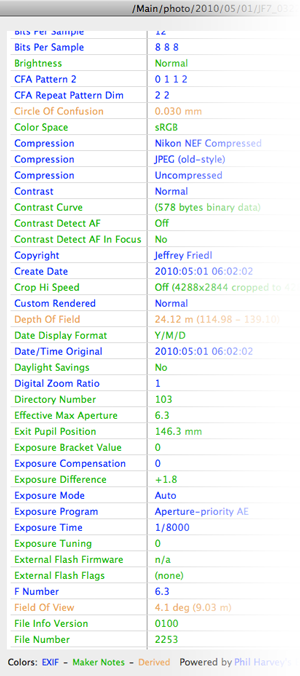
and a dialog will pop up listing all metadata that can be found in the image.
The plugin uses Phil Harvey's amazing ExifTool library under the hood. It's very good at gleaning metadata from an image file, and increasingly so for video files. It's the same library I use for my Online Image Metadata Viewer, though that web-based viewer does much more work to present the data in an informative fashion. Such efforts are not needed here because the most interesting data can already be shown in the Metadata Viewer panel on the right side of the Library Module (and you can use my Metadata-Viewer Preset Editor plugin to configure just what you want to see).
The only reason to use this plugin at all is to see data that Lightroom doesn't expose. There can be plenty of it, though the amount differs greatly depending on the image source and its processing prior to arriving in Lightroom.
As you can see at right, the metadata is just dumped out in tabular form. You can mouseover each item to see more details about what section of the metadata it was found.
There's ample opportunity to enhance how the data is shown, but I'll wait to see how popular the plugin becomes before I spend much effort on the frills.
Keyboard Shortcut
Windows users of Lightroom 3 or later can use ALT-F S M to bring up the viewer on the selected image. Windows users of Lightroom 2 can do the same after doing the setup described on this page.
Mac users can create any keyboard shortcut they like in the system Keyboard Preferences. I use Command-M. With Lightroom 2, the “Menu Title” is “View Master Image Metadata”, but in Lightroom 3 and later you have to add three spaces at the beginning, to account for the three spaces that Lightroom adds for the indentation in the menu. Thus, on Lightroom 3 and later, you would use “◊◊◊View◊Master◊Image◊Metadata” (where ◊ represents a space).
Availability
This plugin is distributed as “donationware”. I have chosen to make it available for free — everyone can use it forever, without cost of any kind — but unless registered, its functionality is somewhat reduced after six weeks. Registration is done via PayPal, and if you choose to register, it costs the minimum 1-cent PayPal fee; any amount you'd like to add beyond PayPal's sliding fees as a gift to me is completely optional, and completely appreciated.
For details, see my blog post titled Lightroom Plugin Development: Now With Added Encouragement. If you're interested in how I picked up a plugin-development hobby like this, see My Long Path To Lightroom Plugin Development.
Note: Registrations in Lightroom 2 do not carry forward to Lightroom 3.
As I mentioned above, this plugin relies heavily on the ExifTool library, so I have decided to pass along half of any gifts related to this plugin to the ExifTool library's author. If you choose to send a gift when you register, it'll be handled automatically, but if you send a gift any other time (they're always welcome 🙂 ), please let me know so I can share your kindness with Phil. In either case, a big thanks from Phil, too.
Version History
(
Update Log via RSS
)
| 20231011.82 |
Upgraded to the embedded copy of ExifTool to version 12.67. |
| 20230406.81 |
Some of the new masking things in Lightroom have huge amounts of binary data not clearly apparent as binary data, and this is causing the dialog to lock up. Now marking any long text as "binary data" to avoid this. |
| 20220611.80 |
Try to get it working on Windows again. Also, use more of the screen real-estate for the dialog. Plugin dialogs in Lightroom are a nightmare. |
| 20220606.79 |
Upgraded to the embedded copy of ExifTool to version 12.42. |
| 20220120.78 |
Whack-a-mole with PayPal's random changes. |
| 20211219.77 |
Warn when PayPal seems to have given a bogus code in the web-confirmation page. |
| 20210613.76 |
Had to revert ExifTool to version 11.70 for the time being, until I can get 12.25 working on Windows. |
| 20210514.75 |
Upgraded to the embedded copy of ExifTool to version 12.25. working around 'constant table overflow' error |
| 20201017.73 |
Updates for Lr10 Work around a Windows bug related to canceling out of the registration dialog. Added some extra debug logging to note whether the plugin is enabled. |
| 20191011.72 |
Upgraded to the embedded copy of ExifTool to version 11.70. |
| 20190430.71 |
Upgraded to the embedded copy of ExifTool to version 11.30. |
| 20181015.70 |
Updates for Lr8 (Lightroom Classic CC Version 8). Upgraded to the embedded copy of ExifTool to version 11.01. Clicking on the version number in the Plugin Manager now copies version info to the clipboard |
| 20180321.69 |
Added a help blurb to describe the "|" feature added in the previous version. Clicking on the "Search" label now brings up a help window. |
| 20180319.68 |
The dialog search box can now accept multiple search terms by having them separated with "|", e.g. "lens | aperture" to search for items with either "lens" or "aperture" in them. |
| 20180306.67 |
Upgraded to the embedded copy of ExifTool to version 10.82. |
| 20171019.66 |
Oops, more Lr7 stuff. |
| 20171019.65 |
Updates for Lightroom 7 |
| 20170911.64 |
Try to separate info about THE image from info about embedded thumbnails/previews/etc. When a field's value is "binary data", try to figure out what format that data is (JPEG, XMP, TIFF, etc.) The "copy metadata to clipboard" action now copies as proper utf8 on Mac. |
| 20170723.63 |
You can now switch between displaying the descriptive tag name (in whatever language you've selected), or the ExifTool tag code. Upgraded to the embedded copy of ExifTool to version 10.55. |
| 20170509.62 |
Include info from the system about the file, such as last-update time, Finder tags, etc. Lightroom doesn't give useful info to the plugin about the screen resolution on Windows, unfortunately, so try to get around too-big a window with some heuristics. |
| 20170424.61 |
Upgraded to the embedded copy of ExifTool to version 10.26. Switch the log-sending mechanism to https. |
| 20160624.60 |
Upgraded to the embedded copy of ExifTool to version 10.20. Handle filenames that include a double quote in them (OSX). Added some extra debug logging. |
| 20160121.59 |
Add some extra debug logging to try to track down a display issue. Try to avoid yet another place where Lightroom gets hung because it can't handle certain kinds of dialogs at the same time. |
| 20151103.58 |
The display of metadata was not well formatted under Windows. Not sure whether it was due to a bug in Windows, Lightroom, or my plugin, but I seem to have worked around it. Crossing my fingers. |
| 20151029.57 |
Try harder to ensure that the "inspecting..." dialog closes before opening the results dialog. |
| 20151024.56 |
Include the ExifTool version number at the bottom of the result dialog. |
| 20151009.55 |
Upgraded to the embedded copy of ExifTool to version 10.00. The text hadn't been selectable (for copy-paste actions). It is now, at least to the extent that Lightroom allows. |
| 20150206.54 |
In the POODLE-vunerability dialog, display a raw URL of a page on my site that discusses the issue, so that folks can be independently sure that the dialog is indeed from me and not malware. |
| 20141219.53 | Registration was broken on Lr2 |
| 20141127.52 |
Upgraded to the embedded copy of ExifTool to version 9.76. |
| 20141019.51 | Windows Only: Add a one-time check for the POODLE security vulnerability, and alert the user if it exists. |
| 20140902.50 | New build system |
| 20140731.49 | Registration fix for Lr5.6 |
| 20140729.48 | Previous updates broke support on Lightroom 2 |
| 20140720.47 | More Creative-Cloud support. |
| 20140715.46 |
Fixed an issue with Creative-Cloud revalidation. |
| 20140712.45 |
Lr5.5 and later Creative-Cloud installs can now revalidate themselves if needed. |
| 20140710.44 | Sigh, had a bug in the Creative-Cloud support. |
| 20140708.43 |
Now supports Lr5.5+ Creative-Cloud Installs. |
| 20140704.42 | Sigh, introduced an error for some folks with the rebuild the other day. |
| 20140704.41 | Fixed crash on startup for some users. |
| 20140630.40 | Build-system update |
| 20140605.39 |
Language switching wasn't smooth on Windows. Upgraded to the embedded copy of ExifTool to version 9.60. |
| 20140422.38 |
Fixed a bug in the "smoother revalidation" stuff recently added. |
| 20140417.37 |
Upgraded to the embedded copy of ExifTool to version 9.53. Fixed a Windows dialog-layout bug. Make the revalidation process smoother, especially for folks using Lr5.4 and later. |
| 20140129.36 |
Upgraded to the embedded copy of ExifTool to version 9.46. |
| 20131024.35 |
Update for OS X Mavricks. Updated the Image::ExifTool library to version 9.39. |
| 20131011.34 |
Made it so that the header stuff won't get pushed off the visible page when the metadata includes very wide elements. Gave the UI a bit more love, especially on Windows. Updated the Image::ExifTool library to version 9.38. |
| 20130825.33 |
Updated the Image::ExifTool library to version 9.35. |
| 20130613.32 | Better support for plugin revalidation. |
| 20130611.31 | Yet another Lr5 update |
| 20130524.30 | Apparently, a recent change broke things on Lr2, which some folks apparently still use. |
| 20130501.29 | Update for Lr5 |
| 20130412.28 | Build system update. |
| 20130328.27 | Fix for the registration system. |
| 20130311.26 |
Now also display image metadata as it appears in the Lightroom catalog. Search now ignores the accent on characters (e.g. searching for “Voigtlander” finds “Voigtländer”) |
| 20130212.25 | Tweak for better display of very long filenames. |
| 20130209.24 | More build-system maintenance |
| 20130206.23 | Tweak for my registration system |
| 20130201.22 |
Upgraded to the embedded copy of ExifTool to version 9.15. |
| 20121106.21 |
Upgraded to the embedded copy of ExifTool to version 9.04. |
| 20120923.20 | Added a note about when the image was last edited in Lightroom. |
| 20120829.19 | Added the ability to copy metadata to clipboard. |
| 20120608.18 | Fix an "attempt to perform arithmetic on field" error. |
| 20120526.17 |
Update to handle the Mac App Store version of Lightroom. Tweak for Lr4.1RC2. Enhanced the send-log dialog to hopefully make reports more meaningful to me, yielding, I hope, the ability to respond more sensibly to more reports. Upgraded to ExifTool 8.92 |
| 20120330.16 | Update to handle 4.1RC |
| 20120309.15 | Had broken registrations in Lr2; Update to the debug logging to better track down timing issues that might arise. |
| 20120304.14 |
More on the march toward Lr4, including upheaval in the code to handle Lightroom APIs being discontinued in Lr4. |
| 20120114.13 | More tweaks for Lr4b |
| 20120112.12 |
Update for Lr4 beta: explain in the plugin manager that the plugin can't be registered in the beta. Updated Image::ExifTool to version 8.75. |
| 20111210.11 |
Had issues with the registration button sometimes not showing. Added a system-clock check and reports to the user if the system clock is more than a minute out of date. An incorrect system clock can cause problems with various kinds of communication and authentication with some of my plugins, so I've just gone ahead and added this to every plugin. |
| 20111030.10 |
Updated Image::ExifTool to version 8.68 When doing a plugin upgrade, offer the ability to flush all the old copies of the plugin. |
| 20110329.9 |
Consider metadata to be encoded as UTU-8 for display. Upgraded to the embedded copy of ExifTool to version 8.50. |
| 20100829.8 | Made the revalidation process much simpler, doing away with the silly need for a revalidation file. |
| 20100820.7 | Discovered a bug in my plugin build system that caused horribly difficult-to-track-down errors in one plugin, so am pushing out rebuilt versions of all plugins just in case. |
| 20100719.6 |
Added a search filter. Unfortunately, despite spending way too many hours trying, I couldn't figure out how to make the display scroll to the top when filtering, so if there are fewer results than fill up to the point you happen to have scrolled into view, nothing will be shown, making it look like there are no matching lines, rather than the reality that whatever matching lines are simply not scrolled into the current view. So take care to scroll to the top if the display looks empty. Upgraded the underlying ExifTool to version 8.25. |
| 20100626.5 | Was sorting the display on the wrong thing. Doh! |
| 20100625.4 | Yikes, shaking out some more build issues. |
| 20100624.3 | Discovered a nasty build bug; pushing a new version in case it affects this plugin. |
| 20100623.2 | Found a boo-boo right away. |
| 20100623.1 | Initial public release |
Hi I’m Greg from Kansas City, Missouri.
The Library module can be sorted by ‘added date’. Is there a way to specify photos that were added to the library on a specific date? Where does LR store this information?
Thanks,
Greg
That data is not exposed anywhere that I know, except of course via the sort selection you sited. —Jeffrey
Hi yea, It would be great were you to minipulate the Metadata Viewer to show only the metadata required for Googles Panorama’s . lol I am still trying to get my head around as to what metadata google actually requires. I find were I to do a pano in ptgui, then clean it up in photoshop at times the metadata gets in such a way that google does not recognise the image as been a pano. anyway I am sure many many others will be having this same issue. regards and cheers for the software.
I cannot use the search function in LR6/CC. The program quits when I enter a search term and press enter. If I do not press enter all I get is gibberish (just some numbers on the lh side and nothing else)
I also cannot find the “Sublocation” data listed anywhere (except in the “Metadata as currently seen in Lightroom”)
This plugin shows data in the master image file; I doubt that many (any?) cameras would fill in any kind of location field. As for the gibberish and search problems, please send a plugin log and perhaps a screen shot or two… —Jeffrey
Hello,
Thank you for this plugin. I have read that it could be used to ckeck shutter counts of a used 5DMII or III but I don’t see this info in all the meta data of a RAW untouched pict.
Is this info available somewhere in the metadata ?
Thanks
Francois
Some cameras include it, most don’t. Search for “shutter” and “actuation”… if it doesn’t show up with either of those, it’s probably not there. —Jeffrey
Very nice Plug in for Lightroom, (Metadata Viewer)
but I am looking for the Shutter Count ! where can I find this ?
tx Jeffrey !
DAN
danaudio@videotron.ca
Many (most?) cameras don’t encode this. Try searching for “Shutter Actuations” as well, but it might not be there at all. —Jeffrey
Hello Jeffrey,
Where is the Shutter Count for Olympus OMD1 in Metadata Viewer
Thanks
JPC
If you don’t see something that indicates a shutter count (or maybe “shutter actuations” or the like), the camera likely doesn’t include that among a photo’s data. —Jeffrey
From Springfield, Virginia
Question about the Metadata Viewer: I have a Nikon D500 and have installed exiftool 10.19. When I have some photos with AF Area Mode = d25, it shows as Unknown (14). Is this due to exiftool?
Very nice tool by the way.
Thanks.
Yes, the plugin lets ExifTool do all the metadata reading… if ExifTool doesn’t know about the d25 area mode, it’ll show up as unknown. You might consider sending a sample frame to the ExifTool author with a description of what’s new. That being said, though, the plugin uses its own version of ExifTool which is currently a bit behind yours, so maybe he’s already got it. (Testing with your version will tell you.) I see in the version history that he’s done some stuff with D500 tags since the latest production release, so perhaps he has. I’ll wait until they get moved to production before updating the plugin, though. —Jeffrey
Hello Jeffrey,
Is it normal if the plugin is very slow ?
By slow I mean it takes about 6 seconds on a 3.5 to 3.9 Ghz Core i7 iMac (3 To Fusion and 24GB) to display the info of a Sony A7 Raw file exif info ? Is there anything I can do to speed things up ?
I’ve found no way to display Exif data of several pics one after another without clicking through ‘File ->Plugin Extras ->” which make things quite long if you want to compare several files…
Thank you
The biggest delay seems to be for Lightroom to build the dialog once the plugin sends the data. Before that the plugin launches an external process to collect the data, which itself takes a second or three. Overall one wouldn’t think it should take so long, but that’s the way it is. The best I can suggest is to create a keyboard shortcut to invoke the plugin. Luckily, OSX makes it easy. —Jeffrey
Hi Jeffery –
Writing from the US in Cape May, NJ. I’ve used your plugins but just saw your great pics in Japan…we visited this summer (including Amami Island) and it was nice to see your pictures!
I’m writing because I’m looking for a solution – my writing partner and I are sorting through thousands of files, and we want to be able to display keywords above/below each image in Grid view. The keywords tell us things that help us sort the files, and so we like to see the keywords for all photos at once, rather than just those for one image at a time. Also, is it possible to change font size for the text above and below Grid images?
Thanks for any and all help and thanks for your amazing plugins!
Sadly, nothing that you’re asking for is possible. You might have some control over the font size via a “big font” option in the Lightroom preferences, but that’s about it. )-: —Jeffrey
I purchased your Lightroom Metadata Viewer on 10/2/2016. It should’ve been registered via my Paypal payment. I had to uninstall then reinstall Lightroom on my PC.
I couldn’t find the installation file for it, so I downloaded the latest update.
If you e-mail me back, I will provide the Registration code to you. Thank you.
You didn’t include your email with your comment, so I can’t do that. You don’t need to send me your registration code… just use it with your Lightroom, and it should be fine assuming that the re-install was of the same Lightroom. There’s no “purchase” with respect to my plugins… they’re free. If you sent a gift, I appreciate it, but it’s not required to use the plugin. —Jeffrey
Had a problem unzipping with Winzip as would not recognise .lau files – sorted by using Peazip to unzip. It works! I am not clear if focal distance is in feet or metres. Ifs there a way to change units to metric if it is in imperial units? Thanks. Looks like just what I was after so far.
Standard metadata will always be metric. —Jeffrey
Hi Jeffrey,
I have installed your latest metadata viewer in Lightroom CC.
I can’t find the shuttercount data in the display, which is why I need it in the first place :
I buy a lot of second-hand stuff.
Thanks for your work, anyway.
Have a nice day !
Patrick
The shuttercount is there only if the camera chooses to put it. Most don’t. Nikon cameras usually do; Canon cameras usually don’t, for example. —Jeffrey
Hi Jeffrey,
Is it possible to move between images with the viewer dialog box open? As opposed to exit, select new image, reopen viewer. Also keeping the current search criteria if possible. Currently I’m looking to see which images I used one of the 3 custom white balance settings in the camera.
Thanks, Mike.
It can’t do either of those, sorry, but you should be able to do the search quickly with my Data Explorer plugin —Jeffrey
Hi Jeffrey,
did you finish already to new LR version 7? When I run the plugin then Lightroom crashes (without further error message). I remember in LR6 it was working fine.
That’s very unexpected… I’ve never heard of a plugin doing this. I’d suggest doing a full reinstall of the plugin (delete all copies you have, then download and unzip a fresh version; your data will remain safe within Lightroom’s catalog file), and if that doesn’t do it, try a reinstall of Lightroom. —Jeffrey
Big thanks to you Jeffrey for sharing your hard work.
Jeffrey,
I use Metadata Viewer occasionally. I don’t remember when I last used it but when I tried to use it today my Norton antivirus told me that ..\lightroomplugins\metadata-viewer-jfriedl.lrplugin\win\cygperl5_10.dll is a threat and removed it, causing the plugin to fail.
I’m running version 20151103.58 and plan on updating to the current version but I thought you’d like to know in case you don’t already.
Here’s what Norton said:
Threat type: Insight Network Threat. There are many indications that this file is untrustworthy and therefore not safe
____________________________
cygperl5_10.dll Threat name: WS.Reputation.1
Locate
Many Users
Thousands of users in the Norton Community have used this file.
Mature
This file was released 8 years 2 months ago.
Medium
This file risk is medium.
____________________________
Source: External Media
Source File:
cygperl5_10.dll
____________________________
File Thumbprint – SHA:
f87e0196dcd3d6b48db16000a3f8b969c7e30d2fca67c4ea006d5b650af8df06
File Thumbprint – MD5:
08cc0ce311a1cd764c19082e0a60bddf
I’ve gotten a few reports like this over the years… I don’t know what Norton suddenly finds wrong about a file that hasn’t changed in a decade, but anyway, I can’t control what they say. The best you can do as their customer, I suppose, is to send it to them and ask them to investigate, and then fix their filter to stop pestering about perfectly good files. —Jeffrey
Jeffrey,
It took one month but Norton removed cygperl5_10.dll from their threat list and I can run the plugin again.
Thanks.
Calvin
Florida
USA
There is a bug in the current version of metadata viewer. Running: MacOS Sierra 10.12.6 & Lightroom Classic V7.2.
When I invoke metadata viewer, it posts a message that my system clock is x number of seconds off. When I click out of the viewer, it leaves a dialog box on the screen with just a progress bar and nothing else. I can’t dismiss it and Lightroom is locked up until I abort it and re-start it. This only happens the first time I initiate the metadata viewer.
There’s a general problem with Lightroom in that it’s impossible for a plugin to positively avoid that situation… the best a plugin can do is try to mitigate the chances, but with the unexpected “clock is off” dialog, it’s easier to fall into the bug. Sadly, the best bet here is to correct your system clock and cross your fingers. )- —Jeffrey
I just registered for “Jeffrey’s “Metadata Viewer” Lightroom Plugin” and I really appreciate it! My only problem is Too Much Information!
It would be even more spectacular if I could limit the display to a few selected fields. Right now I am testing various camera settings (Fuji) and then evaluating the results in Lightroom. There are only about 5 or 6 lines of metadata I want to check, and it’s quite tedious to search for the ones I want among the huge data-dump.
I can use your Search box to find each line individually, but it would be even better if I could combine search terms to get several searches to show at the same time. For example I can now search for either “noise” to find my Noise Reduction setting, or I can search for “Sharpness” to find that setting – but searching for “noise OR sharpness” does not combine both search results.
I would prefer the “template” method whereby I could select only certain fields to be displayed, but if it’s less work, then improving the search capability would be a big help.
Thanks -gw
I just pushed out a new version that allows you to separate search terms with “|“, so you can use, for example, “noise | sharpness” to isolate fields that contain either. —Jeffrey
Hi Jeffery. I am having trouble reinstalling many of your plug-ins after the recent LR 8 upgrade. Metadata viewer worked OK, but the Flickr plugin, Data plot, and Metadata presents plugins won’t install. I have deleted the prior versions and restarted LR for each, but despite the new Plugin folder having the correct date, LR manager says they are at the previous level. Can you help? Based in London UK, btw.
All the plugins with dates from Oct 15 and later work in Lr8 (and for some of them, versions up to a month old also work), so I’m not sure what issue you’re running into. Perhaps send a screenshot of the plugin manager? —Jeffrey
Re my prior comment on LR 8 upgrade, I forgot to tick the ’email notify’ box. Could you email me if you are able to respond to the query? Thanks.
Using View Master Image Metadata on an image, where can I see if I used Live Action viewing when I shot the image?
Thanks
It depends on whether the camera chooses to encode that information into the image, and whether the underlying ExifTool library that this site uses knows how to decode that information. Perhaps inspect two photos that you know were taken with and without the Live feature, and see whether you notice a difference among the data presented. —Jeffrey
Writing from San Francisco, Calif. I did have the latest Metadata Viewer installed in my LR Classic 8.0, and now I don’t . Don’t know where it went. Paid for and registered it a few times. If I download the 20181015.70 again, do I have to go through the registration and payment all over again? Thanks.
Your Lr8 registration code should work again for any Lr8 build. About the “don’t know where it went”, remember that “installing” a plugin is really just pointing Lightroom at where it lives. If you delete the plugin files later, there’s nothing there when Lightroom goes to look. So be sure to copy to a permanent location before “installing”. —Jeffrey
Jeffrey.
You have an earlier comment from me in your queue asking how to display details of any collection that an image is in.
Since then I have tried out JB’s search and replace, and provided that you invoke “refresh workflow filters” the appropriate collection does get displayed, so I have a method for showing the collections that an image is in.
Hence you can delete this and my earlier comment.
However, if you can find a way to display the collection (and published collection) direct from your own plugin, that would be great.
Thanks David
Oops, sorry about your prior comment. You also might be able to use the “Collection Membership” feature of my Data Explorer plugin, if the way it provides the results is compatible with your workflow. —Jeffrey
Hello
Just download 2 Lightroom plugins you developped ! Metadata Viewer and Metadata Checker
I bought the licence for Metadata Checker
I installed both
But when I try to use them, only MetaData Viewer appears and I cannot find Metadata Checker
Shoule theyy appear both at the same place ?
Did I forget something or did something wrong ?
Thanks for your help Have a good day
I’m afraid that I don’t know what “Metadata Checker” is, sorry. I don’t have a plugin by that name. —Jeffrey
Hello
I’m trying to build a preset to display Focus info (olympus Camera)
I can see the info with exiftool and your metadata viewer, but I can’t get it working with the metadata preset plugin.
Here’s an example … the values I’m most interested in are the Focus Distance, Hyperfocal, Depth of field, Focus Mode
I can send you a raw image to try if you need it.
Also ..I’m using many of your plugins… do you have a way to bulk-donate for several at a time?
Thanks
The metadata-preset plugin merely allows you to configure the display of metadata fields that Lightroom already allows for, and unfortunately, focus info is not among them, so you can’t do what you want. )-: As for the multiple-plugin registration code, just generate a code and actually use it to register one of the plugins, then drop me an email with your needs, and I’ll take care of it…. —Jeffrey
I cannot see a comment on this in the FAQ or above – sing win 10 PC LR classic ver 10.0
using the “AltF S M” shortcut does not work as plug in extras seems to have “u” underlined as the accelerator key. Although the “M” is undrlined in the metadata plug in using AltF U M opens the “do you want to optimize tyhe catalog?” dialog. I cannot see another underlined “M” in the plug-in extras menu
What would a working shortcut be – should I be trying the work around you included for LR ver 2 users?
I’m afraid that I don’t have a Windows box on which to test. Perhaps Adobe juggled some of the menu hot keys? —Jeffrey
I’d like to view Fujifilm focus data as listed here:
https://exiftool.org/TagNames/FujiFilm.html
Can I do that with your metadata viewer?
Thanks
Mark
New Jersey
The plugin shows whatever ExifTool can show. (If something’s been added to ExifTool, I’ll have to incorporate that new version of ExifTool into the plugin before the plugin will show it though, of course; I’ve just upgraded to the latest release, to be sure.) —Jeffrey
The current version of ExifTool is already 12.42, but in the plugin it’s still, 11.70. Would it be a problem to update it now? I see in the log that there was (or is?) a problem? ExifTool 11.70 doesn’t show the makernotes of OM System OM-1.
Best regards
Friedemann
I’ve just pushed out a new version with ExifTool 12.42. —Jeffrey
Morning Jeffrey from Australia!
I have come across your various plug ins – specifically looking for one to find and isolate corrupted files in catalog. The dreaded exclamation point inside a black circle.
Do any of your plugins help here?
Sonny
Unfortunately, no. I’ve spent considerable time to try to find whether the corruption-state status is kept in the catalog, and as best I can tell it is not, so it’s completely unavailable to plugins. )-: —Jeffrey