


· Photographer's Toolbox
· alloy photo
· John Beardsworth
· Capture Monkey
· lightroom-plugins.com
· Adobe Addons
collection-publisher-20231011.127.zip
· FAQ
· Version History
· Update Log via RSS

· Installation instructions
· “Donationware” Registration Info
· More Lightroom Goodies
· All-Plugin Update Log via RSS
· My Photo-Tech Posts
· My Blog
This “Publish” plugin for Adobe Lightroom Classic allows you to export copies of your Lightroom photos to local disk in a folder hierarchy that mimics the collection hierarchy you build within Lightroom.
This plugin works in Lightroom Classic, and older versions as far back as Lightroom 3 (though some features depend on the version of Lightroom).
The same download works for both Windows and Mac. See the box to the upper right for the download link (in orange) and installation instructions.
This is a sister plugin to my Folder Publisher plugin, which is similar to this plugin except that Folder Publisher creates a layout on disk that mirrors the images' folder hierarchy instead of their collection hierarchy.
Unlike a normal export, this Publish service allows you to create an ongoing relationship between the photo in Lightroom and the copy on disk. The tree on disk is refreshed for any changes (new images, removed images, and image changes) each time you “Publish”. I've found it very convenient to publish selected collections of portfolio images for my iPad.
Here's an overview of what it looks like in the Publishing Manager.. the areas marked in red are from this plugin (with the blue and green items being from other plugins that I happen to be using in this example):
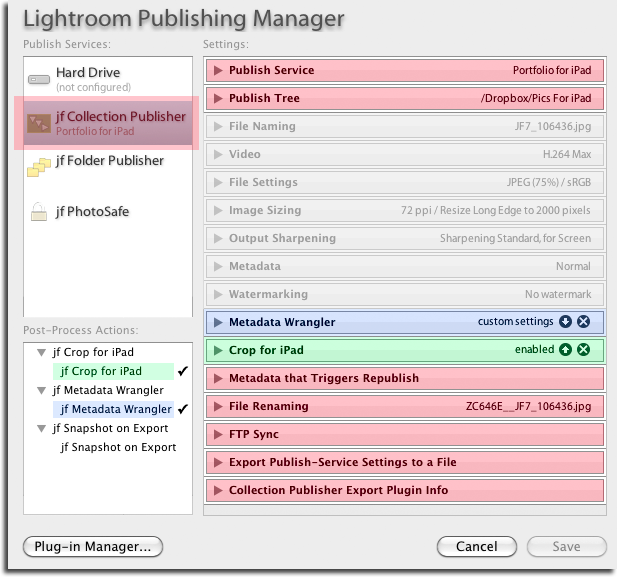
The plugin is normally used in the following pattern:
- Initial setup of the publish service.
- Initial setup of the collection hierarchy within the publish service.
- Populate the collections with images.
- “Publish” them, causing copies of the images to be reflected into a hierarchy on disk matching the collection hierarchy in Lightroom.
- Going forward, any time changes are made (images updated, added, or removed), “Publish” causes those changes to be reflected on disk.
Publish-Service Setup
When setting up a new publish service, you first assign a name, though you can leave it blank if you'll only have one...

You indicate where published copies are to be placed by specifying the root of the publish tree. When first setting up a new publisher, you'll likely want to pick an empty folder as the root.

The next sections are all part of the standard Lightroom export. In them you decide the size and quality of the published copies...
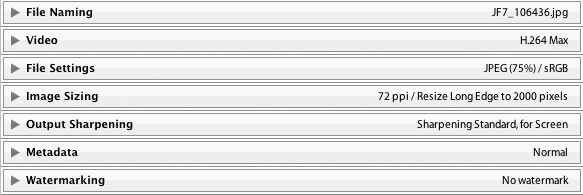
The next two sections shown in the example aren't included unless you specifically add them:

They're from my crop for iPad and Metadata Wrangler plugins; I use them in my exports to allow me extra control of what metadata is included in each exported copy, and in the case of my iPad portfolio, special iPad-specific crops so that some images better fill the screen.
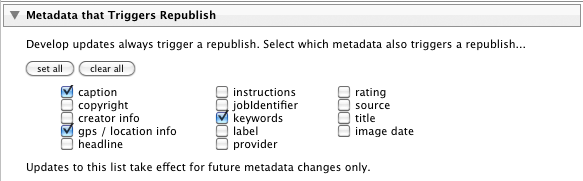
The next section controls what changes in Lightroom should cause published images to be slated for republish.
Then we have a plugin-specific seciton on file renaming that gives much more flexability than Lightroom's standard “File Naming” section, should you need it:
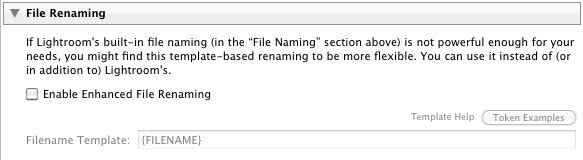
This allows you to have the files for the exported copies named derived from image matadata using template tokens that are processed on the fly for each image.
The next section provides a way to do an FTP sync of the published copies, should you need it. Photo-viewing iPad apps tend to allow updates via FTP sync, so this section is convenient for that.
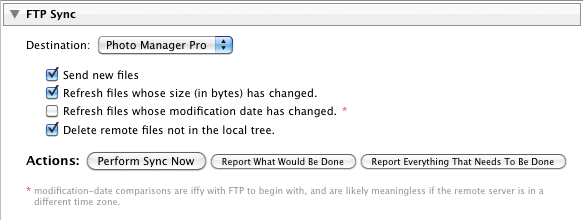
It's here as a convenient tool rather than an actual part of the configuration; the FTP sync is never automatic... it happens only when you launch it manually from the Publishing Manager.
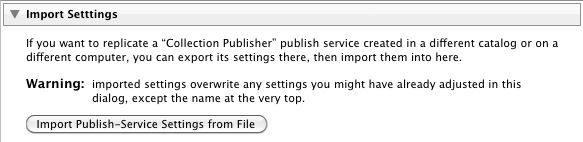
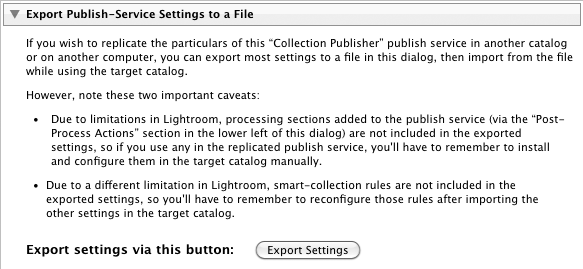
The plugin also provides a way to import and export settings, making it easier to set up comparable publish services on multiple catalogs (such as when part of your library is on your desktop, and part on your laptop, as is my case).
When first setting up a service, you'll have the ability to import settings...
... but once it's been set up the first time, after that the section allows for export:
Collection Setup
Once you've got the publish service created, its context menu (alt-clicking or right-clicking on it in the left hand side of Library) brings up a menu allowing you to create collections or sets...
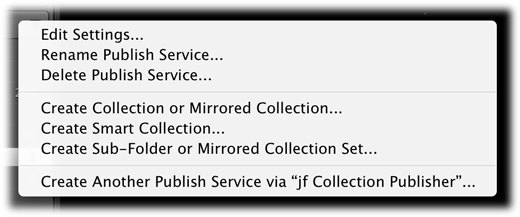
Collections can contain images, while collection sets can contain collections and other collection sets. It's different from the normal file/folder hierarchy on disk because images can only go into collections, and not into collection sets. This makes it inconvenient and unnatural to mapping between how you must organize images within the plugin and how the plugin writes them out to folders and files on disk, so I've built two ways to do it; hopefully at least one will make sense...
When you create a collection in the plugin, you have three choices for the “Collection Type”, which determines how the plugin treats photos in the collection when outputting copies during Publish:
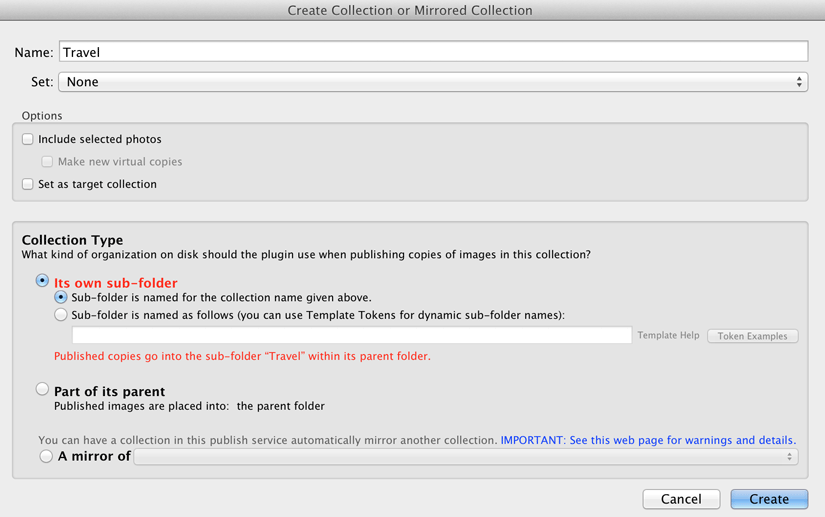
If the “Collection Type” is “Its own sub-folder”, the collection name (“Travel” in the example above) becomes a sub folder in the publish destination, and images in the collection are placed in the sub-folder. This is likely the most common collection type for most folks.
When the collection type is “Part of its parent”, the name of the collection is not used by the publish system. Instead, exported copies are placed into the folder of the collection's parent collection set.
(The third option, “A mirror of...”, is discussed below.)
Let's look at an example, two ways to put images into a “Japan” sub-folder within “Travel”:
Invoke “Create Sub-Folder or Mirrored Collection Set” named “Travel”, then within it create a collection named “Japan”, being sure to select “its own sub-folder”.
Invoke “Create Sub-Folder or Mirrored Collection Set” named “Travel”, then within it create another sub-folder named “Japan”, then within that create a collection, with any name, being sure to select “Part of its parent”.
Mirroring Pre-Existing Collections
A new, experimental feature as of August 2015 allows the plugin to mirror (automatically keep in sync with) collections you already have elsewhere in your catalog.
When creating a collection or collection set with this plugin, you have the option to mirror a collection or an entire hierarchy of collections. When one collection is mirrored from another, the plugin semi-automatically keeps the set of photos in one updated to reflect any changes in the other.
For example, consider these normal collection in a Lightroom catalog:
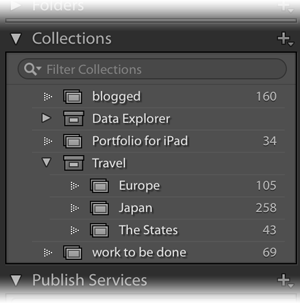
If we've spent time curating the “Travel” set of three collections and would like to see that set mirrored in the Collection Publisher so that we can have a local hierarchy of copies on disk, we right click on the Collection Publisher and choose “Create Sub-Folder or Mirrored Collection Set” to bring up the set-creation dialog:
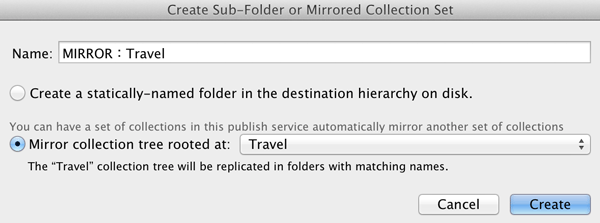
We've selected “Mirror collection tree rooted at...” and then pulled up “Travel” from the list of sets. (The list includes all collection sets in your Lightroom catalog except those within a Collection Publisher service).
After having selected the “Travel” set, the name of the new published set to be created is pre-filled in as “MIRROR: Travel” and can't be changed.
Upon pressing the [Create] button, we see the new “MIRROR: Travel” set in our publish service, filled with the three new collections and pre-populated with respective photos from the three source collections:
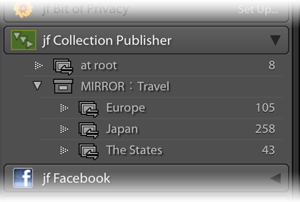
The “MIRROR” prefixed to the name is there to remind you that the plugin is supposed to have control over it and its contents, and that you shouldn't manually make any changes to the collections or add/remove photos within (they should be added/removed in the source collection this publish collection mirrors). More on this in a moment in “Caveats” below.
In the example above, the publish collections have been created but they haven't actually been published yet — all the photos in them are in “New Photos to Publish” — but you can publish them individually (click on their name then on the [Publish] button), or en mass via “File > Plugin Extras > Refresh and Publish Mirrored Collections”.
The Caveats of Mirroring
As noted above, this well beyond what Lightroom's plugin infrastructure was designed to handle, so it's not as smooth as one would like...
-
We'd like for the mirroring to be completely automatic, but unfortunately Lightroom's plugin infrastructure doesn't allow for it. Rather, mirrored collections are synced only when they are published, and/or when via “File > Plugin Extras > jf Collection Publisher > Refresh and Publish Mirrored Collections” is invoked.
Publishing a single collection via [Publish] syncs and publishes just that collection, while invoking the “Refresh and Publish Mirrored Collections” syncs (and optionally publishes) all Collection Publisher collections. Depending on the changes made during the sync (discussed below), syncing via the [Publish] button may leave some photos in the “Deleted Photos to be Removed” section of the collection, so it may need to be published once more to finally push out all changes.
-
“Syncing” means that the target collection in this plugin is made to have the same photos as the source collection it mirrors, so any extra photos here but not there are deleted (even if you had manually, specifically added them here), and any photos there but not here are added (even if you had manually, specifically removed them here). It would be nice if this were a full two-way sync, but the plugin has no idea why a photo might be in one place and not the other (did you remove it there or add it here?), so it's a simple “make this look like that”.
-
Given that it's a simple one-way sync, it'd be nice if Lightroom disallowed local changes (that is, disallowed adding/removing photos to the publish collection), but such restrictions are not possible with the current plugin infrastructure, so if you forget a collection is mirrored and start adding/removing images, that work will be silently lost at the next sync. That's why the collection name has “MIRROR” prepended, to remind you.
-
The same can be said for mirrored sets. If you add/remove collections within a mirrored set, that work will be undone at the next sync when the collections are re-mirrored back from the source set.
-
Once a mirrored collection is set up, it can't be edited or modified because there's nothing to edit or modify. (It's renamed by renaming the collection it mirrors and then syncing.) However, it can be deleted via the context menu for its name in the publish-services list.
-
Similar to the previous point, mirrored collections can't be moved within the published-collection sets of the publish service, nor can other collections be moved or created within a mirrored collection set. If you want to add or subtract collections, do so in the original source being mirrored and then sync.
-
There's a bug in Lightroom that has the potential to cause some havoc with collection creation. Due to this bug, the collection-creation part of the plugin sometimes gets confused about where within your publish service a collection is about to be created, and so sometimes mistakenly gives a “can't create a collection within a mirrored collection” error, or sometimes might not give it when it should.
The bug can happen when you have a collection or set selected for display in Loupe/Gird at the time you bring up the collection-creation dialog...
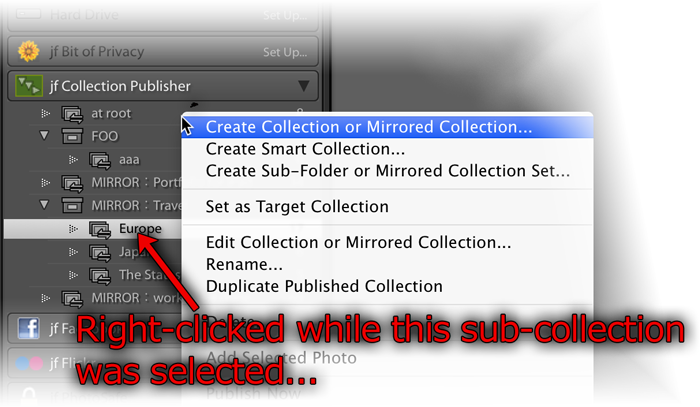
Lightroom conveniently pre-fills the “Set” in the collection-creation dialog with whatever set is associated with the selection at the time it's invoked...

The bug is that if you change the “Set” in the dialog, information about that change may or may not be passed to the plugin.
The workaround is to make sure that either no collection-publisher collection is selected when you invoke the collection-creation dialog, or that only a root-level collection is selected.
Special "Smart Preview Export" Mode
The plugin, in Lightroom 9.2 or later, includes a special mode to export Lightroom's "smart preview" files, DNG-format reduced-quality (reduced-size) versions of the master original image files. These files include no Lightroom updates (image or metadata edits). This mode might be useful for a kind of lightweight backup.
This mode can be turned on only when a publish service is being created. For a publish service that has this mode active, standard publish options related to the export image files — format, size, quality, metadata, etc. — are still presented, but play no part in the actual publish operation because the plugin . (I would like to make them disappear just for this mode, but Lightroom's plugin infrastructure doesn't allow for it.)
This experimental mode has been hacked into the plugin in a pretty sloppy way, just to see whether it's useful. At this point, the publish service, like all publish services, moves edited files back into the "files to republish", even though such edits within Lightroom don't affect the published output of this plugin as they do all other plugins.
Availability
This plugin is distributed as “donationware”. I have chosen to make it available for free — everyone can use it forever, without cost of any kind — but unless registered, its functionality is somewhat reduced after six weeks.
Registration is done via PayPal, and if you choose to register, it costs the minimum 1-cent PayPal fee; any amount you'd like to add beyond PayPal's sliding fees as a gift to me is completely optional, and completely appreciated.
Note: a Lightroom major upgrade, such as from Lr10 to Lr11 de-registers the plugin in the upgraded version, so if you want to maintain registration, a new ($0.01 if you like) registration code is needed in the upgraded version. It makes for a hassle every couple of years, I know. Sorry. See this note for details.
For details on plugin registration and on how I came into this hobby of Lightroom plugin development, see my Plugin Registration page.
Version History
(
Update Log via RSS
)
| 20231011.127 |
CachedImagePreviewsFile token. Upgraded to the embedded copy of ExifTool to version 12.67. |
| 20230316.126 |
Some debug logging wasn't robust in the face of Lightroom's inability to render an image. |
| 20220615.125 |
Found a bug with the setting of the file date on Windows. |
| 20220606.124 |
Upgraded to the embedded copy of ExifTool to version 12.42. |
| 20220516.123 |
Fixed a crash that happens when Lightroom can't render a DNG. |
| 20220309.122 |
Work around a bug in Lightroom 11.2 that causes publishing to get stuck. The workaround is to switch the view away from the collection being published. If the user does that switch manually, the bug goes away. This plugin update notices if the bug is being triggered, and if so, momentarily switches the view to the quick collection and back. Added a button to recreate the target folder if it's not found. Removed a bunch of debug logging that was slowing down the LUA token.Newline |
| 20220120.121 |
Whack-a-mole with PayPal's random changes. |
| 20220119.120 |
Added the WEEKNUM token, along with DAYNUM, weeknum, and daynum. |
| 20211219.119 |
Warn when PayPal seems to have given a bogus code in the web-confirmation page. |
| 20210721.118 |
Don't crash when the plugin is told not to handle videos, but a video is included in the export anyway. Fixed that the Province template token did not respect the plugin-specific geo-privacy settings. Upgraded to the embedded copy of ExifTool to version 12.25. Fixed an issue with the {Newline} token, and added {Comma}, {Hyphen}, and {Space} for good measure. Fixed a problem with filters on the {Keyword} token. |
| 20210503.117 |
Added an experimental Smart-Preview-Export Mode. Reverted the name-conflict workaround added in 20190815.104 for versions of Lightroom that have had that bug fixed. |
| 20210415.116 |
Reworked the Keywords token to better accept filters. Added 'separated by' to the People token. |
| 20210211.115 |
Fixed the plugin crashing in the face of a failed video render. |
| 20210116.114 |
Try to work around filename issues on Windows when trying update the filesystem time. Added the ImageViewDirection and ImageViewBearing tokens. working around 'constant table overflow' error |
| 20201103.113 |
Added the PF filter to turn typographic fractions into plain-ASCII fractions. |
| 20201020.112 |
Updates for Lr10 Be more aggressive in trying to figure out the capture time of photos when trying to set the export file time to the capture time. Added the SpeedKnots token. Worked around an "unknown key captureTime" error. Added the {PlusCode} and {GeoHash} tokens. |
| 20200608.111 |
Handle FTP errors better. |
| 20200516.110 |
Oops, one wasn't offered the ability to change the root of the publish tree if the original folder no longer existed. |
| 20200421.109 |
Fixed a reporting error with the new find-misshing-published-photos feature. |
| 20200414.108 |
Added the ability to find missing published photos and have them marked for republish. Work around a Windows bug related to canceling out of the registration dialog. Some of the filename-related tokens could be incorrect in rare situations. Added some extra debug logging to note whether the plugin is enabled. |
| 20191115.107 |
Update to the FTP stuff to handle Windows servers. |
| 20191029.106 |
Upgraded to the embedded copy of ExifTool to version 11.70. |
| 20190909.105 |
Added special {AbsSequenceFirst=####"} and {AbsSequenceAppend=####} tokens. Added the LensInfo template token. Updated the Exposure token to allow customization. More token work: added {Urls}, and updated {ISO} and {Copyright} to allow customization. Added the {RelativeFolder} token. |
| 20190815.104 |
Work around a bug in Lightroom related to filename conflicts (where two exported files have names that differ only in lettercase). Fixed the SST1 and SST2 tokens. |
| 20190801.103 |
Fixed a potential crash in a debug-logging statement. |
| 20190731.102 |
Updated the PublishCollectionName token (and CollectionNames and CollectionFullNames) to remove the MIRROR: prefix from the name that mirrored collections within my Collection Publisher plugin automatically get. |
| 20190708.101 |
Upgraded to the embedded copy of ExifTool to version 11.50. Added functions uc(), ucFirst(), lc(), and lcFirst() to the LUA token. |
| 20190519.100 |
Fixed a problem related to template tokens and photos without capture times. |
| 20190423.99 |
Fixed an issue with {SequenceFirst}. |
| 20190414.98 |
Respect the publish-service "Include Video Files" setting during collection mirroring; if "Include Video Files" is not selected, videos won't be mirrored from the source collection, and any videos already in the target will be removed. Updated the keyword-related tokens to accept standard filters. Work around a bug that sometimes causes plugins to be disabled when starting Lightroom via clicking on a catalog file. Fix an "Unknown key: captureTime" crash. Added the GPSCoords token. |
| 20190307.97 |
Upgraded to the embedded copy of ExifTool to version 11.30. |
| 20190228.96 |
Added the {Exiftool=...} template token. Added some extra debug loging. If the plugin's attempt to create a folder fails, try again a few times before actually reporting the failure. Added the PEOPLE variable to the LUA token. Fixed a problem with the SpeedKPH token. Added TempC and TempF to the template tokens that my plugins understand. |
| 20181015.95 |
Updates for Lr8 (Lightroom Classic CC Version 8). Added the special PP() function to the {LUA} token. Added hierarchical options to the Keywords token. Try to work around a Lightroom bug related to photo timezones and how Lightroom handles accessing plugin data. |
| 20181004.94 |
Added the 'nicknames' modifier to the {People} token. Added the SST1, SST2, and SS3 tokens to the template tokens that the plugin understands. |
| 20180906.93 |
Try to avoid having unexpectedly-long error messages create too-big a dialog. |
| 20180803.92 |
Limit the amount of temporary disk used by Lightroom before handing files off to the plugin. |
| 20180606.91 |
Fixed the {LUA} load() function. Added the folowing template tokens: {home}, {desktop}, {temp}, {pictures}, {documents} Added the 'PCH' variable to the {LUA} tag. |
| 20180525.90 |
Added the IptcDateTaken token. Clicking on the version number in the Plugin Manager now copies version info to the clipboard Updated the PublishCollectionName token to allow numeric arguments along the lines of the CollectionName token. |
| 20180420.89 |
Fixed a bug when 'Token Examples' invoked in certain situations. |
| 20180305.88 |
Added a bunch of token filters: F2D F2S F2X B2D B2S B2X S2X A2D A2S A2X |
| 20171229.87 |
Updates to the data templates that my plugins understand: updated the Keywords token, added CollectionNames and CollectionFullNames tokens, and added a bunch of stuff (KWf, CN, CFN, CNf, CFNf) to the {LUA} token. |
| 20171019.86 |
Oops, more Lr7 stuff. |
| 20171019.85 |
Updates for Lightroom 7 |
| 20171011.84 |
Handle the renaming of mirrored collections. Allow the "If Exists" feature of Templat Tokens to work with the PluginProperty token. |
| 20170913.83 |
Update registration support to handle a stupid bug at PayPal that PayPal refuses to fix )-: |
| 20170705.82 |
Fixed a bug introuded the other day in template tokens, related to Windows filenames. |
| 20170621.81 |
Added the "only if it has a value" feature to template tokens. Updated the {FolderName} token to allow {FolderName=1} (rather than requiring the plus as in {FolderName=+1}) |
| 20170612.80 |
Fixed a bug introduced in the previous build that could cause some collections with dynamic template tokens to fail. |
| 20170529.79 |
Watch out for collection names with characters that are not allowed in a Windows folder name, and replace them with '-' (a minuse sign), to avoid crashing. Added the Newline template token. Enhanced the FolderName token. |
| 20170417.78 |
Added some debug logging. |
| 20170309.77 |
Added the following tokens to the template tokens that my plugins understand: Artworks, ArtworkTitle, ArtworkCopyright, ArtworkSource, ArtworkCreator, ArtworkDateCreated, ArtworkInventoryNum |
| 20170224.76 |
Couldn't set the exported-copy file date older than about 50 years ago; fixed. |
| 20170216.75 |
The rules about what characters are disallowed in a folder name were too aggressive, so relax them. Fixed a bug with the keyword tables in the LUA token. Added Weekday, Wday, weekday, wday, and ISO8601Date to the list of template tokens that my plugins understand. Switch the log-sending mechanism to https. |
| 20160905.74 |
Added the following tokens to the templates that my plugins understand: FileModYYYY, FileModYY, FileModMM, FileModDD, FileModHH, FileModMIN, FileModSS, FileYYYY, FileYY, FileMM, FileDD, FileHH, FileMIN, FileSS, {FilenameNumber}. Better support for network shares on Windows. |
| 20160327.73 |
Fixed a "TreePublisher_Mirror:91" error. Fix to get around a Mac display issue with Lr6 on OSX. Added Russian-langauge support for the People-Support |
| 20160217.72 |
Fixed the "Spec:2164" error. |
| 20160215.71 |
Added ChildOf and DescendantOf filters to the {Keywords} and {KeywordsAll} template tokens that my plugins understand. Fixed how custom {People} formatting works with people keywords that have no birthday associated with them. Try to avoid yet another place where Lightroom gets hung because it can't handle certain kinds of dialogs at the same time. |
| 20151115.70 |
If there's an error exporting one particular image, try to continue with others and merely have Lightroom report a summary of errors at the end. Added support for sequence numbers on publish. See the "sequence numbers" link in the "Enhanced File Renaming" section of the dialog. Added {SpeedKPH} and {SpeedMPH} to the list of template tokens supported by my plugins. The {People} token wasn't working properly for some keywords without a registered birthday. |
| 20150831.69 |
Allowed the Enhanced File Renaming to actually create sub-folders under where an image would normally be placed. |
| 20150822.68 | Added extra debug logging to track down file-copy issues. |
| 20150818.67 |
Added the ability to automatically mirror normal Lightroom collections in this plugin; See this link for details. |
| 20150517.66 |
Fixed the "SpecPeople:259: attemt to index al nil value" error. |
| 20150222.65 |
If the root folder of the publish tree had a very long name, the view/change buttons would be pushed off the edge of the screen. |
| 20150219.64 |
In the "Enhanced File Renaming" section, add the ability to override the extension on the exported filename. |
| 20150206.63 |
In the POODLE-vunerability dialog, display a raw URL of a page on my site that discusses the issue, so that folks can be independently sure that the dialog is indeed from me and not malware. |
| 20150131.62 |
Fix to the date_diff() function supported by the LUA template token. Updated the camera-name code to try to guess the actual camera model of Hasselblad H5D files, since in their infinite wisdom Hasselblad decided to encode three distinct models with the same internal code, making it impossible to know for sure what camera produced a given image file. |
| 20141219.61 | Added a bit more debug-logging for when a file copy can't be done. |
| 20141019.60 | Windows Only: Add a one-time check for the POODLE security vulnerability, and alert the user if it exists. |
| 20140923.59 | Added the LrMD5, LrLocalization, LrSystemInfo, and LrMath packages to the {LUA} template token. |
| 20140902.58 | If the plugin failed to create such-and-such a folder because a file of the same name already exists, report the details to the user. |
| 20140828.57 | Extra debug logging to track down a folder-creating problem on some systems |
| 20140802.56 |
Made the {GPSAltitude}, {Altitude}, and {GPSCoordinates} tokens subject to the geo-privacy settings like the other geo-related tokens. |
| 20140731.55 | Registration fix for Lr5.6 |
| 20140720.54 | More Creative-Cloud support. |
| 20140715.53 |
Fixed an issue with Creative-Cloud revalidation. |
| 20140712.52 |
Lr5.5 and later Creative-Cloud installs can now revalidate themselves if needed. |
| 20140710.51 | Sigh, had a bug in the Creative-Cloud support. |
| 20140708.50 |
Now supports Lr5.5+ Creative-Cloud Installs. |
| 20140704.49 | Sigh, introduced an error for some folks with the rebuild the other day. |
| 20140630.48 | Build-system update |
| 20140613.47 |
Added date_diff() and raw_time_diff() functions to the special {LUA} token understood by the plugin. |
| 20140612.46 | Under some error conditions plugin would crash instead of presenting the proper error message. |
| 20140514.45 | Got rid of a "Done" confirmation dialog that's not really necessary. |
| 20140509.44 |
Added new tokens to the template language the plugin understands: LrVersion, LrVersionMajor, LrVersionMinor, LrVersionRevision, LrVersionBuild, Location, CatalogName, CatalogPath, OperatingSystem, OS Added new token filters: NS and LO |
| 20140423.43 | Fix a location-related template-token bug introduced in a recent build. |
| 20140422.42 |
Fixed a bug in the "smoother revalidation" stuff recently added. |
| 20140417.41 |
Enhancements to the FTP stuff: take care not to work with "." and ".." that some servers return. Make the revalidation process smoother, especially for folks using Lr5.4 and later. The {Empty} template token wasn't working properly. |
| 20140321.40 |
Internally track whether exports are via the master image or via a smart preview. In the future this may allow for a "republish those for which a master is now available" feature. Worked around a mysterious "attempt to get length of a nil value" bug. |
| 20131213.39 | Added {PublishCollectionName}, {PublishCollectionDepth}, and {PublishServiceTitle} tokens to the preset templates. See template-token web page for important restrictions. |
| 20131102.38 | Update for OS X Mavricks |
| 20131010.37 | Yikes, it seems that version 20130905.36 broke the "Metadata that Triggers Republish" section, clearing all items you might have had set (well, all but Caption). Sorry about that. Please visit the "Metadata that Triggers Republish" section to reconfigure to your liking. |
| 20130926.36 | Oops, fix a bug introduced in the previous update |
| 20130925.35 |
Added a bunch of tokens to the preset templates supported: ExportFormat, ExportColorSpace, ExportBitDepth, ExportQuality, ExportSharpeningLevel, ExportSharpeningMedia, IpernityUrl, GoogleDriveUrl, and TumblrUrl. The token-examples dialog had been broken. Also deprecated Folder and Path tokens in preference to FolderName and FolderPath tokens. |
| 20130909.34 |
Work around a Lightroom bug concerning the determination of whether a photo is offline. |
| 20130905.33 |
Respond more gracefully when enhanced file renaming can't come up with something valid. Fixed the KW/KWE tables in template tokens; they had been broken when using load for the script. Added an "Ask" option to the "Export with Smart Previews?" section, so one can be alerted to the situation at each export. Made the file time control stuff (added in the previous update) optional, because it imparts a (small) performance penalty. The default is set to "off", so you'll need to re-enable it if you actually care about the file date/time stuff. |
| 20130630.32 |
When "Format" is "ORIGINAL" (meaning to spit out the original image pixels with new metadata, instead of the developed version with new metadata), the plugin didn't handle XMP sidecars properly at all. Now it does. You now have control over the file time of exported copies (set to the image capture time, or the time of export). |
| 20130620.31 | Allow published copies to remain on disk even if a photo is deleted from Lightroom. |
| 20130613.30 | Better support for plugin revalidation. |
| 20130612.29 | A failure for the plugin to copy a file on disk resulted in a plugin crash instead of the appropriate error message display. |
| 20130612.28 |
Added the ability in Lr5 to export images even if the master image file is not available, so long as there's a smart preview available. |
| 20130611.27 | Yet another Lr5 update |
| 20130610.26 | Final update for Lr5 |
| 20130513.25 | More changes for the root-selection problem... really seems to be a bug in Lightroom, but it's hard to tell because I can't replicate the bug myself. |
| 20130501.24 | Update for Lr5 |
| 20130412.23 | Build system update. |
| 20130329.22 |
More with with the code that handles changing the root of the publish tree. |
| 20130220.21 |
Added support for some new template tokens: FlagStatus (requires Lr4.1 or later), and for Lr3 and later, a bunch of IPTC extended metadata: AdditionalModelInfo, CodeOfOrgShown, DigImageGUID, Event, ImageSupplierImageId, MinorModelAge, ModelAge, ModelReleaseID, ModelReleaseStatus, NameOfOrgShown, PersonShown, PlusVersion, PropertyReleaseID, PropertyReleaseStatus, and SourceType. |
| 20130209.20 | More build-system maintenance |
| 20130206.19 | Tweak for my registration system |
| 20130121.17 |
The plugin wasn't robust against case-only changes in filenames or folders. This is a real pain because such names (e.g. "test" vs. "Test") appear different to the plugin, but they refer to the same underlying file on most filesystems for most users (because most Windows and OSX file systems have case-insensitive file naming). There's no easy way for the plugin to make such renames, so the plugin now reports that it won't work for existing files, and offers a chance to abort along with info on how to actually get it done: rename to something different (e.g. from "test" to "test2", then from "test2" to "Test"). While doing a rename, Lightroom pops up a "this may take a while; proceed?" dialog, and if the user canceled it, the plugin neglected to cancel the entire update, leaving things in an inconsistent state. |
| 20121210.16 | Added some extra debug logging. |
| 20121024.15 | Allow Video to be FTP'd as well. |
| 20121009.14 |
Workaround for an "attempt to call field 'getProgressScope'" bug introduced in Lr4.2. Disallow DPX video export because it breaks things. Enhance the {EMPTY} template token so that it interrupts the squelching of superfluous joining characters. |
| 20121004.13 | Oops, hte file-extension thing got worse, not better... reverting that change. |
| 20121003.12 |
Work around a "situation" (likely Lr bug) where exported video loses its file extension. More debug logging for the elusive "no root folder" problem. |
| 20120821.11 |
Updates to the environment in the {LUA} token (in the template tokens in my plugins) to include photoTime() and currentTime(), and other changes to match the updated docs at that link. . |
| 20120722.10 |
Added the ability to create dynamic destinations on disk via naming patterns using plugin templates. This is a pretty big change, so you may want to test carefully before using it wholesale. Reduced the amount of debug logging done, unless the "debug logging" option is checked in the plugin manager. |
| 20120531.9 |
Oops, I was moving the original XMP file (when the Publish format was "Original" instead of copying it. Fixed. Update to handle the Mac App Store version of Lightroom. |
| 20120429.8 |
Added the ability to move/reset the root folder. As a byproduct, this should allow the "choose a root folder" situation to be repaired. In some crazy file-renaming situations, the plugin could get confused about the file extension. Enhanced the send-log dialog to hopefully make reports more meaningful to me, yielding, I hope, the ability to respond more sensibly to more reports. Added to the template tokens supported by the plugin: {FullMasterFile}, {FullMasterFolder}, {FullExportedFile}, and {FullExportedFolder} |
| 20120330.7 |
When a new collection is created, require that the type be explicitly selected. This may help avoid screwups when one doesn't notice that there are different types to being with. Update to handle 4.1RC |
| 20120315.6 | Add some extra debug logging to try to track down some network-folder errors. |
| 20120309.5 |
Update to the debug logging to better track down timing issues that might arise. |
| 20120228.4 |
Wasn't handling some kind of file-rename templates properly. Now handles things much more gracefully when some files are offline when the publish is started. Better support for video in Lr4. |
| 20120217.3 | Didn't handle XMP sidecars correctly when publishing original raw files. |
| 20120217.2 | Discovered why "metadata that triggers a republish" wasn't reliable, and fixed it. |
| 20120213.1 | Initial release, evolving from my earlier tree-publisher plugin, which dated back to the summer of 2010. |
Hi Jeffrey – also further to my last Q. In am noticing that whenever a missing photo dialog comes up on a mirror folder, clicking ‘Isolate’ doesnt’ close the dialog. The dialogs have to be closed from the corner. Any chance of fixing that and perhaps also putting an ‘Ignore missing photos and unpublishable items’ (eg. videos which I now set not to publish). Thanks!
The “Isolate” button isolates; it’s not intended to close the dialog. Depending on what the dialog is showing, there might be other things one can do from the dialog. The “abort entire publish operation” button is always there regardless, and closes the dialog. Regarding videos, I’ve just pushed out a new version of the plugin that now has the mirroring feature respect the publish service’s “Include Video Files” setting, so if videos are excluded there, they’ll be excluded from the mirroring as well. —Jeffrey
Hi Jeffrey,
Is there any way to apply a filter to the images that are published? For instance, only published flagged images and ignore everything else? If not could this be incorporated into the plugin or is this functionality not possible?
Many Thanks.
Josh Noble
As with any publish collection, you can use whatever means you want to select the images that you want to publish (e.g. use the Library Grid Filter to show only flagged images, then select them all), then hold down the option/alt key to convert the [Publish] button into [Publish Selected], and there you go. —Jeffrey
Hello Jeffrey
I have an issue with the adding of sequence numbers in the enhanced renaming. The plugin only recognizes the tokens {SequenceAppend=##} and {SequenceFirst=##} when first set up and afterwards it will say “unknown token “SequenceFirst”” and it would not let me save.
screenshot : https://drive.google.com/file/d/1PggHznLEGMne_Ea7Y415f3klNrV7MPmC/view?usp=sharing
Thank you from fort lauderdale. FL for such useful plugin! We already bought its license and its been great so far.
Let me know what can I do to have the sequence tokens to work
Many Thanks
Alain
I’m afraid that I can’t reproduce this. Please send the plugin log after encountering it, and I’ll take a look. —Jeffrey
Hi Jeffrey,
I have a huge collection of bird photos in Lightroom. I use keywords with bird names. All bird name keywords are children of Birds keyword.
I am using the Collection Publisher to export bird photos to a /Bird directory where I create a separate sub-directory for each bird name (keyword).
Collection Type: Its own sub-folder
Token for dynamic sub-foldr names:
{Keywords:ChildOf=Birds}
Some photos have more than one bird in it and more than one keyword assigned to them.
As a result, sometimes I have sub-directory names like:
/Crow, Sparrow, Pigeon
/Sparrow, Crow, Pigeon
/Duck, Crow
etc.
But I don’t really need sub-folders for any possible keyword combination (which is the case now).
I just need a subfolder for each particular keyword (bird) so that an image with three keywords Crow, Sparrow, Pigeon is copied to three separate directories /Crow /Sparrow /Pigeon rather than one like /Crow, Sparrow, Pigeon.
How can I dynamically create sub-folder names for each keyword assigned to an image?
Thank you.
Dima
Australia
There’s no easy way to do what you want, unfortunately. One way would be to create a smart collection per bird type, using a rule that matches the bird name within keywords, but this might be onerous if you have a lot of birds types. Another idea might be to use a Post Process Action that invokes a program on your system that looks at the final path, and recognizes the multi-bird situation and copies the file appropriately. This would be fairly simple for someone to develop… if you’re not a programmer, perhaps try to get a student programmer to whip it out for you. —Jeffrey
Hello,
how about an option to filter “Rejected” (black flag) photos from publishing?
THX 🙂
I’d think that photos that shouldn’t be published shouldn’t be in the publish service to begin with. If you simply want to publish the others first, you can filter out rejected photos, select the rest, and then hold down the Option/Alt key to turn the [Publish] button into [Publish Selected]. —Jeffrey
Hello
I’m new to your plugins. I’ve installed the Collection Publisher.
Is it possible to publish only a subset of a LR catalog’s collections? How do you select what is to be published while leaving out the rest of the collections?
Thank you for your help.
Ygal Leibu
Select the collections that you want to publish and hit the [Publish] button. —Jeffrey
While I love the plugin, I cannot fathom why you’d have it forcibly add “Mirror[double-wide-colon]” to collection names. It makes {PublishCollectionName} almost useless without |After=Mirror[paste-that-blasted-colon], as I have to add it everywhere, otherwise my non-unicode-aware file handling scripts can’t work on something that [1] has an Unicode character, and [2] that character is a colon which is special in most filesystems. Couldn’t {PublishCollectionName} automatically remove that part, perhaps? Or have it as “Mirror – ” with a plain dash?
The plugin adds the “MIRROR:” prefix because the risk of data loss is to great if it’s left alone… it becomes way too easy to think you’re in the original when you’re really in the mirror, and so any changes will be silently lost when you next publish. About {PublishCollectionName}, I’d simply never considered the situation you bring up. As you suggest, removing the “Mirror” part automatically makes sense, and I’ve just pushed out new versions of the plugins that do that. Thanks for the heads up. —Jeffrey
Hi Jeffrey,
Just wonder if you plan to implement a way to schedule automatic re-publishing of collections in this plugin? Would be marvellous, and fill a missing link in my setup… 🙂
Reason/background for my request:
I have a media server at home with LR Classic, and two Android devices (phone and tablet) that I use in the field. Photos are imported from camera to LR CC and synced to the media server. Your Smart-Collection Sync plugin syncs selected smart collections back to LR CC on regular intervals. This supports my initial culling of photos in the field. Pictures marked as candidates for publishing (to e.g. Facebook) are watermarked in low right corner with a PNG file containing my signature. This can (as of now) only be done in LR Classic. To support that, I use the Collection-Publisher to export the pics to local disk OneDrive folder, which in turn is synced back to my mobile phone by OneSync from MetaCtrl.com.
BUT: In order to get the selected pics exported I have to remote into my media server at home (using TeamViewer) and trigger the re-publish in Collection-Publisher manually…. Would be SO neat if this just happened – let’s say once every hour…. 🙂
Jørgen Dahl
Automatic publishing in Lightroom is somewhat of a can of worms, but you can use my Folder Watch plugin to auto-publish a collection on a regular basis. The main point of that plugin is to scan a folder looking for new images to import, which you don’t need, but if you point it at an empty folder, it won’t actually import anything, but you can have it publish a collection as a side effect of the scan. Have it scan every 3600 seconds, and publish your collection even if no photos were added. —Jeffrey
Hi Jeffrey,
greeting from German! I love your plugins, and just installed Colection Publisher, hoping that advanced renaming can solve some limitation of the LR-renaming feature.
“All” I would like to do is to preserve the sequence number of the pictures in a collection (e.g. custom order exists). I know that there are general limitations in this requirement as you pointed out in an earlier comment.
My problem right now is pretty basic, somehow I do not get increasing sequence numbers, but only sequence number 1: My test collection has 3 pictures, and the renaming pattern is: {SequenceFirst=###}-{FILENAME}.
As a result, the exported file names are:
001-CW-20190521-174158-5055.jpg
001-CW-20190521-174418-5058.jpg
001-CW-20190813-181601-5276.jpg
I would have expected:
001-CW-20190521-174158-5055.jpg
002-CW-20190521-174418-5058.jpg
003-CW-20190813-181601-5276.jpg
Is there anything I missed in setting up Enhanced File Renaming?
Thanks and best regards
Christian
{SequenceFirst} updates a sequence number when the filename would otherwise conflict with an existing filename, which is unlikely since {Filename} is also used. In particular, it’s not a count of files during export, which makes little sense in a Publish setting. The concept of “sequence number” in a Publish setting really makes little sense, but for completeness, I’ve added {AbsSequenceFirst} and {AbsSequenceAppend}, which looks at the first string of digits in existing filenames; this may give you sort of what you were looking for. —Jeffrey
Hi Jeffrey,
Thank you very much for adding {AbsSequenceFirst} and {AbsSequenceAppend} – it works exactly as I hoped it would do. Thank you for solving a big problem!
Since you do not seem 100% convinced this is a great feature, let me explain why it is important to me: All I am trying to do is to create collections (i.e. exports out of LR) which can be consumed easily from within a file system. For this I am using a Synology NAS as a target which keeps the developed pictures and offers 2 apps for viewing pictures. When preparing the collection (e.g. all pictures from a trip) in LR, all the work should happen in LR and nothing in any apps which display the pictures. One result of processing the images can be that the sequence I would like to have for presentation is not necessarily the chronological order (or any other meta data-oriented criterion).
Therefore, I use the filename to indicate sequence. The standard export service can add sequence numbers, but the big problem with lightroom in the standard version is that the sequence number is not constant when you do multiple exports. Multiple exports can easily happen when I notice, for example, a typo in a caption, or I add tags later (people, places etc.). But LR will number from 001 on a new export, so a file which is number 20 in a sequence will not be 020_IMG1234, but 001_IMG1234 during the second export, therefore creating a duplicate, messing up the sequence, and the only way to solve it is to do a full export of the whole collection.
Your plugin nicely solves the problem, and the collection is keep intact. Thanks a lot for adding the new feature!
Christian
Hi, it seems that the latest version of the plugin on the site doesn’t play nice with LR Classic – I get a “The version of Collection Publisher …. does not work in LR8” error, even when I’ve made sure to delete the plugin from my machine and redownloading the latest version. Not sure what else I may be doing wrong.
I’m not sure what to tell you. Any version in the last year works with Lr8, and once in the last month or so work with Lr9. I’m not hearing other reports of problems…. —Jeffrey
Hi –
Thanks so much for your great plugins! I recently ran into trouble trying to export a collection set, and tried your Collection Publisher, but I can’t figure it out. I have multiple collection sets with 10 collections in each, and I want to export those photos into folders that maintain the collection hierarchy…for example, create a folder “Collection Set A” with ten folders inside named “Collection 1, 2, 3…10”. I tried to publish using the Mirror function on your plugin, but when I go through the available collections to publish it’s only showing single collections, not sets. So instead of the option to publish “Collection Set A” I can only publish “Collection Set A>Collection 1”, “Collections Set A>Collection 2” etc. Am I misunderstanding the plugin, and is it possible to do what I want? Thanks again!
Unfortunately, I don’t see an easy way to do what you want. Had you created your hierarchy within the plugin’s Publish Service, it’d be exactly what you want, but at this point you’d have to manually replicate all the sets and collections, which could be quite the hassle if the hierarchy is large. )-; —Jeffrey
Hi Jeffrey,
I had your Collection Publisher set up and working great, but now I got a new PC and need to replicate the setup. I’m getting an error because the path of root folder of the publish tree is different on the new PC. The error message tells me I can “point the plugin at the new location in the Publishing Manager.” But I can’t figure out where I can do that. Looking at the Lightroom Publishing Manager’s Settings, in the Publish Tree section, the Root of the Publish tree isn’t editable. Please help, I’m stuck.
-Julliette from the Boston suburbs
There should be a “change” button right next to the listed root. —Jeffrey
Hmm, there isn’t a change button. There are two buttons: Check target tree for missing published photos and recheck. I’m using Version 20200421.109.
Can I impose on you to send a screenshot? Thanks. —Jeffrey
Hi Jeffrey,
I’m running into an issue when I use your Collection publisher. I’ve set it up to to use Photo Manager Pro to transfer the images to my iPad. When I click the ‘Perform Sync Now’ button, I get the Error Message “TreePublisher_FTP:13: attempt to index a nil value”. So I’m stuck. Any suggestions how to get past this obstacle?
Julliette
A bug in the plugin caused the error when trying to present an error in contacting the FTP server. I’ve pushed out a new version of the plugin that should allow the FTP error to be presented. —Jeffrey
Hi. Thank you very much for your program. I am currently using Lightroom 9.4, and the plugin is not supported. Is there a possibility that you update it? It is very useful!
Regards.
The plugin has worked with Lr9 since the moment Lr9 was released. If your version of the plugin isn’t working, be sure to upgrade to the latest version. —Jeffrey
Hi Jeff, greetings from Norway!
Further up in this thread you recommended me to use the Folder Watch plugin for automatic re-publishing of a collection. Is there a way to install/set up two instances of Folder Watch, and have it (them) re-publish TWO collections in parallell….?
Kind regards,
Jørgen
Only one Folder Watch can be installed at a time, sorry. But check out the Publish At and Publish Continuously features of my Bag-o-Gooodies plugin…. —Jeffrey
Hello Jeffrey!
First of all ”心からどうもありがとうございます!” for all your work on the plugins!
Adobe just released a new major Version of LR (v 10.0) and this breaks compatibility with your Collection Publisher. Are there any plans to update the plugin for the newer version? 🙂
Kind regards,
Christian
Sorry about the delay… I pushed out new versions a few hours after Lr10 was announced. —Jeffrey
Hello from the Seattle area, thanks for all your amazing plug-ins! I just upgraded Lightroom to version 10 and downloaded the latest version of the plug-in, but when I try to set up a Publish Service using it nothing happens when I click the Browse button. I was able to work around it by manually typing the path and everything else seems to be working, but I just wanted to let you know.
Testing this pluging and loving it so far. However, it seems “Explicitly set the date/time of newly-exported files to” option does not work for videos? Exported a small album of pictures and a single video from 2009. The pictures are exported using date captured, while the video comes out with current time and date. I’ve double checked the date on the video, and it is indeed set to 2009. Bug or am I doing something wrong? 🙂
Lightroom’s handling of video dates is abysmal, so even though it may display it correctly to you, it may not make that date available to a plugin. If you send a plugin log immediately after you notice a failure, I may be able to investigate…. —Jeffrey
Hi!
I am using your Collection Publisher Tool for years now. Yet, I seem to be too stupid to export all collections at once. No matter which Version of Lightroom (or the collection Publisher) I use, no matter how often I have reinstalled my PC over the years, I always seem to be able, to just export one collection at a time, which takes most of the thrill out of the Plugin.
What am I doing wrong?
Here ist what I am doing (Windows 10, LR 10):
1. I select all the collections I want to publish
2. I right-click into the collection tree and select “Publish now” (I have the German version though).
Thanks!
You can do it with the “publish all” feature of my Bag of Goodies plugin. —Jeffrey
Hi Jeffrey
Thanks for providing this plugin, I am trying to get it to work. Everything works fine with one exception: The order of the images in the mirrored Collection Sets does not match the order of the Lightroom collections. What could be the reason?
Regards
Kurt from Switzerland
Unfortunately, a plugin has no ability to set image order in collections. —Jeffrey
Hi Jeffrey,
I successfully published one of my collections using your Collection Publisher plug-in, but when I tried publishing a different collection, I got your error message that’s titled “Too Many Photos” that indicates that my plug-in isn’t registered.
But the Collection Publisher IS registered as I confirm in the Plug-in Manager where your Registration Info section says “Plugin is unrestricted and is registered to my name; thank you for your kind gift. When I click the Registration Info button, I see the that I registered on June 29, 2020 and it gives me the code.
Could you help me get past this problem?
Thank you, I love your product,
Julliette
Could it be a different plugin that’s been included in the publish stack that’s causing that error? —Jeffrey
Hi,
how can I preserve the original sorting (custom order) when mirroring a collection?
regards
Bernd
It can’t be done, sorry. —Jeffrey
Hi Jeffery–
Have you created a Lightroom Classic plugin that, upon exporting selected images to create jpgs, it will add those exported files to a collection that already exits or is a new collection? Thank you!
You can do that with my Run Any Command plugin —Jeffrey
Is there a way of using this plugin to sync a collection and a publish service like Facebook, Instagram, Pixieset, etc…?
eg: When a photo is added to or deleted from a collection, the publish service reflects that change
Hi Jeffrey
I am using your collection publishing plug-in in LR with a lot of sub-folders and collections. All works fine publishing images to my website. So far so good.
Now I would like to create a one-to-one copy in LR as a normal static collection with the same structure as in the collection publisher. Mirroring or synchronization is not necessary btw. Copy-paste or drag-and-drop doesn’t work.
Do you have any idea weather if there exists an easy way to do this job?
Thanks in advance
Hans Joerg (from Switzerland)
Unfortunately, no, I don’t know a way to do what you want without writing a custom plugin, sorry. —Jeffrey
Hi Jeffrey thank you again for everything you do.
Could you please add a token for Week Number? The ISO standard is a two-digit number which begins as 01 with the first Monday in January. All days that week (meaning until Sunday) take the same week number, and then the following Monday starts with 02. The counter runs until Week 52 except on years that have a leap year. But it’s always Monday through Sunday.
It would be great if this token was available in Folder Publisher as well
All the best
Cris
I went ahead and added it, but could not test it on Windows. I also added DAYNUM, so if someone could test it on Windows and let me know how it works, I’d appreciate it. To easily test, {DAYNUM} for any photo in January should be the date (e.g. For Jan 19, {DAYNUM} is 19). —Jeffrey
Hi Jeffrey,
very much appreciating all the time and work you’ve invested in your plugins! Amazing extension to LR!
One question or possibly a request though:
I’ve got collection sets within collections sets that I’m publishing with your plugin. Would it be possible to create the according root folder on the disk with the name it’s source collection set has? Currently it creates the folder with a name containing the complete collection set path.
For example:
my_collection_set -> my_subcollection_set -> my_collection
When I’m Mirroring “my_subcollection_set”, the folder created on the disk has the name “my_collection_set > my_subcollection_set”. Would it be possible to adjust your plugin in a way, it creates the folder with the name “my_subcollection_set”? That would be absolutely awsome!
Thank you very much in advance and best regards
Lukas
Sorry, but that’s not currently possible. —Jeffrey
Hi Jeffrey,
I have been using this plugin for god knows how many years – probably since it first came out. Needless to say, a *lot* of my collections were at one point or other, used this plugin to export to disk/my website etc.
Now I am trying to cull down my collection hierarchy in Lightroom, removing and archiving a lot of old collections. I think now I have found a bug in the plugin.
Right now, I have only one publish service set up with this plugin, Previously, I had several. That one remaining publish service just mirrors one collection set, which has a few collections.
Once I select “Refresh and Publish mirrored collections…”, it takes a *long* time for the next prompt to come up, and the next prompt says that it has finished looking 300+ collections for updates, and whether I want to proceed or not. I think it takes a long time because it is going through all the collections which used to be a part of a mirrored collection (but not anymore). I do not have 320+ collections using the collections publisher currently.
Let me know if you need any more information.
Thanks!
Can you send a plugin log after that long wait? Thanks. —Jeffrey