.
Installation and Management of Lightroom Plugins
Quick Links

· My Lightroom Goodies
· My Photo-Tech Posts
· My Blog

( This post is for Lightroom 2.0 and later. See here for plugin installation in Lightroom 1.x )

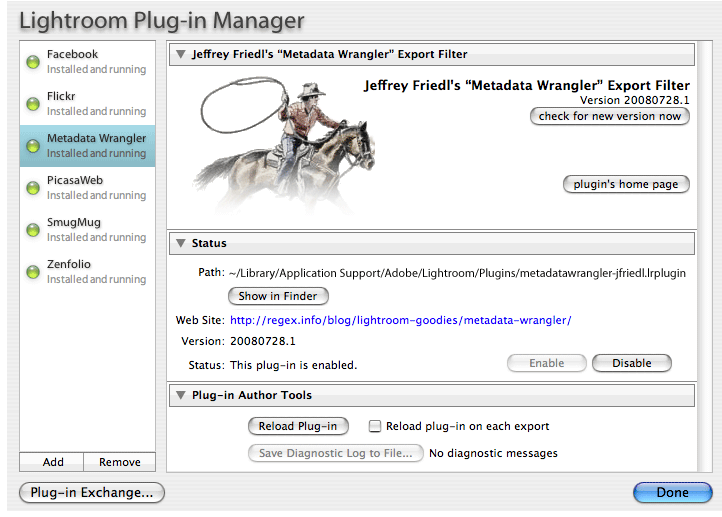
Starting with Lightroom 2.0, plugins are added and maintained via the Plugin Manager, which is accessible from Lightroom's File menu, and also from a button on the Export Dialog itself.

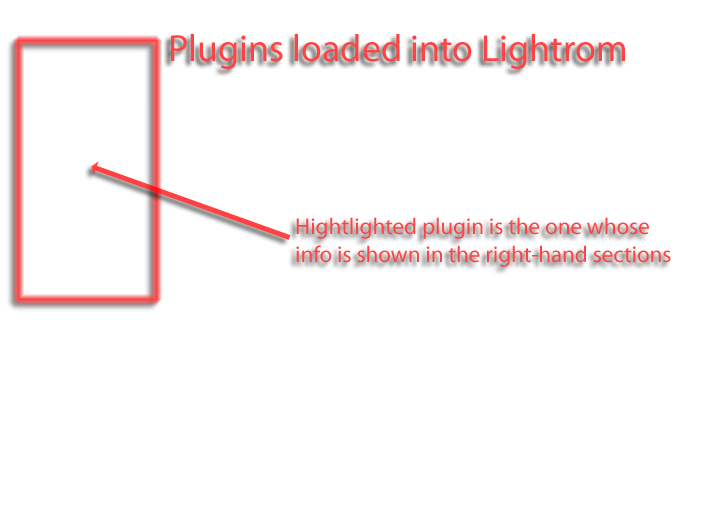
Here's a screenshot of the Plugin Manager on my system, after I installed half a dozen plugins. At the moment, it's showing my “Metadata Wrangler” plugin selected. Mouseover the labels at left to highlight areas of the screenshot...

(Mouseover items below)
  • List of plugins I've
    already registered
  • Register new plugins here
  • Info / tools for the
    highlighted plugin
  • Some plugins provide
    additional sections
  • Opens Adobe's
    Plugin Exchange
    in a browser

Installing a New Plugin

(short version)

Installing a plugin for use with Lightroom 2 and later usually involves these steps:

  1. Downloading a zip file from the plugin source.
  2. Unzip the plugin, and move the resulting “...lrplugin” folder to wherever you'd like to store your plugins.
  3. Bring up Lightroom's Plugin Manager and register that folder with the Add button.
    (If prompted for a catalog update, do so.)

Installing a New Plugin

(long version)

1. Download a zip file from a plugin source

Plugins are available from a variety of sources. My plugins are available from my Lightroom goodies page. Tim Armes has written a number of plugins as well. The central listing of Lightroom plugins is Adobe's Lightroom Exchange.

After unzipping, you should end up with a folder whose name ends in “.lrplugin” or“.lrdevplugin”. On a Mac, a “.lrplugin” folder actually appears as a “module” package.

You don't normally ever need to be concerned with the contents of a plugin folder, but if you need to confirm that the folder actually contains a plugin in the first place, check for an “Info.lua” file. (On Macs, you may need to “Show Package Contents” in Finder to view the files inside.) I mention this because some programs that produce zip files create a “....lrplugin” folder into which they drop the actual plugin “.lrplugin” folder, which can cause confusion.

2. Move the plugin folder to wherever you'd like to store your plugins

Starting with Version 2.0, Lightroom allows you to keep the plugins wherever you like — you just have to tell it where you place each one — so it's up to you to pick a spot to save them. For example, I usually create a “Plugins” folder in one of the Lightroom data folders, and then drop plugin folders in there. Here are the locations I create for plugins:

Windows XP %APPDATA%\Adobe\Lightroom\Plugins\
Windows Vista      \Users\username\AppData\Roaming\Adobe\Lightroom\Plugins\
Mac OSX~/Library/Application Support/Adobe/Lightroom/Plugins/

Again, you're free to pick wherever you like, with the caveat that Lightroom treats some of its application-data folders specially (as discussed below).

3. Register the plugin with Lightroom

Bring up Lightroom's Plugin Manager, either from the File menu, or from the Plugin Manager button on the Export Dialog. Click the Add button, then navigate to the “.lrplugin” folder.

Some plugins add their own set of per-image metadata to the catalog, and for such plugins, you are prompted for permission to update the catalog upon install. You should upgrade.

For example, my “Update to Flickr” plugin maintains in the catalog data about which images have been updated to Flickr, and their location at Flickr. This supports a number of features, such as the ability to replace an image during upload, the ability to filter within Lightroom for images that have/haven't been updated, the ability to include the Flickr-upload-status in Lightroom smart collections, etc.

You are also prompted in the same way when upgrading a plugin if the new version has any changes to the set of custom plugin metadata.

Using an Export Plugin

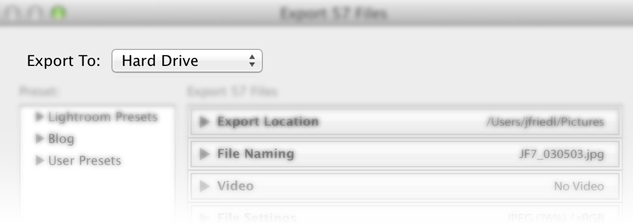
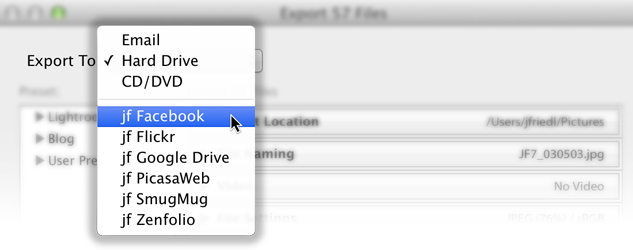
An export plugin can be selected by bringing up Lightroom's export dialog, then clicking on the “Files on Disk” banner across its top. That brings up a popup list of the export handlers available (both the built-in ones, and the ones you've added via the Plugin Manager)....

Using a Filter Plugin (a “Post-Process Action” Plugin)

Some plugins aren't intended to be an export destination, but, rather, to provide generic support for any export. For example, my Metadata Wrangler plugin allows you to strip selected metadata from exported copies as they are produced. It can be used with the built-in “Export to Disk” standard export, with my “Export to....” plugins (e.g. Export to Flickr), or with other third-party export plugins.

Adobe calls these “Post-process Actions”, but most people call them “Export Filters”.

Once you've added and enabled a filter plugin via the Plugin Manager, it shows up in the lower-left of the export dialog....
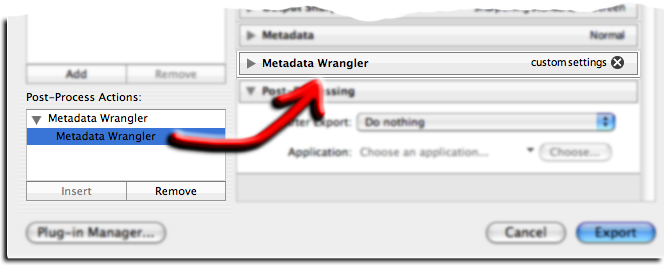
Click on its name, then the Insert button at the bottom, and you'll see it added to the main dialog. In the screen snippet above, the “Metadata Wrangler” dialog section is shown collapsed, so you only see its banner. If you were to click on the little triangle beside the name, you'd see the full dialog for the plugin, which, in this case (my Metadata Wrangler filter) is huge (see here for a screenshot).

Plugin Maintenance & Upgrades

Once a plugin has been registered with Lightroom, you can enable or disable it from the Status section of the Plugin Manager. A disabled plugin can't be used from within Lightroom, but remains registered in the Plugin Manager, so can be easily enabled for use.

You can fully de-register a plugin with the Remove button, on the bottom of the left-hand column. Plugins installed in legacy plugin locations – the locations that plugins had to be installed for Lightroom 1.x – can't be removed this way, and the Remove button remains gray. You have to actually remove the folder.

The Status section might also display plugin version and web-site information, if the plugin provides it (such as in the screenshot above).

Upgrading a plugin

Upgrading a plugin to a newer version is similar to installing the first time, except that if you replace the original “.lrplugin” folder with the new one, you don't have to re-register the location with Lightroom. In that case, you simply need to restart Lightroom, or click the “Reload Plug-in” button in the Plugin-Manager's “Plug-in Author Tools“ section.

If you install the new version in a new location, and register it via the Plugin Manager, the previous version will remain, but be disabled. You can enable only one version of any particular plugin at a time. Simply Remove the older versions when you no longer need them.
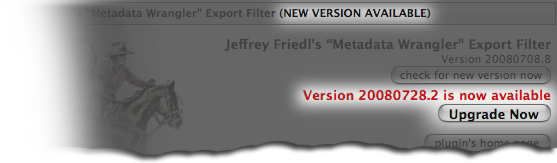
Upgrading one of my plugins

I've built an upgrade mechanism into my plugins, such that when a new version is available, you can simply press the Upgrade Now button in the Plugin Manager. That causes the new version to be downloaded and unzipped in place over top of the old version. You then press the Reload Plug-in button, or restart Lightroom, to have the new version take effect.

(If something goes wrong with the upgrade process, you'll have to manually download and install the new version. In such a case, you might want to inspect the log file left in the temporary-files area of the system, named for the plugin, e.g. “flickr-log.txt” for the Flickr plugin).

Legacy Plugin Folders

If Lightroom 2.0 finds a plugin in any of the legacy install locations from Lightroom 1.x (described here), they are automatically registered with the Plugin Manager.

As with any plugin, such auto-registered plugins can be enabled and disabled within the Plugin Manager. They can not, however, be fully de-registered (removed) via the Plugin Manager. To remove them completely from Lightroom, you have to manually remove the plugins from disk (or, at least, from the legacy plugin folders).

Some people prefer to continue to use the legacy install locations, simply adding new plugins there (thereby avoiding the need to register them with the Plugin Manager). This approach is perfectly acceptable, of course, but comes with the drawback that added plugins are not auto-registered except when Lightroom starts.


Comments so far....

Hi,

Can you please precise wether this plugin works with the LR 2 Beta version, or only the final release ? I can’t it working on the LR 2 Beta…

TIA !

Charly

It doesn’t work with the public beta, sorry, only the final release. The public beta expires pretty soon, anyway…. —Jeffrey

— comment by Charly on July 30th, 2008 at 1:39am JST (1 year, 6 months ago) comment permalink

Thanks for the new plugin – I updated LR today.

I’ve added a second Flickr account that I export to. Can I create a second plugin for the additional account?

The one plugin will work with multiple accounts. In fact, that’s one of the enhancements with the new plugins that I forgot to mention: the per-photo upload history is tied to the username used when it’s uploaded. In theory, you can log in via the plugin, then create an Export Preset, and repeat for each login you want. Then, later, when you want to switch logins, you can click on the preset while you’re in the export dialog, and you’ll be re-logged-in to the account as per the preset. However, I’ve gotten a report that the Flickr authentication doesn’t work when via a preset, so I’ve got to look into that. (I’m not a Flickr user, so never tested it myself). I do know that it works with the username/password plugins like Zenfolio, so I should be able to get it to work with Flickr, after I get some sleep! —Jeffrey

— comment by Susan on July 30th, 2008 at 1:58am JST (1 year, 6 months ago) comment permalink

Wow – a one-minute turn-around for the response – I believe that you need to catch up on a lot of sleep.

Thanks very much – I’ll try it and let you know.

— comment by Susan on July 30th, 2008 at 3:17am JST (1 year, 6 months ago) comment permalink

PS: I’ve tried your solution, and it works perfectly – an easy switch from one account to the other. Thanks again.

— comment by Susan on July 30th, 2008 at 10:51am JST (1 year, 6 months ago) comment permalink

Installation problem under windows vista. After unzip, there is one directory called smugmug-jfriedl.lrplugin, but windows will enter the directory and cannot find the correct file type to open.

That directory is the plugin. You have to point Lightroom’s Plugin Manager at that folder. —Jeffrey

— comment by NIck W on August 1st, 2008 at 2:16pm JST (1 year, 6 months ago) comment permalink

I can’t install the plugin, does it work with Windows XP 64 Bits?

My plugins should work on any platform that Lightroom runs on. I can’t speak to other’s plugins, though. —Jeffrey

— comment by Juanri on August 3rd, 2008 at 3:49am JST (1 year, 6 months ago) comment permalink

Jeffery,

I’m getting a data mismatch error everytime I try to upload to Smugmug. I was getting this error also at the end with LR 1.41 and your last version I had installed for SM which I think was .48. I upgraded to V2 LR removed the old Plugin, installed the new plugin according to your directions. Works sometimes for one file but then it quits again. Any idea’s where to look?

thx

— comment by Dale Lewis on August 3rd, 2008 at 11:09am JST (1 year, 6 months ago) comment permalink

I am very excited about this plug-in, but I can’t get it to work with LR2. I can authenticate to picasa (or a least it looks like it does) and then I get the error message, “Internal Plugin Error”. I am running Leopard with the latest updates.

— comment by Brett Michaels on August 3rd, 2008 at 4:14pm JST (1 year, 6 months ago) comment permalink

I’m getting errors trying to use this. Here are the errors…

**** Error 1

An error occurred while attempting to run one of the plug-in’s scripts.
Access to undefined global: quote

These are fixed as of the Aug 7th version of the plugin. —Jeffrey

— comment by Jason S on August 4th, 2008 at 7:46am JST (1 year, 6 months ago) comment permalink

That directory is the plugin. You have to point Lightroom’s Plugin Manager at that folder. —Jeffrey

Windows Vista does not allow the Lightroom Plug-in Manager to open that smugmug-jfriedl.lrplugin folder. I have tried this over and over again — it does not work. I believe Vista can detect that this is a folder and is enforcing some rule that it can only open a file in a dialog box like this, not a folder. Please try this with Vista and see what we mean.

thanks

As far as I can tell, it works fine on Vista; you just have to be sure, like on the other platforms, to navigate to the folder in which the plugin folder lies, then select the plugin folder. —Jeffrey

— comment by John Swenson on August 4th, 2008 at 12:08pm JST (1 year, 6 months ago) comment permalink

Not sure if the issue is due to LR2 or the plugins: my XP username is in Chinese characters and when I try to install it in the folder where I used to put since LR 1.x, it fails to load “Version.lua”:

An error occurred while attempting to run one of the plug-in’s scripts.
Internal Error: Can’t load “Version.lua” (cannot open C:\Documents and Settings\咻咻貓\Application Data\Adobe\Lightroom\Modules\picasaweb-jfriedl.lrplugin\Version.lua: Invalid argument)

Fortunately LR2 allows me to move my plugins around. I moved it to another place where contains only ascii characters (e.g. “C:\My Documents\My Lightroom 2 Modules\picasaweb-jfriedl.lrplugin”) then the Plugin Manager is able to load them successfully.

In LR1.x these plugins work perfectly in the original path (with double byte characters), though…

Thanks for the report… I think I’ll have to add this to the known issues page, and follow up with Adobe about it. —Jeffrey

— comment by rAbBiFiNiTy on August 6th, 2008 at 7:57pm JST (1 year, 6 months ago) comment permalink

to John Swenson: In Vista when you add the plugin, there is also a small “add plugin” bottom which is active when you select the plucin folder. That will do it for you.

Thanks for an excellent plugin

— comment by Rasmus Abildgren on August 7th, 2008 at 5:46am JST (1 year, 6 months ago) comment permalink

Took me a while to figure this out. The export plugins are easy in Vista. Just do what the instructions say. Unfortunately no where here does it tell you how to intall the web gallery stuff. Which by the way are killer. You don’t install them thru the plugin manager. They are just copied into the webgallery folder of lightroom. IE: C:\Users\”username”\AppData\Roaming\Adobe\Lightroom\Web Galleries. Then restart LR2 and the template will be there for you to use in the Web Module. Oh and one more thing. You will need to adjust the folder view options to allow the viewing of hidden files and folders because AppData is a hidden folder. Hope this helps anyone having trouble getting the web templates to work. Peace

— comment by Eric on August 7th, 2008 at 3:00pm JST (1 year, 6 months ago) comment permalink

Upgrading all flickr/picasaweb & facebook plugins in LR2 for me errors with:
Error installing new plugin; the log file is then displayed with the unzipping etc and exit status is 50 (0×00000032)
It appears not to have upgraded, but reloading the plugin makes it do so – perhaps silence this error message and make it clear the ‘upgrade avaliable’ flag?

If this happens again, please send the output of the “lr-plugin.log” file (in your Documents / My Documents folder), and I’ll see whether I can figure it out… —Jeffrey

— comment by Dan on August 7th, 2008 at 5:42pm JST (1 year, 6 months ago) comment permalink

Hi Mr. Friedl,
I downloaded and installed your plugin for “Export to SmugMug” this morning.
When displayed in the Lightroom Plug-in Manager (version 20080806.7) it provides a Note: this plugin version expires on Sep 5, 2008.
Why does it expire, and so soon?
How do I obtain a version that does not expire?

Thank you,

Art

You can pick up a new copy, closer to the expiration date, by clicking the “upgrade” button in the plugin’s custom section of the Plugin Manager. I describe the plugin-expiration stuff here. —Jeffrey

— comment by Art Guertin on August 10th, 2008 at 11:04pm JST (1 year, 6 months ago) comment permalink

I was having the same problem John Swenson was having trying to install the plugin on a Windows Vista system. Here are more precise instructions…. After you click the add button in the Lightroom plugin manager a Windows dialogue box opens allowing you to browse to the smugmug-jfriedl.lrplugin folder. Highlight that folder and click the “Add Plug-in” button, not the open button in the Windows dialogue box. The Lightroom plugin manager will recognize the smugmug plugin and will ask you to update the catalogue. Your’re done.

— comment by Tyree on August 20th, 2008 at 1:39am JST (1 year, 6 months ago) comment permalink

I am seeing the same error as Dan when I use the Upgrade Now button on the Flickr plugin. After hitting the Reload Plug-in button (why are some things plugin and others plug-in?), it seems to reload the new version just fine.
–Bill

I’ll look into the upgrade issue, but FYI, the reason for the plugin vs. plug-in duality is that Adobe uses “plug-in” everywhere, but that’s just silly, so I stick with “plugin”. —Jeffrey

— comment by Bill on August 20th, 2008 at 3:41pm JST (1 year, 6 months ago) comment permalink

Hi,

I try to use your plugin. It appears in the Plugin Manager, but there is nothing in the Export Windows.
I run on Lightroom 2 481478
Thanks

— comment by Greg on August 21st, 2008 at 4:34pm JST (1 year, 6 months ago) comment permalink

So I am really excited about using the plugin but I keep getting an error when I try to export to flickr. I’ve uninstalled and reinstalled twice but I keep getting some derivation of the following:

+35.3: At line 14255:Assertion failed(!)

After clicking OK I get the following:

Unable to export:
An internal error has occurred: ?:12809: assertion failed!

Any ideas what I can do to get this resolved?

Thanks!!!!

— comment by Warren on August 24th, 2008 at 12:18pm JST (1 year, 6 months ago) comment permalink

Thanx for great plugin. Good job!

— comment by petrarca on September 1st, 2008 at 8:05pm JST (1 year, 5 months ago) comment permalink

Great plugin thanks!

— comment by Martin on September 8th, 2008 at 4:45am JST (1 year, 5 months ago) comment permalink

hi, I have been trying for 3 hours to install the smugmug plugin, I have read through, followed step by step, the instructions, but there is no compatible file that Lightroom2 will recognize in order to “register” the plugin.
I also downl0aded LTD Airtight TiltViewer 0.3 from Adobe, and am having the same issue, no compatible filename to register…

What on earth am I doing wrong… I and a friend who has used your plugins on previous versions are stumped!!!!

Help.

thanks,
niteowl

— comment by niteowlgary on September 9th, 2008 at 6:33am JST (1 year, 5 months ago) comment permalink

I just upgraded to Lightroom 2 and the new smugmug plugin is fantastic! I just wanted to thank you for making my (and countless others) life so much easier. It’s great to have something that just works, and works well.

Thank you!

— comment by Rob L on September 10th, 2008 at 10:13am JST (1 year, 5 months ago) comment permalink

Is there any way to get the SmugMug plugin to remember the last gallery uploaded? It is a royal pain to have to select the same gallery over and over uploading/exporting hundreds of photos.

— comment by Micky on September 14th, 2008 at 7:54pm JST (1 year, 5 months ago) comment permalink

I receive the following error when trying to Export my photos to my Zenfolio Account, “An internal error has occurred: ?:19896: attempt to index a nil value”

Any suggestions on this??

Thanks,

Daniel

— comment by Daniel on September 17th, 2008 at 2:54am JST (1 year, 5 months ago) comment permalink

Also I get the following in an Info panel…

+2479.8: At +(tail call) line -1:
Return header ERROR
_________________________________________________

errorCode = “cannotConnectToHost”
name = “A connection with the server could not be established”
nativeCode = 12029

— comment by Daniel on September 17th, 2008 at 2:57am JST (1 year, 5 months ago) comment permalink

Great plugin for flickr!

I was wondering if there is a way to use the mogrify plugin in conjunction with the flickr plugin the way you could as a piglet in V1?

Thanks

— comment by chris on September 26th, 2008 at 11:15pm JST (1 year, 4 months ago) comment permalink

Hi Jeff,
Love your export plugin. Am using the Picasa Web version. Its saving me tons of time by allowing me to directly export to my online gallery from Lightroom. No problems installing/setting up the plugin in all three computers at home running WinXP SP2.
Thanks,

P. Soon

— comment by Philip Soon on September 27th, 2008 at 1:39pm JST (1 year, 4 months ago) comment permalink

great plugin, thank you for providing it. 1 quick question please. is there anyway to automatically update the lightroom 2 library photo metatags for pics uploaded to Flickr prior to using your plugin ?

thanks, alan

— comment by alan ranger on October 6th, 2008 at 4:04am JST (1 year, 4 months ago) comment permalink

did an export of 1 photo to flickr and got this error message:

Unable to Export:

an interanl error occured: ?:21857 attempt to concantenate failed field “?” (a nil value)

— comment by alan ranger on October 6th, 2008 at 7:19pm JST (1 year, 4 months ago) comment permalink

I get this error on LR2 on Leopard 10.5

+0.0: At =(tail call) line -1:
Return header ERROR
—————————————————————-

errorCode = “cannotFindHost”
name = “can’t find host”
nativeCode = -1003

_____ _____ _____ _____ _____ _____ _____ _____ _____
.
Any ideas ?

— comment by Mihai on October 15th, 2008 at 3:12am JST (1 year, 4 months ago) comment permalink

While exporting, it causes an error:

“An error occurred while reading the schema for the plugin PicasaWeb. The plugin will be disabled”

LR2.0 at WinXP SP3

I downloaded a fresh plugin today

— comment by UncleSam on October 27th, 2008 at 4:27am JST (1 year, 3 months ago) comment permalink

I’ve loaded the latest version of your SmugMug uploader, but obviously, despite having re-read the instructions several times, I’ve missed something major! I do not see any place to add my SmugMug web address. Right now when I export I get a dialogue that places the images into a separate folder on my hd, requiring an additional step – going to SmugMug and uploading from my home page as I’ve done in the past. I assumed that your plug-in would upload directly and automatically. What have I missed?????
Thanks

I think you missed this. —Jeffrey

— comment by pscron on October 30th, 2008 at 6:35am JST (1 year, 3 months ago) comment permalink

Love the plugin for Smugmug but ever since going to LR2 I have not had any luck getting it to work. I have the latest update, but it always starts the upload and then fails with a weird message with nil in the text.

I have uninstalled and reinstalled. I can’t see where I can select any of my gallaries. The plugin does log me in properly. Any help would be greatly appreciated.

Thanks

— comment by Bill Hatch on November 7th, 2008 at 1:43pm JST (1 year, 3 months ago) comment permalink

i was wondering it, if i am doing this right it when i look at the plug in it says it expires in 3 days
why is it saying that
and thanks for making this it is really great

— comment by caleb on November 22nd, 2008 at 8:25am JST (1 year, 3 months ago) comment permalink

Just wanted to say thanks for a great plugin! Previous plug-ins for Facebook have not operated as smoothly for me and I was exporting to iPhoto and then uploading to Facebook, you saved me a lot of time and energy!

— comment by Kris on November 23rd, 2008 at 2:34am JST (1 year, 3 months ago) comment permalink

I get the following error when trying to upload to Smugmug with LR2:

Error #2044: Unhandled IOErrorEvent:. text=Error #2036: Load Never Completed.

Any suggestions?

It doesn’t look to be from Lightroom or my plugins… what is giving you that error? —Jeffrey

— comment by Jim Brown on December 1st, 2008 at 10:06am JST (1 year, 2 months ago) comment permalink

Your plugin works wonders. Awesome!

— comment by Olivier on December 2nd, 2008 at 1:15am JST (1 year, 2 months ago) comment permalink

I installed the SmugMug plugin on my Lightroom 2.1, Vista machine. When I go to the export dialog it does not appear. There is an item in the plugin extras menu but that only allows flagging a picture for export. How do I get it to show up in my export presets?

— comment by James Thomas on December 5th, 2008 at 4:10am JST (1 year, 2 months ago) comment permalink

Worked like a charm – LR 2.1 on Vista 64

Super stuff…. thanks

— comment by Zeid on December 17th, 2008 at 4:54am JST (1 year, 2 months ago) comment permalink

Whoa! Either my update to Lightroom 2.2 or my installation of OnOneSoftware’s Plugin Suite 4 deleted the connection of your plugin from LR. After I reconnected it to tell LR Manager where your plugin is, everything went back to normal. Just thought I’d let you know.

— comment by David on December 18th, 2008 at 2:25am JST (1 year, 2 months ago) comment permalink

I am getting the same problem as James Thomas of 2 weeks ago.

I am using Lightroom 2.2 (it did the same on the original release) and Vista 64 bit.

Thanks,

Morris

— comment by Morris Bagnall on December 20th, 2008 at 10:22am JST (1 year, 2 months ago) comment permalink

Just upgraded to Lightroom 2.2 – running Vista 32.
I followed the direction for installing via the plug-in manager – that worked.
The problem I am having is that I cannot select a category to upload to – I click on the drop down and get nothing. The only thing I get in the “Upload to your SmugMug Account” is select at export time…After that I get a warning dialogue box saying “Unable to export: No export destination selected, so aborting export”.

Any help would be appreciated.

You have to have a gallery to upload to. You can create them at SmugMug, or in the “Tools” section of the export dialog. If you do have galleries at SmugMug but the plugin isn’t showing them, that’s a bug, and in that case, please email a copy of the plugin log (the one referenced in the upper-right of the Plugin Manager. —Jeffrey

— comment by Keith on December 27th, 2008 at 5:44am JST (1 year, 1 month ago) comment permalink

FYI: The Update Now button has never worked on my Vista 32bit box LR2.2… Pressing the button does nothing… Manually copying works fine. Maybe some vista protection going on…

— comment by Dan Pancamo on December 29th, 2008 at 5:49pm JST (1 year, 1 month ago) comment permalink

hi. I am running Lightroom 2.2 under Windows XP.
After downloading the HDR plugin, I selected a coulpe of HDR tiles for a panorama in the library grid view. Then, I tried to run them in the plugin but I got this error in the configuration tab: “path to enfuse folder incorrect or not specified”. “Please, specify the folder containing the enfuse and_align_image_stacks_applications”.
I put the unzip file of the plugin into prorgam files/adobe/Lightroom/module folder.
any help will be much appreciated.
Jose

— comment by jose basbus on December 30th, 2008 at 11:57am JST (1 year, 1 month ago) comment permalink

Thanks for the cool app!

— comment by Vandenn on December 31st, 2008 at 6:18pm JST (1 year, 1 month ago) comment permalink

Upgraded to LR 2.2 last week, have been a user since beta LR 1. I also have been using smugmug for a couple of years. Finally got around to installing your SmugMug plug-in.

Plug-in worked like a champ on the 1st try. This plug-in just saved me 1 step, a number of errors and a bunch of time in my workflow.

Thanks for developing this plug-in.

Mitch

— comment by Mitch Greenwald on January 1st, 2009 at 3:49am JST (1 year, 1 month ago) comment permalink

Oops! Flickr can’t find a valid callback URL.

An external application has requested your login credentials and permission to perform certain actions on your behalf, but has failed to include all the required data.

You don’t really need to know what this means, except that you can’t use the application until this problem is fixed. (It’s a third-party problem, not a Flickr problem.)

LR 2.2

What to do?

Anso

A “callback url” is something that a web application would need if it wants to work with Flickr, and is not part of a desktop application like my plugin, so I don’t know why Flickr might be getting confused. Could you send (via email) a copy of the plugin log referenced in the upper-right of the Plugin Manager, and let me know the steps you performed with Lightroom prior to getting the error so I know exactly what the plugin was trying to do at the time the error happens? Thanks. —Jeffrey

— comment by Anso on January 9th, 2009 at 5:56am JST (1 year, 1 month ago) comment permalink

Hi

is it possible to resize picture before upload ?

It depends on what plugin you’re using. All my plugins except the Facebook one include the standard section of the Export Dialog that allows you to set the export format, size, and quality. My Facebook plugin hides those because it automatically uses the normal size for Facebook, but you can enable that section via the checkbox in the “Facebook Tools” section of the Export Dialog. —Jeffrey

— comment by loic on January 9th, 2009 at 9:28pm JST (1 year, 1 month ago) comment permalink

This is pure awesome… Thanks for putting all the time into this; it’s really well polished, you’ve saved me many hours and un-needed duplicated.
-Z

— comment by Zak on January 11th, 2009 at 7:50am JST (1 year ago) comment permalink

Using Vista. Have made a plugins file. When I go to Lightroom Manager, the folder doesn’t appear. I can find it manually through using computer, but not through the manager. The manager omits my app data folder.

Duck Shots

— comment by Lorin Duckman on January 12th, 2009 at 1:26am JST (1 year ago) comment permalink

I am running Vista 64 and am also trying to install the Flickr plugin. The plugin manager in LR2.1 sees the plugin after I add it, but the Export screen does not.
The plugin manager can install it, but neither the Export… or Export with Preset screens do not.
Any idea what’s going on??

Thanks!

— comment by Glen on January 12th, 2009 at 3:57pm JST (1 year ago) comment permalink

This looks great, but I need a tip. I put the smugmug-jfriedl.lrplugin folder here:

C:\Documents and Settings\Administrator\Application Data\Adobe\Lightroom\Plugins

When I try to navigate to this folder inside the Plug-in Manager, that folder is not displayed. Does Lightroom hide the Application Data folder for some reason?

Thanks, Will

I don’t think that Lightroom does any hiding, but I’ve heard that some Windows folders are hidden by default. If you were able to navigate there with Explorer to place the plugin folder, then I’d certainly think you should be able to navigate there to register it with the Plugin Manger. —Jeffrey

— comment by Will Doak on January 26th, 2009 at 6:49am JST (1 year ago) comment permalink

sweet – you have just made my month with this amazing tool – THANK YOU!!!!!

— comment by Rory Lindsay on February 9th, 2009 at 10:52pm JST (1 year ago) comment permalink

I opened Lightroom today and was horrified to see a bunch of my smart folders empty (showing zero). These smart collections were for the Flickr, Facebook, and other plugins. I then found that the plugins were no longer in Lightroom. I then found they were no longer on my system. Argggg!

So I came to the conclusion that they were in my downloads folder (don’t know why I didn’t move them). I cleaned out my downloads folder and trash. Outta luck? Would the information be included in one of my daily backups from within Lightroom? Please say yes.

The per-image data is held in the catalog, not the plugin folders, so if you reinstall the plugins (pick a safe area this time:-) ), everything should be fine. —Jeffrey

— comment by fretbuzz on February 12th, 2009 at 4:07am JST (11 months, 29 days ago) comment permalink

*sigh* a more detalied explanation on steps to export for beginners would be very much appreciated!!

— comment by ness on March 1st, 2009 at 4:29am JST (11 months, 12 days ago) comment permalink

Great plugin, when I try to authenticate with flickr all I get is a blank page. Anyone else had this problem?

Dave, send me an email with more details about the problem (what does “blank page” mean… where?). Thanks. —Jeffrey

— comment by Dave on March 2nd, 2009 at 3:56am JST (11 months, 8 days ago) comment permalink

Thanks for the great work on the plugins!

Will per-image user data be exported and subsequently imported correctly?

For example, after a location shoot, I export images to Flickr with the Flickr plugin on my laptop. Later, back in my office, I export the catalog on the laptop and import it into my main catalog on my desktop. If I perform a subsequent Flickr export on the desktop, will the plugin be aware of the previous export from the laptop?

Yes, I believe it should all work. Plugin-specific per-image data should be included when you catalog export/import. Plugin settings in the export dialog (e.g. destination tagset, etc.) are kept in the preferences file, which is specific to each install, so if you create presets or the like, you’ll have to manually reproduce those on the other machine. —Jeffrey

— comment by Daniel on March 3rd, 2009 at 2:41pm JST (11 months, 6 days ago) comment permalink

It looks like Flickr wasn’t working properly, the plugin works now, it’s brilliant thank you :)

— comment by Dave on March 3rd, 2009 at 5:44pm JST (11 months, 6 days ago) comment permalink

First of all, I love this plugin!

1.) The Upgrade Now feature has not worked for me. I’ve tried it with the two most recent updates, and I get nothing.

2.) I just installed the new update of Lightroom (v. 2.3) and I get the following error message when I try adding your plugin. “An error occurred while reading the schema for the plug-in ‘Flickr’. The plug-in will be disabled.”

I’m using Windows Vista, Home Premium (SP1) 64-bit.

Thanks for all that you add to the Lightroom and Flickr communities! You’re a rock star!

If you’re updating for the first time in a while, you have to restart LR for the change to take effect. There was a change a while ago that tickled a LR bug, and hence the need to restart. If the problem is still there after a restart, then you probably have to clear out the old plugin completely, and reinstall manually from scratch. If that doesn’t fix it, then please report (via email) the contents of the diagnostics in the lower-right section of the Plugin Manager. Sorry for the hassles. —Jeffrey

— comment by Stephen Elliot on March 4th, 2009 at 12:27am JST (11 months, 6 days ago) comment permalink

Thanks! So far, it’s working great!

— comment by John Swearingen on March 9th, 2009 at 12:19pm JST (11 months ago) comment permalink

when I upload a pic it is going to a certain set in my flickr everytime… Can I choose where the pics go? And can I use Safari instead of Firefox? I am having problems with firefox coming back with “Bad Request error”… any help will be appreciated.
Lightroom uses whatever browser is registered as your main browser, and should work fine with any of them. You can indicate what set photos should go to in the Destination section of the Export Dialog. If you have further problems, please send a plugin log via the button in the upper-right of the Plugin Manager. —Jeffrey

— comment by chris on March 9th, 2009 at 3:45pm JST (11 months ago) comment permalink

Hello,
I installed the flickr and the facebook plugin but I cannot exprt any pictures it doesn’t show up in the dialog menu as a export option. in the export menu it says that both plugins are installed and running!? I’m using them on a mac.

— comment by Jeremy on March 16th, 2009 at 10:32am JST (10 months, 23 days ago) comment permalink

Jeffrey,
I downloaded and extracted your Lightroom export plugin for Facebook and looked for the
folder “whose name ends in “.lrplugin” or“.lrdevplugin”. I don’t see either.
I have two folders:
i
Win
and a lot of files. Perhaps you can tell me what I’ve done wrong. I’m working with the
latest version of Lightroom on a Vista Ultimate machine.
Thanks,
jt

You’re looking inside the folder created by the unzip. Don’t. The folder created by the unzip is the plugin. —Jeffrey

— comment by John Tannock on March 18th, 2009 at 5:01am JST (10 months, 22 days ago) comment permalink

Absolutely lost here in TX – I have downloaded your smugmug export plugin and when I unzip it, it opens a long list of files. I cannot find a lrplugin folder, and Lightroom isn’t recognizing what I have either. What am I doing wrong?

The zip file contains one folder, which itself contains a bunch of files. If you’re not seeing the folder/file hierarchy, look to the settings of your unzip program. —Jeffrey

— comment by Marilyn on April 7th, 2009 at 8:04am JST (10 months, 3 days ago) comment permalink

Do you have a plug-in for Lightroom to Shutterfly?

Thanks,
Leora

— comment by Leora Henkin on April 7th, 2009 at 11:11am JST (10 months, 2 days ago) comment permalink

got your export-plugin out of scott Kelby’s book Lightroom.
thanks for your work

— comment by max on April 9th, 2009 at 5:22am JST (10 months ago) comment permalink

I upgraded to LR 2 and your zenfolio plug in, apparently for LR came along. It worked, but today I decided to upgrade to your plug in for LR2. I followed the instructions and it seemed to load all right; the LR plug in manager shows it’s installed and running.

When I tried an upload; nothing; no upload. LR showed the line that said, “Uploading to Zenfolio” but it didn’t upload.

I know you say to not report bugs here, but this is not a bug, I am sure it works fine, just not for me.

Does it matter that I was not able to remove the old version from the list on the manager? How can I do that?

— comment by Bob on April 14th, 2009 at 3:05am JST (9 months, 27 days ago) comment permalink

I tried again, and it seems I didn’t wait long enough; however, LR does not show the progress line. It is very very slow. takes hours to upload 60 imags; this; is much slower than before; do I have something not correct?

I noticed something that may or may not be an issue that causes my machine to upload very slowly.

LR has your plug in the Modules folder. When I downloaded your version for LR2 I put it into the Plugins folder. And now I just noticed that inside the your folder that I put in the Plugins, there is folder labeled ‘i’ is a bunch of icons and in the one labeled ‘win’ there is an upzip. I really don’t have a clue. When I went to college I used a sliderule; now a 12 year old boy could figure this out.

It seems that the one I registered went to the one in the plug in folder not the Modules folder, however, that one contains an icon that says ‘unzip.’ so how can it be working? And yet is the Manager says it is installed and running.

How did the version 1.3.1.43 get in there? Should I enable that one and use or disable it? I disabled it since that is not the one I registered and there is no ‘remove’ button.

Is the 1.3.1.43 the version for LR2?

In LR1 you had to put the plugin (which is really a folder with a name ending with “.lrplugin” inside of which are a bunch of files, including sub-folders like “win” and others) into a specific system location, then restart Lightroom for it to notice the addition. You can still do it that way with LR2, but better yet is the new Plugin Manager, which allows you to register plugins that you’ve placed anywhere on your system that you want. But since it also reports those in the original LR1 system location, old plugins remain showing up until you actually remove the old plugin folders. (The Plugin Manager never deletes anything; if you use it to remove a plugin that you’d added with it, it’s simply “forgetting” about the plugin, and doesn’t actually delete any folders. Conversely, when you add a plugin via the Plugin Manager, no files or folders are copied; you’re merely telling Lightroom “this folder I’ve placed here is a plugin that I want you to know about”.)

So, you’ll want to go in and remove or rename the folder for the old plugin, then about the upload speed, check the settings in the Export Dialog to be sure that you’re sending the size you think you’re sending. If they’re larger or of a higher quality than before, they’ll of course take longer. —Jeffrey

— comment by Bob on April 14th, 2009 at 4:45am JST (9 months, 27 days ago) comment permalink

All right; thanks. I deleted the folder with told plugin, curious though it had a few items with this years date.

The Manager still shows the old plugin; hte little dot is blank (not green) but when I select it, the Remove button is not active.

This situation is also present for Proshow and Photomatix. I didn’t install those either. Sorry to be so dense on this stuff.

The slow issue might be because I’m starting with RAW files so somewhere in this proces it has to convert those to jpegs, that’s probably why the upload is slow.

So, how can I remove your plug in for LR1 from the plug in manager?

After removing the plugin folder from the system location that Lightroom checks when it starts, simply restart Lightroom and it’ll be gone. If it’s not, then you perhaps had multiple copies or something…. use the “View in Explorer” link to see exactly where it is. —Jeffrey

— comment by Bob on April 14th, 2009 at 9:10am JST (9 months, 27 days ago) comment permalink

Love the Lightroom plugin, but have a quick question. When I upload an image, that image used to show up on my wall on Facebook. Now it doesn’t. Any idea what’s going on?

Thanks so much.

Justin from Provo, Utah.

I don’t know…. what is a “wall on Facebook”? (Sorry, I’m not a Facebook user). Does it depend on where you upload to? —Jeffrey

— comment by Justin on April 18th, 2009 at 11:46am JST (9 months, 22 days ago) comment permalink

This is a great wesite & resource for LR! Thanks Jeffery for your work on the information and plugins.

I just wanted to give a tip for people that are trying to place the plugins in the above locations;
%APPDATA%\Adobe\Lightroom\Plugins\
\Users\username\AppData\Roaming\Adobe\Lightroom\Plugins\

In Windows the ‘appdata’ folder is normally hidden, so when you get the ‘Browse for files or folders’ after you click the add in the plugin manager, so you will not be able to see that folder.

You need to go into windows explorer and right-click the appdata folder, at the bottom of the list choose properties, and on the general tab, at the bottom under ‘Attributes’ there should be a checkbox called ‘Hidden’ that will be checked. You uncheck it and choose to apply the changes to ‘this folder, subfolders and all files’. You should then be able to see the appdata folder in LR.

Also it seems that if you re-hide the appdata folder after the installation of the plugin it will create an error window each time you start LR, I think the plugin still works but you may need to leave the appdata folder unhidden to avoid that error.

— comment by Bryan on May 9th, 2009 at 12:12am JST (9 months ago) comment permalink

Thanks, Bryan. I’m running Vista and couldn’t figure out why I could navigate to the AppData folder from Explorer but couldn’t see it in Lightroom.

— comment by Mark Scheuern on May 28th, 2009 at 4:30am JST (8 months, 12 days ago) comment permalink

I just tried to download and use your program, but it comes up in LR2.3 with something about “the shadow gps injector not written to a remote share accessed via the “\\hostname” notation. If you bind the share to a local drive letter and select the export-to location that way, things should work.”

Um, in English now, what the heck does that mean? Binding shares? I haven’t a clue. We have a simple peer-to-peer network, and just log to the local drives on each … I have never heard about binding shares before!

“Log to the local drive” is apparently your nomenclature for “Binding shares” (binding to a local computer the shared folder on another computer). Whatever you call it, the GPS Injector can’t work with filenames that being “\\hostname\…”, so to get around that, you can assign a drive letter to the “\\hostname\…” folder, then reference files on that folder through the local drive name, and all should be fine. —Jeffrey

— comment by R. Neil Haugen on June 6th, 2009 at 6:22am JST (8 months, 4 days ago) comment permalink

Hi Jeff.I love your geoencoding plugin for lightroom. This may be a simple problem; when I ‘add’ the pluging to lightroom in the plugin manager that is fine and it works beautifully. But everytime I close lightroom and restart, the plugin is no longer recognised. That is I have to reinstall it every time I start the program. Btw, I am using Windows 7 RC and it is the latest lightroom 2.3.
Thanks in advance
Steve

Your Lightroom Preferences file is either corrupt, or not writable by Lightroom. (Lightroom has not been certified for Win7). The first test would be to shut down LR, delete your preferences file, then start up and see how it goes. If that doesn’t fix it, look to the file/folder permissions for where the preferences file lies. (This is not specific to my plugin, so you might want to consult Adobe, but I know they won’t support it. However, the user-to-user forums at Adobe’s site should have a lot of people using Win7, so I’d feel confident that you’d get good help there.) —Jeffrey

— comment by Steve on June 6th, 2009 at 12:51pm JST (8 months, 3 days ago) comment permalink

I’ve installed the LR plugin and have been trying for several days to export using it. Each time I get the message CannotfindHost when I try to login.
Can you help me please ?
It happens when I’m already logged in to my SM account.
I’m using FF 3.0.10 on a Mac mini OS 10.5.4

FF uses its own proxy settings unrelated to those of OSX, so I’m guessing that’s why it works in FF but not in Lightroom (which uses the system settings). Check the computer’s location setting (click on the blue apple in the upper-left, then “Location”) and make sure that its internet preferences are correct. it’s a pain that FF on OSX does not respect the computer’s proxy settings. —Jeffrey

— comment by Caroline on June 6th, 2009 at 2:18pm JST (8 months, 3 days ago) comment permalink

“Log to the local drive” is apparently your nomenclature for “Binding shares” (binding to a local computer the shared folder on another computer). Whatever you call it, the GPS Injector can’t work with filenames that being “\\hostname\…”, so to get around that, you can assign a drive letter to the “\\hostname\…” folder, then reference files on that folder through the local drive name, and all should be fine. —Jeffrey

I still don’t understand … I simply have internal hard drives on my computer, C through L. I don’t work in LR from any folders on other computer’s over the network, though I do export to them at times. All my files and catalogs are on those local drives on my machine. What the heck is binding to another computer anyway, and why would that affect my local drives?
And the drives I may export to on other computers are not “shared” drives, they’re just open to access by other computers on the local network.

So I don’t understand first, what any of the gobbledegook is about, or second, why it should affect things. I don’t work on shared drives on other computers. Please, I am quite puzzled.

You said “though I do export to them at times“, which is exactly the issue here. If you export to a network drive that is named like a network drive (as opposed to one that has been mapped so that it appears as if it’s a local drive), then exiftool, the underlying technology that updates the gps in exported files) fails to work. Contact me by email if this doesn’t clarify things. —Jeffrey

— comment by R. Neil Haugen on June 6th, 2009 at 3:24pm JST (8 months, 3 days ago) comment permalink

Thanks for this Jeff. I noticed the problem the day after the laptops power had disconnected before the computer had properly shutdown (the battery is completely dead). I have noticed problems with other programs and have had to reinstall e.g firefox. Will try deleting preference as you have said but may have to reinstall. Thanks for your help!

“Your Lightroom Preferences file is either corrupt, or not writable by Lightroom. (Lightroom has not been certified for Win7). The first test would be to shut down LR, delete your preferences file, then start up and see how it goes. If that doesn’t fix it, look to the file/folder permissions for where the preferences file lies. (This is not specific to my plugin, so you might want to consult Adobe, but I know they won’t support it. However, the user-to-user forums at Adobe’s site should have a lot of people using Win7, so I’d feel confident that you’d get good help there.) —Jeffrey”

— comment by Steve on June 7th, 2009 at 8:15am JST (8 months, 3 days ago) comment permalink

Jeffrey, many thanks for a plugin that’s proven to be invaluable. Lightroom->Zenfolio uploads are now a breeze.

Norwin
Vancouver, Canada

— comment by Norwin on June 7th, 2009 at 1:11pm JST (8 months, 2 days ago) comment permalink

Thanks Bryan, I had that problem, and now it’s all working great! Now I can breath a little easier (until the next problem anyway).(-:

— comment by Sam Bortnick on June 14th, 2009 at 3:56am JST (7 months, 27 days ago) comment permalink

I use the lightroom plug-in for smugmug on a windows box. It’s great and saves me a ton of time. I’m thinking of switching to a Mac – do you have a plug-in that supports the Mac too?

Mitch

All my plugins work on both PC and Mac. —Jeffrey

— comment by Mitch Greenwald on June 15th, 2009 at 11:55pm JST (7 months, 25 days ago) comment permalink

Using Lightroom 2 and version flickr-20090705.117 of the plugin.

When I click Authenticate to Flickr, and then hit OK, the plugin displays this error:

Attempt #1 error “cannotConnectToHots”, pausing 9 sec before trying again…

I am already signed into Flickr in Safari when I click Authenticate.

Any ideas on how to resolve this?

Being signed in with Safari doesn’t mean that Lightroom can necessarily contact Flickr…. you probably have a firewall or “zone defense” type of thing installed that’s stopping Lightroom from connecting, or, perhaps, Flickr was down when you tried (but not down when you tried in Safari). —Jeffrey

— comment by jm3 on July 12th, 2009 at 9:49am JST (6 months, 29 days ago) comment permalink

when i input my walk URL it says “incorrect photowalk URL” i entered “venice-ca-usa”

any suggestions as to what im doing wrong?

Writing to me, I think. :-) I’ve heard about some photowalk thing, but have no connection to it. You might want to check where you got the plugin…. —Jeffrey

— comment by annette on July 17th, 2009 at 1:35pm JST (6 months, 23 days ago) comment permalink

How do I move the LR2 presents and plugins to a new computer?

I have a plan to move the cataloge, images and folder structure, but how can I move all the plugins?

You can just download and install the latest versions on the new system. Things like your presets, preferences, catalog, etc., you’ll have to move, but the plugins can just be installed from scratch. —Jeffrey

— comment by Bob on July 22nd, 2009 at 4:44pm JST (6 months, 18 days ago) comment permalink

I can’t seem to locate the “application data” folder when browsing with the plug-in manager. I have made sure that hidden files are shown in the control panel. Any hints?

I don’t know. I don’t put my plugins there… I leave them in a folder off my home directory. —Jeffrey

— comment by Jim on July 23rd, 2009 at 4:55am JST (6 months, 18 days ago) comment permalink

I just upgraded the PicasaWeb plugin to v 20090904.90 – now when I go to export, my picasa account logs in fine, however the “Upload Destination” dialog has “*** select at export time ***” for the destination (where it used to populate with the list of my albums) – I’m obviously doing something wrong, I have been unsuccessful using this dialog and trying to add content to a pre-existing album. Is there a config setting I missed to populate the list as before, am I missing use of the functionality “select at export time” option or did something break. I’m on a Mac and also upgraded to snow leopard in the last few days (maybe that’s the problem).

Thanks Jeffrey – lots of great plugins – very helpful!

Turns out that there was a Mac-only bug in LR’s XML handling. I just pushed a fix that works around it. —Jeffrey

— comment by Forrest on September 5th, 2009 at 1:39pm JST (5 months, 4 days ago) comment permalink

I’m having the same issue as Jim. I’m using Windows 7 and I’m unable to see the “AppData” folder in LR2. This also happens in Picasa and other apps, so I’m assuming it’s a Win 7 issue. I just moved my plugin folder.

— comment by Ben on September 23rd, 2009 at 11:01am JST (4 months, 17 days ago) comment permalink

I searched in the plugin and here, but can’t seem to figure out how to make the new auto folder created in picasa be dated the date of the first image or any particular date. I date all my folders yyyy-mm-dd so it could just grab from the beginning of the folder name, at least for me. Can the be done? If not can you add it to the wish list for later consideration.

You should be able to create a template using the “auto destination” feature to do exactly what you want. See the link to the immediate lower-right of the album list.

This plugin is soooo very cool. I really appreciate it. I’m near Chicago.

Side comment: when lightroom finally does face recognition (it’s got to be close or they are dropping the ball), do you think we’ll be able to upload face info to picasa or should I not hold my breath?

I can’t speak for Adobe, but my take is that you should not be holding your breath. Their primary demographic is the pro shooter and advanced amateur, and face recognition seems to be in the gimmicky consumer category. Personally, I’m still waiting for the basic hooks for geoencoding, so I can dispense with the kludgy workarounds I have in my geoencoding plugin. )-: —Jeffrey

— comment by Mike Bessler on September 27th, 2009 at 8:01am JST (4 months, 14 days ago) comment permalink

The auto destination allows me to name it whatever I want including using the {Folder} that I am currently using and I like that. But it does not allow me to DATE it what I want. That’s my concern, the date so the folders in picasa can be odered by reverse date.

You’ll have to explain what you want that can’t be done, because I think it can be done. You can have the plugin use the date from the first image, or from each image, or you can use any arbitrary date you’d like. —Jeffrey

I do agree with the demographic for lightroom. But I don’t come to the same conclusion. I’m a pro photographer and bought lightroom mostly for my fine art business. But I do happen to take pix of my kids and at family events including weddings. I use picasa’s local facial recognition so my relatives know who they are looking at. So I could use lightroom for my business and picasa for family, but who wants to use 2 products. And lightroom is way easier and better at light editing anyway. Besides since the other big guns have included local facial recognition, adobe will probably follow.

— comment by Michael Bessler on September 28th, 2009 at 6:41am JST (4 months, 13 days ago) comment permalink

LR2.0, OSX, current version of PicasaWeb plugin.
First time user. I selected 99 images, click export, all seems fine (rendering/uploading), then after 10 images I get the following message:
—–
Error response from PicasaWeb
Unexpected reply from PicasaWeb
Error: 17 REJECTED USER LIMIT

Aborting export after 10 of 99 images successfully uploaded
—–
I select the same batch of images, re-export using the same settings, and this time I get to 15 of 99 images before the same message.
Third time I tried it got through all 99 images successfully.
Am I doing something wrong?
Thanks for a great plugin!

I’ve seen reports of this from time to time and from what I can tell, this is an error on Google’s side that has nothing to do with you as a user, any kind of limit… it seems to be a random error that results in your being mysteriously rejected. Do a search on the message and you’ll find that it seems to happen randomly, with all kinds of uploaders. So, just give it some time and it should fix itself…. —Jeffrey

— comment by Andrew on October 7th, 2009 at 11:09am JST (4 months, 2 days ago) comment permalink

The registration button should not be so hard to find. I want to mess with my photos, not scroll and click over all over. First rule of retail: make it easy to buy. Love your stuff!

— comment by geoff chalmers on October 27th, 2009 at 6:20pm JST (3 months, 12 days ago) comment permalink

HOw do I remove your plugin I have it in twice and “remove” is grayed out. The option is not avaliable. Please help!

If “remove” is grayed out, you have it installed in Lightroom’s system folder (where it had to be installed for LR1). In that case, you have to delete the folder from disk. See the LR1 install notes for the location of the folder for your system. —Jeffrey

— comment by David McDonald on October 30th, 2009 at 6:46am JST (3 months, 10 days ago) comment permalink

Help!
I installed the Zenfolio plug in — no problem accessing it through lightroom, and the progress bar shows uploading of images, but there is nothing in my Zenfolio homepage — no folder, no images, nothing!

Thanks From Fairfield Connecticut

Any chance you’re logged in to one Zenfolio account with your browser, but a different one in Lightroom? —Jeffrey

— comment by Jeff on November 8th, 2009 at 1:26pm JST (3 months, 1 day ago) comment permalink

Hi Jeffrey!

I’m excited to use your SmugMug for Lightroom plug-in. I installed it okay….it says it’s running, etc.

However, under “File Settings”, color space isn’t even an option! :(

Help?!

Thanks,
Tanya

SmugMug accepts only sRGB, and so at their request I have the plugin force that. —Jeffrey

— comment by Tanya on November 10th, 2009 at 10:45am JST (2 months, 30 days ago) comment permalink

I just installed the Facebook plugin for Lightroom. I want to upload photos not to my home Facebook page but to the page of a school that has a Facebook account. When I click to authenticate the plugin it wants to do it to my own Facebook account. If I do that, will I be able to upload to the school’s Facebook page?

Please explain how to do this. Thanks, Ross, Concord, MA, USA

Facebook, for reasons that remain a mystery, do not allow third-party apps like my plugin to upload to Pages, only personal accounts. It’s frustrating for a lot of users. —Jeffrey

— comment by Ross Harris on November 17th, 2009 at 1:44am JST (2 months, 24 days ago) comment permalink

Thanks, Jeffrey. Maybe I can upload them to my account, then point people on the school account to mine. I’ll see if I can figure that out. —Ross

— comment by Ross Harris on November 17th, 2009 at 7:30am JST (2 months, 24 days ago) comment permalink

I have your geo-encoding and smugmug plugins for lightroom. I recently did a clean install of Windows 7 and reinstalled lighroom and the plugins. Now when I go to the plug in manager, each of them shows there are updates and downloads them but when done it says 20091023.xxx is installed which is the old version. It will continue to say theres a new version but will not update either plugin after downloading them. I’ve never had an issue like this before. Is there any way of fixing this or am I doing something wrong?

Thanks
I built all the upgrade stuff myself (I wish it were built in to Lightroom), and it’s a bit fragile with all the various types of operating systems and user accounts and permissions and such, so sometimes it just doesn’t work. Sorry. You’ll have to do a manual download and install (unzip the new one in place of the old one) and it should be fine. If it fails the next time, you may need to check your folder permissions… —Jeffrey

— comment by Erik on November 24th, 2009 at 2:17pm JST (2 months, 16 days ago) comment permalink

I have come to depend upon the plug in for uploading to Picasweb. I actually used the browser based upload this morning because the plug in does not seem to work with LR3 Beta. UGH UG!! Since the title of your plug in section actually includes Lightroom 3 am I missing something on how to get the plug in working there. I could not identify anything special in your instruction setups. — Stan

It works for me in LR3b, but it’s not been tested well, so you’ve probably found a nook that I’ve not checked yet. Could you let me know (via email) what you were doing when it failed? —Jeffrey

— comment by Stan Schretter on November 29th, 2009 at 1:46am JST (2 months, 12 days ago) comment permalink

I recently updated my Lightroom Flickr plugin to the latest version on my Mac (running latest version of Tiger) and used it and it worked fine. I also installed your Facebook plugin though hadn’t used it yet. A couple of days ago I found that neither plugin is available in the Export dialog. And when I look in the user/Library/Application Support/Adobe/Lightroom/Plugins folder both plugins are there. Why do you think they got uninstalled? I had registered and paid for both. Should I go ahead and reinstall? Will it ask me to register them again? If so, what should I do?

Thanks, Ross

Check the plugin manager to see whether they’ve merely been disabled for some reason. If they’re not listed at all, it’s possible that you have a corrupt Lightroom Preferences file, and so lost the list of installed plugins. You can try reinstalling, but if they get lost again, you’ll probably have to delete your preferences file and start over. )-: —Jeffrey

— comment by Ross Harris on December 1st, 2009 at 4:27am JST (2 months, 10 days ago) comment permalink

I have the same problem as jm3 above, only I am using Vista (and – sadly -IE8).

“Error Attempt #1 CannotConnecttoHost”
(then to retry in 9 sec, etc)
Turned my firewall off and all my computer security, it still won’t connect. About the only thing I can still think of is that it won’t work if someone is using a normal user account instead of an admin account. (I don’t surf around on my admin account.)

Flickr is working perfectly, so it isn’t on their end in terms of connectivity.

Would love an export plugin, but am at a loss how to make this work.

If your web browser works but Lightroom doesn’t, it’s likely some kind of security/permission thing on your side disallowing Lightroom from connecting to the Internet. —Jeffrey

— comment by Laurent on December 7th, 2009 at 1:07pm JST (2 months, 2 days ago) comment permalink

Hi Jeffrey, thanks for this awesome plugin! It quickly became my favorite way to upload pics to Facebook. Something seems to have changed though with rev 20091216.103 or one of the more recent revs. All of a sudden my pics (always configured to export from LR at 604 pixels on the long edge as JPG with 100% quality) look pretty bad on FB, as if the colorspace is wrong or FB is reconverting them again on upload (which was the main thing I was preventing by using your plugin). This was not happening even as of Dec 13, 2009, with an earlier version of the plugin, so I’m not sure what’s going on! I can say with certainty that the same exported JPG on my Desktop that is then uploaded to FB through the plugin now look different, and the colors are much more dull in FB on the same monitor. In the meantime, is there a way to rollback to a previous version of the plugin?

Thanks for any thoughts!

The change is on the FB side… they’re looking into it. —Jeffrey

— comment by Kenneth on December 22nd, 2009 at 6:31am JST (1 month, 19 days ago) comment permalink

Thanks for the quick reply. In the meantime, I’m interested in rolling back to an earlier version of the plugin to see if that helps at all. If that is possible, how do I cleanly revert to an older version, and in fact do you keep older builds on your website? (Since the plugin auto-updates, I don’t think I actually have any of the original downloads!) Thanks for any advice.

It won’t help in this case, but you can revert if you like. Just delete the plugin folder and replace with one you unzip after downloading, e.g. http://regex.info/LightroomPlugins2/releases/facebook-20090918.92.zip. The list of versions is on each plugins’ Version History page. About six month’s worth are available… —Jeffrey

— comment by Kenneth on December 22nd, 2009 at 9:01am JST (1 month, 19 days ago) comment permalink

Okay, Jeffrey’s right — rolling back to older versions of the plugin did not resolve the latest color problem (I tried 20090918 and 20091023 before returning to 20091216). After that failed miserably, I decided to try uploading files to Facebook with 1208 pixels as the long edge, which essentially forces Facebook to do some kind of compression. Ironically, color production seems a lot better!

This Facebook test album shows some comparisons I did tonight:
* The first photo in each set was uploaded with the LRtoFB plugin at 604 pixels long and 100% jpg quality. (These look dull in my opinion.)
* The second in each set was uploaded with the LRtoFB plugin at 1208 pixels long and 100% jpg quality. (These look much better, especially in the reds, and seem to match my original photos much better.)

Not sure what to definitely conclude, except it looks like that I might be uploading images at 1208 pixels for now, while periodically testing to see if 604 pixel uploads are restored to their former glory.

— comment by Kenneth on December 22nd, 2009 at 5:10pm JST (1 month, 18 days ago) comment permalink

Hi Jeffrey, I registered your flickr plugin a week or two ago and love it. I’m not playing around with the smugmug version. The smugmug API allows you to “upload” a photo via URL. Since I’ve already uploaded photos to flickr and your flickr plugin knows the URL, would it be possible to upload to smugmug via the flickr URL in a future update?

Thanks,

Jeff

That’s an interesting idea, but one of limited appeal. Does SmugMug not have something that allows you to suck files over from Flickr? —Jeffrey

— comment by Jeff Thompson on January 2nd, 2010 at 12:28pm JST (1 month, 7 days ago) comment permalink

Jeffrey,
Australian dollars should be just about getting close to Japan by now……………… Thank you for your work / time involved in “Wrangler”. I have CS2 & use LightRoom2, and only read of your “fix” a few minutes ago on a LightRoom/FLICKR newsgroup. I am ex-pat Yank now retired in beautiful Queensland, Australia.
Thanks again , Curt H.

— comment by Curt Hakl on January 14th, 2010 at 9:38pm JST (3 weeks, 2 days ago) comment permalink

Upgraded the GPS plugin to version 20100102.105 and it will not enable. The error in the log is :5110: attempt to index upvalue ‘?’ (a boolean value)

What does this mean and how do I fix it?

Hmmm, I have a hard time seeing how you’d get that error in that version, but since that’s not the most recent version, I’ll ask you to upgrade and see how it goes, reporting back if you get the error then. —Jeffrey

— comment by Fabrizio on January 22nd, 2010 at 4:54pm JST (2 weeks, 1 day ago) comment permalink

Just installed the new version of SmugMug to LR and it works fine. My problem is when I close LR and come back I have to re-install your plug-in, stupid question I feel, but it’s frustrating…

Love your plug-in’s!

This is a classic symptom of a corrupt Lightroom preferences file. You’ll probably have to exit LR, delete the file, then restart to it can build one from scratch. —Jeffrey

— comment by Jason on February 6th, 2010 at 2:56am JST (3 days, 19 hours ago) comment permalink

I’m on Snow Leopard and can’t figure out how to install this. I’ve read through you instructions and put it in my Adobe file, like you did, but I can’t open the manager. It prompts me to find a program to open it. It’s not like you describe. Is there a Mac version I don’t see?

The Plugin Manager is in Lightroom, in the File menu, from LR2 on. —Jeffrey

— comment by Todd on February 9th, 2010 at 2:48pm JST (7 hours ago) comment permalink
Leave a comment...

Please do not report bugs or other comments related to my plugins here. Please do those on the appropriate per-plugin page (linked from my Lightroom Goodies page).


All comments are invisible to others until Jeffrey approves them. Spam is never approved, and never makes it to the live site.

Please mention what part of the world you're writing from, if you don't mind. It's always interesting to see where people are visiting from.

More or less plain text — see below for allowed markup

You can use the following tags: <a href="" title=""> <abbr title=""> <acronym title=""> <b> <blockquote cite=""> <cite> <code> <del datetime=""> <em> <i> <q cite=""> <strike> <strong>

Subscribe without commenting