This page documents plugin version 20130611.234 as of June 11, 2013
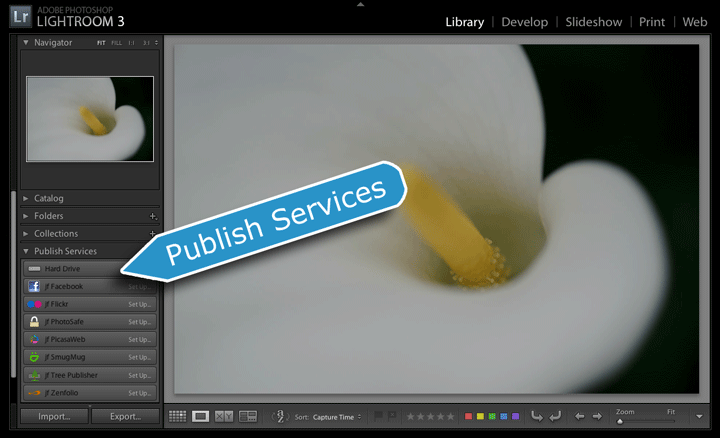
This page describes the Publish aspect of my export-to-Facebook plugin for Adobe Lightroom. The “normal export” portions of the plugin work in all versions of Lightroom from Lr 2 on, but its Publish features, described on this page, work only in Lr3.3 and later.
Warning: The idea behind Publish is simple enough, but if you hope to avoid unpleasant surprises, you must understand important details before getting started with it.
Basic Premise of Publish: Ongoing Relationship
The premise is simple: drag a photo to a special collection in Lightroom, and voila, it's sent to Facebook. From then on, changes that you make to the photo in Lightroom are automatically kept up to date in the copy at Facebook.
Ah, but the devil is in the details...
The biggest detail is that Facebook does not allow images to be updated once you've uploaded them, or, even, allow the plugin to delete and re-upload. This means that if you want to update a photo (say, because you've changed the crop, or adjusted the develop settings), the best you can do is delete the photo on Facebook in your web browser, then upload a new one. But that deletion means that you lose all comments, tags, “likes”, and other Facebook “value add”.
Until Facebook considers photos an important feature for its users, and updates the app interface appropriately, it makes little sense for most users to use this Publish feature to upload images to Facebook.
This document describes Publish for Facebook, but it is recommended that you not use Publish unless you have a firm grasp of the ramifications.
Thankfully, Publish is an extra feature in addition to the “normal” export offered by Lightroom via this plugin (and earlier versions of this plugin). Most users should use the normal export to send images to Facebook.
Because Publish involves setting up an ongoing relationship, it's more complicated than simply firing off an export. The length of this document, which covers only Publish and assumes you're already familiar with normal export, attests to the extra complexity. But once the initial up-front fee has been paid with your time and attention, you'll reap the benefits from then on.
Introduction and Important Definitions
Generally speaking, Publish functionality is provided by a Publish Service Provider. Lightroom comes with a few publish service providers: the built-in “Hard Drive” provider, a bare-bones Flickr plugin and a Behance plugin. You can add additional publish service providers by installing appropriate plugins, such as my fuller-featured Flickr plugin and this Facebook plugin. (I have plenty of other publish plugins available on my Lightroom Goodies page, and there may well be other Publish plugins available on Adobe's Lightroom Exchange site.)
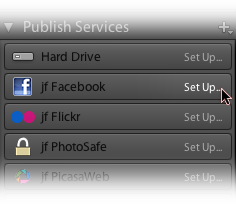
After installing the Facebook plugin, you
can configure your publish service
Before you can use Publish to send images to Facebook, you must first configure the particulars about how the exports are to be done, such as deciding on the size and quality of the exported images, and the details about which account at Facebook they should be sent to. This configuration, which you generally do only once, creates a Publish Service in your Lightroom catalog.
You can have multiple Facebook publish services (all provided by the one plugin), but it makes sense for most people to have only one. However, if you have multiple accounts at Facebook that you'd like to send images to with Publish, you'll need to configure multiple Facebook publish services.
Important details about creating a publish service are covered below, but for the moment, let's wave our hand and say that the publish service has now been set up as you like.
After you've configured a publish service in your Lightroom catalog, it is represented in your Lightroom library as one or more publish collections, each holding the group of photos that are to be sent to a particular album in your Facebook account. Just drag a new photo to it, press the “Publish” button, and the photo is rendered and uploaded to the associated album at Facebook.
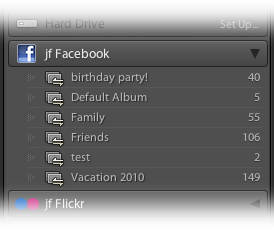
Several publish collections in a
Facebook publish service
Just like regular Lightroom collections, a publish collection can be either a regular publish collection that holds whatever photos you manually add to it, or a smart publish collection whose list of photos is computed by some criteria that you set up (e.g. “all five-star photos taken this year”).
A published photo is a photo that's part of a publish collection. At any particular time, a published photo is in one of four publish states:
New Photos to Publish — photos that have been added to the publish collection, but have not yet actually been sent to Facebook. They'll be sent to Facebook the next time you launch Publish (via the “Publish” button).
Published Photos — photos that have been sent to Facebook and have not been modified in your Lightroom catalog since.
Modified Photos to Re-Publish — photos that have been sent to Facebook, but which have been modified in Lightroom since. They will be re-sent to Facebook the next time you launch a Publish action. Facebook does not allow third-party apps to delete photos, so the previously-existing copy at Facebook is left in place, and unless you delete it via Facebook's web page, you'll have two (or more) copies of the image.
Deleted Photos to Remove — photos that have ostensibly been removed from the publish collection, but have not yet been “flushed out”. They will be flushed out when you next publish the collection. (Were Facebook to allow third-party apps like this plugin to delete photos, the flushing-out step would include clearing them out at Facebook.) NON_FACEBOOK { photos that have ostensibly been removed from the publish collection, but have not yet been removed from Facebook. (Whether to actually remove a photo from Facebook when it is removed from your publish collection is controlled by publish-service options, discussed below.) }
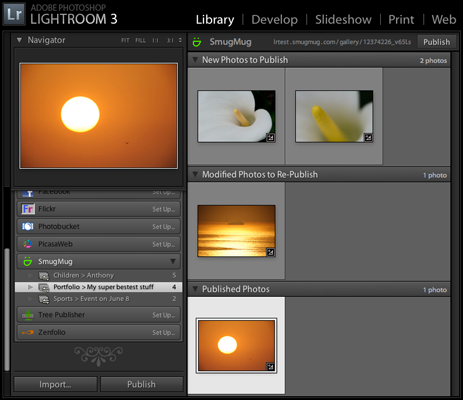
Segmented grid showing photos in a publish
collection in various states of Publish
When viewing a publish collection in Grid mode, you can see the photos partitioned into their various states in the segmented grid with headers as listed above (and illustrated in the screenshot at right).
You can add and remove photos from a normal publish collection as you like (and they are automatically added and removed from smart publish collections as per the criteria that you've set up), but nothing is actually done with them until you launch Publish, via the “Publish” button. The Publish button appears in the lower left of Lightroom, in place of the “Export” button, when viewing a publish collection, as in the screenshot at right.
There's also a “Publish” button in the upper right of the segmented grid.
When you actually launch a Publish action, Lightroom fires up an export under the hood, and photos are rendered as per the various settings configured when the publish service was created (the details of which follow in the next section of this document). As each photo is uploaded to Facebook, it's moved to the “Published Photos” section. You can click on each segmented-grid section's header to expand and collapse it; if they're all collapsed you can watch their photo counts, shown at the right side of each segmented-grid header, update in real time.
Creating a Facebook Publish Service
Let's look in detail at configuring a publish service to export to your Facebook account. Make sure that the Facebook plugin is installed and enabled, then click on the “Set Up...” of the Facebook header in Library's list of publish services.
This brings up the Lightroom Publishing Manager, a dialog that looks like a cross between the normal export dialog and the Plugin Manager...
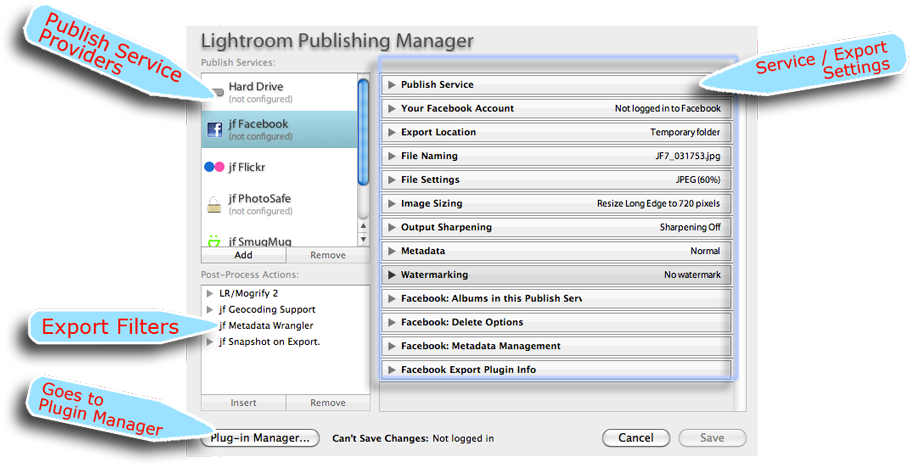
Items show up in the list of Publish Services (highlighted in the upper left) when their plugin is installed and enabled in the Plugin Manager. Old Lr1 or Lr2 plugins won't provide this new feature, of course, but most of my “export to...” plugins, including Facebook, do.
If any of the plugins you have installed provide export filters, they are listed in the middle-lower-left section of the Publishing Manager, just as they are in the normal export dialog. Lightroom does not come with any export filters built in, but they can add powerful features to your exports — both normal and publish — so it behooves you to know what's out there. Popular ones include my Metadata Wrangler for controlling exactly what metadata is included in exported copies, my geoencoding support shadow injecter for ensuring that the geoencoded location is properly included, and Tim Armes' LR/Mogrify plugin for advanced watermarking and image borders.
The main panel of the Publishing Manager shows the export/service settings for the Publish Service that's about to be created (an export-to-Facebook service in the example above). Like the normal export dialog, it has numerous sections; let's look at them in detail....
The first section allows you to give your export service a name, so you can keep them straight if you have more than one.

If you have only one Facebook account, you probably want to leave it at its default of “jf Facebook”. It looks ugly in this dialog, but when left at its default it won't even be shown in the list of publish service in Library, as seen in the screenshots above. If you set your own name, such as “My Facebook Stuff”, it shows up in the Library list as “jf Facebook: My Facebook Stuff”. So if you need just one Facebook publish service, it's cleanest all around to just leave the name at its default. You can always change it later.
However, if you have multiple accounts, you'll want to name them, e.g. “Facebook Work” for one and “Facebook Play” for another.
The next section is where you authenticate to your Facebook account.(Before starting the authentication, be sure that you are logged in to Facebook in your system-default web browser, to the Facebook account that you want to use with this Publish service.)
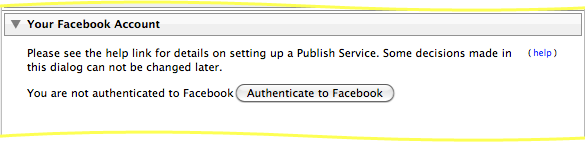
After authenticating at Facebook, you'll be directed to a page on my site with a simple note and a box of gibberish:

Select the gibberish (as shown selected in blue above) and copy to your system clipboard (Control-C on Windows, Command-C on a Mac), and return to Lightroom and paste it (Control-V or Command-V) into the dialog:
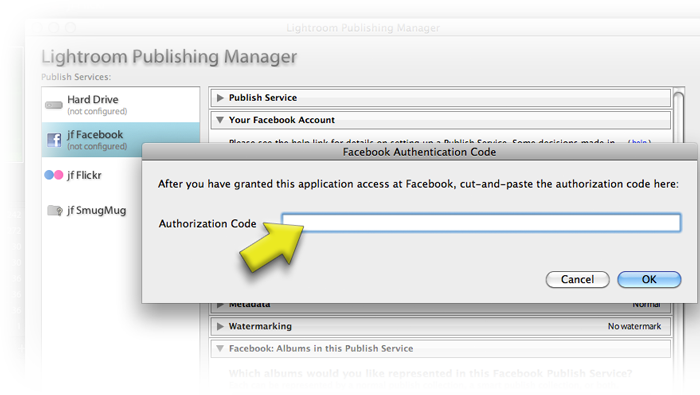
You'll then be authenticated within the publish service being made.
Once the publish service has been created, you can not change the associated account for the publish service, and this section becomes deactivated during a publish-service edit. (You can make another publish service for use with a different Facebook account, or even for use with the same Facebook account but with different export options.)
The next section is also available only at publish-service create time: setting the export location:
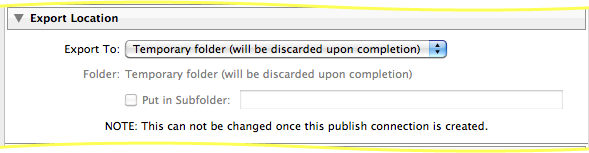
Most people leave the export-location setting at the default of “Temporary folder”, but you might set it to some specific named folder if you want to keep a local copy of all the images that have been published to Facebook. Again, Lightroom does not allow this setting to be changed once the publish service has been created.
Various Standard Lightroom Export Settings...
The next sections are all the same as in the standard Lightroom export dialog...
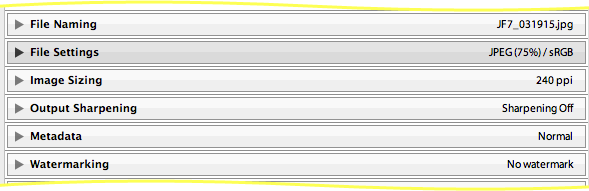
In the “Image Sizing” section, it's recommended that you leave it set to “Resize to fit Long Edge, 2048 pixels”, as that will give you the maximum size allowed by Facebook.
The next sections are for export filters you have installed and enabled, if any. Here's an example illustrating what some sections from Metadata Wrangler, Run Any Command, and LR/Mogrify might look like...
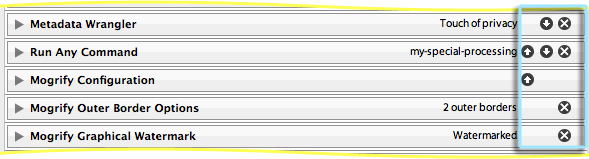
The blue rectangle marks Lightroom's controls for adjusting the order that the filters are applied, and for removing them altogether.
Each section can be opened to reveal the filter's particular settings, of course, but the filter details are not relevant to this overview about Publish, except to note that like the standard Lightroom settings (image size, etc.), changing these filter settings after a publish service has been established affects only images uploaded after the change.
Now we begin the Facebook-specific sections. The first allows you to pick which existing albums at Facebook you would like to appear in this particular publish service...
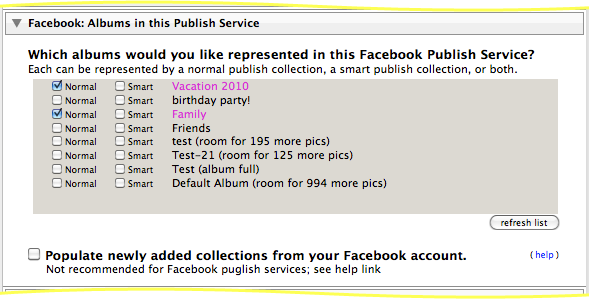
For each album at Facebook, you can choose a normal collection, a smart collection, both, or neither.
Creating a Normal Publish Collection
The publish-collection version of a Facebook album starts out empty, which is perfectly fine if the album at Facebook is actually empty, or if you don't mind that the publish-service manifestation of the Facebook album shows only images you add from here on in.
Facebook does not allow images to be updated, so it really doesn't make a lot of sense to bother with this.
But if you would like to try, enable the
option, and the plugin will try to match up images currently in the newly-created normal (non-smart) albums at Facebook with images in your catalog that you had uploaded to Facebook with this plugin, or with previous versions of this plugin.
Defining a Smart Publish Collection's Rules
If you ask the plugin to create a smart publish collection, it does so with a dummy rule that matches no photos. Once it's been created and the publish-service dialog is dismissed, choose "Edit Smart Album" from the collection name context menu to replace the dummy rule with whatever rule or rules you want.
Do not attempt to create smart collections via the “Import Smart Collection Settings...” item in the Publish Service context menu. A bug in Lightroom causes this to create a corrupt publish collection, and the plugin infrastructure doesn't offer me a way to disable that menu item.
You can remove a publish collection from your publish service via the “Delete” item in the publish-connection name's context menu. Doing so does not remove the album or its photos from Facebook: for such a major operation, please visit Facebook directly.
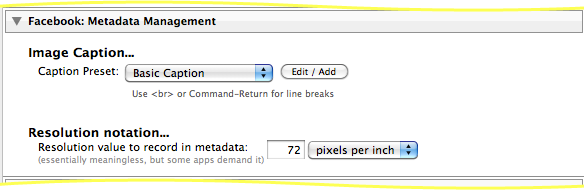
The next section configures various Facebook-related metadata options, just as in a “normal” Facebook export.
Phew !
Finally, you can press the “Save” button to create the publish service and the publish collections you selected.
Making Changes to an Existing Facebook Publish Service
You can edit the publish-service settings via the “Edit Settings...” item in the publish-service name's context menu. You can change all settings except the account at Facebook and the export location, but there's a catch: if the change relates to something about how each image is exported and uploaded (such as the size or image quality, metadata settings, etc.) and you want those changes to be reflected in photos already at Facebook, it won't happen magically: you'll have to republish them all.
Republishing can take a long time if you've got a lot of photos, and not all changes necessarily need to be reflected in every photo, so it is not done automatically.
If you want to republish all or some previously-published photos, select them in their various publish collections and invoke the context menu's “Mark to Republish” item.
Adding Another Facebook Publish Service
If you have another Facebook account you'd like to publish to, or you'd like to publish with different settings (e.g. your first Facebook publish service had full size exports, but you'd like to be able to upload to some collections with smaller sizes), choose
from the existing publish service's title context menu (where “Set Up...” had been before the first one was created.)
The following issues are inherent shortcomings in Lightroom's initial version of Publish, and apply to all publish services:
There's no way to tell which publish collections have photos awaiting action except by visiting each publish collection in turn and viewing the grid to see whether the “Publish” button is enabled or disabled.
There's no way to invoke publish on all your publish services in one go; the best you can do is address each publish service in turn, selecting all its published collections and then invoking Publish on them.
The photo-thumbnail “Go to Collection” context menu item does not list any kind of smart collection that the photo may be part of, including smart publish collections.
The use of undo with publish-related operations is likely to not work and perhaps even corrupt the publish parts of your catalog. Take care.
You can't import smart-collection settings to a publish smart collection; doing so creates a corrupt smart collection.
I have not tested export-to-catalog yet, but I would expect that Publish information does not go along with the images.
Great Publishing Service Jeff. I have it installed and working fine on my business page.
One Question, my fist post to Facebook has the comment: Posted by Adobe Lightroom Export Plugin
How do I get rid of that statement? Thanks a bunch!
I have a registered version.
Den
You’ll have to talk to Facebook about that… the plugin doesn’t explicitly add that (nor could it even if it wanted), but Facebook knows what app is doing the upload, so they apparently add a note about it. It’s not something that the plugin can have any control of one way or the other. I think it’s distracting (why does it matter what app did the upload?) —Jeffrey
Hailing from Seattle, WA!
Long time fan and supporter of your Lightroom plugins and can’t believe the incredible amount of effort you put into supporting them.
Two problems concerning this Facebook plugin that I can’t seem to find a specific solution for:
1) Like a handful of other users, I would like to be able to export or publish directly to a Facebook group. I’m an admin for a “page” and also an admin for a closed group. In the export plugin, I can see albums for the “page” account, but not the closed group. Have you encountered that situation yet and do you have an idea if I can’t export to the group via your plugin due to Facebook vs. Lightroom privacy settings? That would be my first guess.
2) Because I can’t export directly to my closed group on FB, I need to export images to my HDD before uploading them via the web interface. I would love to create custom image captions when exporting to disk, if at all possible. Do any of your other plugins feature that ability?
Again, thanks for all your hard work with these plugins and I hope to continue to support your efforts in the future!
Check out this faq for the first item. For the second, you might try my Run Any Command plugin with ExifTool. But it’s high on the todo list for me to add support for this to my Metadata Wrangler plugin. —Jeffrey
Hi Jeffrey,
I’m fairly new to using plugins in Lightroom so I hope my question is not that noob:
I use it to EXPORT a new album into facebook via export dialog; after this is there a way to automatically add the album I just uploaded to the to the list of the published albums?
Or I have to do this step manually from the publish section?
Thanks!
You have to set it up manually from Publish, sorry. —Jeffrey
When I attempt to log in, I get an error message saying to reduce the amount of data that I am trying to retrieve. How can I do this?
Thanks – Tracy
That was Facebook springing surprises on us… I’ve pushed a new version of the plugin that works around the issue. —Jeffrey
Hi Jeffrey,
I have issue with setup of Facebook plugin. Immediately I’m authorized, I receive error message “Error reply from Facebook: Please reduce the amount of data you’re asking for, then retry your request”.
I have no idea, what I can setup, or where is this option or how to reduce the requested data…
I you like, I can send the screenshot of it.
I will be glad if you can help me to fix it. Until I had installed the latest plugin, I didn’t have any issue with this plugin – I’m using it about 2 years without any problem.
Thanks,
Ondrej
That was Facebook springing surprises on us… I’ve pushed a new version of the plugin that works around the issue. —Jeffrey
When I try to authenticate your Facebook plug in, I get the following error…
“The address wasn’t understood
Firefox doesn’t know how to open this address, because one of the following protocols (lightroom) isn’t associated with any program or is not allowed in this context.
You might need to install other software to open this address.”
Any ideas?
Thanks for all your work!
See this FAQ. —Jeffrey
With the changes in LR CC related to tagging photos, will this plugin export those tags? Will the built in FB export export them? I’ve been searching for an answer and can’t find one…hoping the guru (you) can.
Love your work!
Not yet, but I’m looking for a solution. Currently a plugin can’t know where in the photo the face is, merely that there is one, so we may need to wait for an update. I’m still digging.Yes, see my people-support plugin —JeffreyHi Jeffrey,
Love the plugin!!!
I would really only like to upload photos individually to FB, is there a way of doing this through the publish section of LR using your plugin without having to create an album.
Thanks
Sure, upload to the “PLugin’s default album” album that’s there whether you create it or not. —Jeffrey
Hi Jeffrey
Have just started working with this plugin today. I love the concept, but when posting an image or a set of images to Facebook I would expect to write a small text post. I have been looking through the plugin but guess this can’t be done – am i right?
Thanks
Adam
That would make sense for posting to your Wall, but the plugin is designed to post to albums. I’ve been thinking to add a one-off Wall-posting feature, but it’s not there yet… —Jeffrey
Hello
Can I import the existing photos from FB ?
Sorry, no. Facebook strips all the metadata from photos, so there would be no way for the plugin to know which photos at FB matched which photos in your library. Even if this were possible, it would make little sense with Facebook because you can’t update photos at Facebook, so the whole point of Lightroom’s “Publish” is meaningless for Facebook. —Jeffrey
Hi Jeffrey,
Just installed your jf Facebook plugin. Seems to work great–definitely more feature rich than the stock plugin I donated $25 to the cause–keep up the good work.
I wish I’d come across your plugin sooner as I have a number of FB publish collections created with the LR CC stock FB plugin. To that end I was wondering if there was any way to transfer existing Publish collections from the stock LR CC Facebook plugin into your plugin? Or some how get your plugin to own/manage those publish collections? Both plugins have the same collection names (since I allowed all of the same albums on Facebook to be managed by your plugin when I setup your plugin)–but obviously your collections show no photos since if I understand correctly you can’t download the photos from FB into LR.
I realize I can drag-n-drop/copy the photos from the stock FB plugin’s publish collections to the similarly named publish collections in your plugin. But then photos all end up in your plugin as “New Photos to Publish”.
Any ideas on how to proceed? I don’t have all that many publish collections so I’d be fine with just copying the previous stock collections if I was able to some how mark them as already published in your plugin . . .
Thanks in advance for your help.
Cheers,
JPS
Sorry, you can’t get them in there. Frankly, it’s a bit dangerous to use Publish with Facebook, since an update in Lightroom would mean an image deletion at Facebook (as the old image is removed and a new one added). This means that you lose all “likes” and comments, which is really unsocial. Bringing previously-uploaded photos into a FB publish service would only compound the problem, so it’s not something on my todo list. —Jeffrey
Is there a way to simply turn off FB updates? Your plugin makes the initial upload a snap, but if I so much as change the rating of an image it gets re-uploaded, too. I then have to delete the modified images to avoid duplication. An option to ignore updates would be a very helpful addition to this plugin.
Yeah, I’m starting to feel that way myself. My initial reaction was that if you don’t want updates, don’t use Publish (automatic updates are the whole point of Publish), but there’s something to be said for the simple convenience of having things grouped and exported easily. We’ll see what I can come up with….—Jeffrey
Not to bug you, but just found myself wishing again that I could easily zap a picture off to Facebook right from Lightroom without having to deal with updates. No wait, I do want to bug you! Please, please, please?
Isn’t that what “File > Export” does? —Jeffrey
First of all, thank you, this plug in is amazing!
I had a question though, is it at all possible to update captions on Facebook without actually republishing? I published a few hundred photos and only after they got comments and likes realized I had forgotten to title and caption them in Lightroom, is there any way to automate this change (I will do it manually otherwise!)
Assuming it’s possible as I can always edit the description after posting 🙂
Thank you, Max.
No, sorry, it’s not possible. I don’t think Facebook allows it from a third-party app like the plugin. —Jeffrey
Hi,
Do I understand correctly that repopulate only looks for photos already uploaded via this plugin, and not generic metadata? (I don’t know if FB keeps file names, for example)
If so, then does this work across LR versions? I have some photos I uploaded with LR 5.xx but LR 6.yy doesn’t seem to match these. Or alternatively, do this works even for virtual copies? Both missing pictures I have were uploaded with older LR and are virtual copies.
It would be useful if I can associate a (in LR) picture with a given FB picture, so that I can manually reconstruct collections—it would give me a way to retrieve comments, for example, or simply to ensure I have a 1:1 correspondence in LR with FB albums.
There’s some risk in linking photos to Facebook, due to Facebook refusing to allow photo updates, so one must take care. But if you really want to do it, I’ve added the ability to associate an image in FB with one in your library, via the “File > Plugin Extras > Facebook Extras” dialog. —Jeffrey
Hi,
I see in some comments the mention of the “Wall Photos” albums appearing or not in the list of collection; is this random, or can it be enabled somehow?
Thanks!
Well, I was correct in that it’s a bug at Facebook, but it turns out that the bug is not in Timeline Photos being unavailable, but merely in Facebook incorrectly telling the plugin it’s unavailable. So the plugin now lists even unavailable albums, marked so that you know they may or may not actually work. When I tested for myself, Timeline Photos and Mobile Uploads were accessible, even though Facebook told the plugin they weren’t. —Jeffrey
Hello Jeffrey,
I’m writing in from Wellington, New Zealand, and love this app and others. They work great!
One thing I have noticed. Photos I post to Facebook with this app have their “posted date” (which displays when hovering over the clock icon next to each photo on FB) showing the date I actually posted each photo.
This happens despite setting the option for “Set each photo’s ‘posted date’ to the time…” to “each photo was taken” in the Publishing Manager dialog window.
Any idea why that is? Thank you in advance for your reply!
It seems the clock icon thing is new, and always shows the time the photo was transferred to Facebook; I see nothing in their developer docs about it. The option in the plugin impacts the date actually shown, which in turn impacts where in the timeline the photo’s story falls. The best I can do is update the label in the plugin to be more specific about what it’s impacting, and I’ve done that in the new release of the plugin. —Jeffrey
Hi Jeffrey!
I’m pretty new to Lightroom and plugins in general so I’ve been reading the manual and you said that tagging people is not yet possible because of how LR CC is handling faces but what about pushing location information to facebook? I can’t seem to find how to do that if at all possible. Please enlighten this noob travel agent who spent weeks trying to encode location info to our trips only to encode them again on facebook lol.
Thank you again for the great work and help!
Sincerely,
Chris
Face tagging is supported when used in conjunction with my People-Support plugin. Location tagging is not; Facebook doesn’t allow it. —Jeffrey
Hi Jeffrey,
thanks for your excellent FB Export plugin, I just came across today. What do I have to do to make it post directly on the timeline of my photography page and also under the name of the photography page?
In the list of folders to be included I have only selected “Photographer/Timeline” but uploaded images only show up as guest postings under the name of my root account which is not what I want. Under “within account” I have my photography page selected.
Is there a way to let the plugin post directly to the photography page? Any help will be greatly appeciated and result in a sale, I’m sure 😉
Kind regards,
Matt
If you (as a private user) are authorized to post under your (as a business) page, I’d expect you to be able to post, but Facebook’s privacy settings often interact is non-intuitive ways. Check out this FAQ. —Jeffrey
Hi Jeffrey, I’m just getting things set up and uploaded a bunch of images (50) to a Facebook page I just set up to showcase my photography within my personal account. It is called Play of Light Photography. I published the images. They do not appear on the wall (or in the Photos) section of page. When I do go the Photos section, there is a notification that says “50 photos were posted by other people.” If I click a link next to this notification, I can see all of the images but they aren’t viewable in any other way. This is odd, as in the plug-in, I authenticated as myself and can only post to my own albums. I’ve set privacy to public. Obviously I’m missing something. Any help would be appreciated. I’ve read the FAQ’s and don’t seem to find an answer there.
Cheers, David
I wish I had an easy answer, but this gets into areas of Facebook for which I have no experience or insight. Facebook tells the plugin what albums you can upload to, and when you upload, the plugin sends photos to that album. How Facebook handles things after that is sometimes a moving-target mystery. The best I can suggest is to check the privacy setting on every level of everything. /-: —Jeffrey
Hi Jeffrey, from Brisbane Australia. I have just started creating albums using the Lightroom plugin and there is a prefix or field name being added to the name [Photographer] of the albums. Would please tell me what the intention of this and where it can be edited if necessary. Thanks in advance
The prefix isn’t part of the actual album name, but merely part of the presentation in the list of albums when the album is not in your personal account, to help let you know where the album lives. With groups and shared albums and business pages, etc., it can sometimes be confusing to remember what a vaguely-named album actually is, and this is intended to help. —Jeffrey
(Down Under in Oz)
I uploaded some photos using the lightroom plugin and when I go to Facebook, I see the photos in a section with a button that says approve.
Is there a way to upload without the need to approve?
I believe Facebook does that only when you upload to the app-default albumn (an album named for the plugin that Facebook makes automatically). If you make your own album, either at Facebook or within the plugin, Facebook won’t require any kind of approval for the photos you upload to it. —Jeffrey
Hi Jeffrey,
Writing currently from Ft. Lauderdale, FL, traveling full time in a 22′ RV and hope to keep friends and family up to date of my activities with my photos. Your plug in has made it possible for me to publish Lightroom edited images to Facebook which I’m grateful for! Can you help me get my photo comments (my comments not my viewer’s) attached to the photo or photos? I see where I can add comments to the album but I would like to add explanations to each group of photos I publish.
Thanks for what you do!
Dave
See the “Image Caption” control inside the “Facebook: Metadata Management” section of the dialog. You can have the caption created from, for example, Lightroom’s “Caption” field. —Jeffrey
Hi Jeffrey,
I am currently having issues where re-publishing to an album duplicates previously uploaded images. Are there specific settings that would prevent this from occurring?
Using 2015.12 + 20170710.404
Thanks
Facebook doesn’t allow photos to be updated in place, so any RE-publish sends a new image. That’s the way Facebook is. The plugin should be deleting the original when sending the new copy, though, so there shouldn’t be duplicates left at Facebook. If that’s indeed what you’re seeing, perhaps send a log after you next encounter it. But with the whole “Facebook doesn’t allow photos to be updated” thing, it’s sketchy to use Publish with Facebook. —Jeffrey
Hi, great plugin!
I have two issues:
1. There’s an option to suppress creating a wall post on upload. That option is not checked in my config, but still I don’t see a new wall post announcing a newly uploaded picture. I’m posting to a facebook page, if that’s of relevance. Is there an option that I olverlooked or a known facebook bug?
2. Since I have an export workflow that includes external sharpening and then reimporting the final images back into LR, is there an option to publish these pictures without any further processing? A 1-to-1 copy without actually rendering the files?
Thanks a lot
Michael
About the second item, no, Lightroom will always render the pixels with its settings (which may be zeroed out, but it’s still a re-rendering). About the Facebook issue, it’s like a black box… sometimes it works, sometimes it doesn’t, and I’m never quite sure why. Lots of things seem to be different between personal and business pages, so that could explain things. I guess. It’s frustrating. —Jeffrey
Lightroom now gives this message. Is it true – it appears to be because the plugin has been disabled by Lightroom….?
On August 1st, 2018 Facebook stopped allowing applications like Lightroom Classic CC to post photos to your timeline.
That’s Adobe’s built-in Facebook plugin. I’d have mine give a similar report to the user, but I didn’t have the foresight to build that kind of remote killswitch into my plugins. —Jeffrey
I’m trying to connect to google drive but get time-out “not enough memory” message when trying to “fetch folder list form google.” I have a large google drive file structure with terabytes of data in it (and unlimited data available). I also have about 500 gb of free space on my local hard drive. How can i get past this error message?
The problem is probably the large file structure…. the plugins is just not designed for that, sorry. The plugin has to fetch your entire folder tree, which involves asking Google for it and getting the list bit by bit over time, so the plugin has to accumulate it all. It can take a lot of time, and apparently a lot of memory, for huge accounts. Sorry. )-: —Jeffrey
I am owner for my own Facebook Page as well as an admin for several other Pages. I just installed your Facebook plugin last night. To be safe and protect these other people’s Pages, I did not include them and unchecked the boxes when I installed the plugin. I’ve only used the plugin once, but right away see the benefits. Thank you! Now I want to include the other Pages in the plugin. I read that I need to make another publish service in the plugin in order to do this. Under Facebook: Tools and next to “Within account” the only account that shows up is my own, none of the other Pages that I’m admin for. How can I include them in this plugin?
Thank you for your help.
The section in the Publishing Manager titled “Facebook: Albums in this Publish Service” should list all albums that your account has permission to upload to. It’s my understanding that Facebook now allows third-party desktop apps like the plugin to upload to your own business page, and nothing else. In any case, the albums that Facebook tells the plugin that you can upload to are listed in the Publishing Dialog. —Jeffrey
So, does the plugin work again? For a while it didn’t, right?
It no longer (and will never again) work for uploading to personal pages or anything else other than a business page. As far as I know, it should still be able to upload to a business page. —Jeffrey
I’ve successfully used this plugin for years. But today was the first time I’ve tried to use it since last November.
Now when I try to create a new album in my Chucko’s Photos business page, I get this error:
Create new album at Facebook aborted: Error reply from Facebook: (#10) Application does not have permission for this action
AND I can’t see the list of existing albums either.
I’ve looked for some handle on my FB account and on the page to allow your plugin permissions, but I can’t find any. Has FB just screwed us to the wall?
I see the same problem. They must be yanking more permissions from third-party desktop apps. Given that they’ve made it clear that they don’t care about our existence, I’m reticent to put any further energy into this plugin. I used to use it daily myself, but have not used it in months. —Jeffrey