This page describes my “Run Any Command” Lightroom Piglet, which allows the technically savvy user to run any command with each image exported via one of my Lightroom export plugins ( Zenfolio · SmugMug · Flickr · Picasa Web ), or via any export plugin that uses my piglet infrastructure.
This “Run Any Command” piglet is already included with my export plugins since January 22, 2008. However, if you'd like to use the piglet with a different plugin, you can download AnyCommand-20080206.5.zip . Version history is shown below.
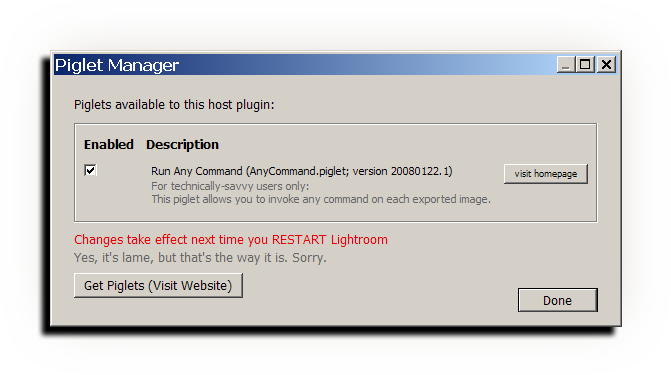
Even though the piglet is included with my plugins, like all piglets, it must be enabled from the Piglet Manager before it can be used the first time. As described on the piglet page, you can bring up the Piglet Manager from the bottom-most section of the export dialog of any of my export plugins. You then enable the piglet:
After restarting Lightroom, you'll have a section in the export dialog that allows you to enter a command. Here's what it might look like with a command already entered:
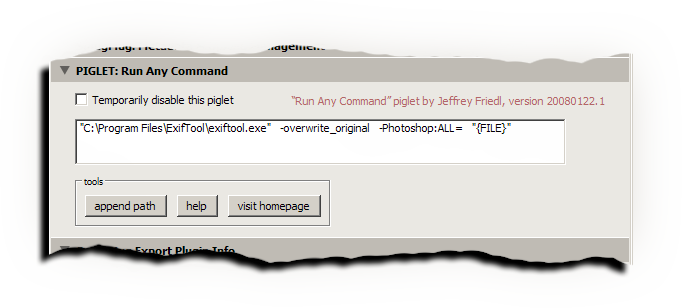
Later, during the actual export, the command is run after Lightroom generates each export file, but before the plugin does other things with the file (such as uploading the image to Flickr, in the case of my Export-to-Flickr plugin).
Command Metasequences
Within the text entered for the command, special sequences are recognized and replaced by image-specific values with each execution:
| Sequence | Replaced By | Added In |
|---|---|---|
| {FILE} | The name of the exported image file, with full path | 20080123.2 |
| {file} | The name of the exported image file, without the leading path | 20080123.2 |
| {NAME} | The name of the exported image file, with full path, but without the file extension | 20080123.2 |
| {name} | The name of the exported image file, without the leading path and without the file extension | 20080123.2 |
| {folder} | Full path of the (likely temporary) folder that the exported file lies in | 20080130.4 |
| {FOLDER} | Full path of the (likely temporary) folder that the exported file was originally exported to.
This is the same as {folder} unless the plugin or another piglet has changed the filename | 20080130.4 |
| {EXPORTED} | Full path of the file as originally exported.
This is the same as {FILE} unless the plugin or another piglet has changed the filename | 20080130.4 |
| {exported} | Name of the file file as originally exported, without path.
This is the same as {file} unless the plugin or another piglet has changed the filename | 20080130.4 |
| {home} | Full path of the user-dependent “home” folder | 20080130.4 |
| {desktop} | Full path of the user-dependent “Desktop” folder | 20080130.4 |
| {pictures} | Full path of the user-dependent picture folder (“My Pictures” or “Pictures”) | 20080130.4 |
| {documents} | Full path of the user-dependent document folder (“My Documents” or “Documents”) | 20080130.4 |
| {temp} | Full path of a system-dependent temporary folder | 20080130.4 |
Be warned that you must be very careful about where to quote items: anything that has a space or other special shell variables must be quoted, but exactly what must be quoted, when, and with what kind of quotes is dependent on the operating system. It's fairly straightforward on a Mac: using single quotes will almost always be okay, double quotes probably okay in most cases as well. On Windows, use double quotes and cross your fingers.
As an example, you'll notice that in the screenshot above (which was made on Windows XP), I've quoted the command name (the full path to my exiftool install) because the path has a space in the name (in “Program Files”). I've also quoted {FILE} because the image filename may have a space in it as well (e.g. “Documents and Settings”).
ExifTool
This example command uses Phil Harvey's most-excellent exiftool command to strip out the thumbnail that Lightroom embeds in its exported images. The command is:
Using other permutations of arguments, you can do a lot with your images with exiftool and this piglet. It's with exiftool in mind that Mark Sirota first suggested this piglet to me, at which point I thought “duh, why didn't I think of that?” and, so, now here it is.
| 20080206.5 | Allowed the codes like {FILE} and {name} to be translated. |
| 20080130.4 | Added support for {folder}, {FOLDER}, {exported} {EXPORTED}, {home}, {desktop}, {pictures}, {documents}, and {temp}. Thanks to mariane for the ideas. |
| 20080128.3 | Tidied up some mistakes in the translation hooks. Interested in doing the translations for my plugins for your favorite language? It's a difficult and thankless job, but you earn good karma for giving to the greater community. If interested, please contact me (jfriedl@yahoo.com). |
| 20080124.2 | Minor changes |
| 20080122.1 | Initial release ' |
Thanks, Jeffrey — with the combination of the Run Any Command and LR/Mogrify piglets and the Flickr export plugin, I’m looking forward to reinventing my post-Lightroom workflow!
—- Google translation —-
Hi,
Some LOC-Strings are not unique. This causes problems when
translating “Run Any Command” piglet.
LOC-Strings:
“$$$/AnyCommand/file=Like {file}, but with the extension removed”
“$$$/AnyCommand/file=The name of the image file, without path; wrap in quotes to be safe”
Greetings from Germany
by mariane
This error (and a few others) are fixed in the most recent versions. Thanks for the report. If you’re doing a translation for my plugins, I’d love to be able to release it to everyone. Please contact me if you’d like to share it! —Jeffrey
Hi,
Proposal to routine: “startOfOneRender(PIGLET_INFO)”.
An extension to standard paths: {home}, {temp}, {desktop}, {pictures}, {documents}
local function startOfOneRender(PIGLET_INFO)...
... function (item)
if ...
...
elseif item == 'home' then
return LrPathUtils.getStandardFilePath('home')
elseif item == 'temp' then
return LrPathUtils.getStandardFilePath('temp')
elseif item == 'desktop' then
return LrPathUtils.getStandardFilePath('desktop')
elseif item == 'pictures' then
return LrPathUtils.getStandardFilePath('pictures')
elseif item == 'documents' then
return LrPathUtils.getStandardFilePath('documents')
else
return nil
end
...
—————————————————
I would like a specific sequences, which the original name of the image than content.
I do not like this in Lua will be programmed.
img_1234.cr2 –> LR –> LR/TRansporter + Mogrify.piglet -> img_1234.jpg –>
–> RunAndCommand.piglet -> {file} –> img_1234.jpg
–> RunAndCommand.piglet -> {FILE} –> e:\export\website\images\img_1234.jpg
–> RunAndCommand.piglet -> {original} –> img_1234.cr2
–> RunAndCommand.piglet -> {ORIGINAL} –> f:\photos\Canon\1000\img_1234.cr2
Greetings from Germany
by mariane
— This text has translated google, I am innocent 🙂
Thank you for the good ideas, Mariane. I just pushed .4 to add these. Unfortunately, the plugin/piglet does not have access to the original path of the file (where it is within Lightroom), so I couldn’t add that one. —Jeffrey
Similar to mariane, I could use a way to sync the current state of my RAW files into JPEG files that could be used by outside software such as that for photobooks, etc. I think you have the tools since it appears that you can capture the file location of the original file before the export. Two approaches:
1) I could select an upper level folder and then “Ctrl A” to select all pictures thereunder. After exporting to a fixed “temp” directory, a command could move the file (faster than copy) to a new mirror location that uses the file structure of the original file but changes it slightly so the browser knows which are the RAW and which are the JPEGS. If the raw files are in the “c:\pictures\RAW\January\” directory, when exported, the JPEG equiv would show up in the “c:\pictures\JPG\January” directory with the same name but a “JPG” extension.
2) Alternatively, the JPEGs can simply live alongside the RAW files so instead of moving them to a mirror directory, they can be moved to the original directory. LR can be set to ignore them so they will not clutter the view.
It may be that a combination of your plug-ins and other command-line software can accomplish this in which case I would be greatful.
From other posts, it appears that this is an item that might show up in a future release.
Thanks!
JW
The old-fashioned way of doing things (pre your plugin) made the IPTC Location data go into the keywords. I didn’t mind that at all (I know FlickR has geo-facilities), but it was nice to have the location (country, city,…) go into the tags. Any possibility of fitting that in?
Hello Jeffrey,
I found your blog while searching for a way to see the Canon auto focus frame data in Lightroom. You have some great info and photos here.
Canon’s ImageBrowser application allows you to see which of the auto focus sensors was the focal point.
Is there a way to create a Lightroom plugin or piglet which will allow you to see these af points in the develop module? Has anyone done this already?
Thanks for a very informative blog. And thanks for the Exif Viewer, it’s awesome!
Best regards,
-Joe Azzato
Hello Jeffrey,
fine idea, thanks for implementing this!
As Mariane already suggested: Do you know any way to get the original location of an image out of Lightroom? Is there a way to get a list of filenames for images in a Collection?
No, not with 1.3 —Jeffrey
Thanks and best regards,
Georg
Hi
thanks for your amazing job
i would love to have an export plugins to export raw files in my hardisk
why don’t make a simple command line for exiftool , a simple command line
with source , destination and a blank space where we can add exiftool commands
for example somebody could be happy to erase own serial number or name or other private info , with exiftool is very easy
or sombody would like to eport files with a metatada hierarchy, exiftool could too
it would be really very appraised, estimated a SIMPLE plugins (maybe with not a short limit for the free version)
thanks for your job and for your effort
Tim Armes’ LR/Mogrify plugin will do what you want. It supports the AnyCommand piglet, so you can just turn off all the Mogrify features to take advantage of the AnyCommand aspect of it to run exiftool on your images. —Jeffrey
I am using your plugin for Light Room and I started getting this error and can not seem to get rid of it.
smugmug.images.upload
any help would be great.
Paul
Thank you for your plugins and piglets! I love the power and simplicity of ‘Run Any Command’ so much that I’d like to use it with a standard ‘Export to disk’ task too!
All I want (well, actually I kindly ask for) is a extended ‘Export to disk’ plugin with ‘Run Any Command’ piglet. Is there any chance you could make one?
This’ll be much easier once LR2 comes out, since it supports plugin filters. Until then, you might consider using the Run Any Command piglet with Tim Armes’ LR/Mogrify plugin. If you don’t turn on any Mogrify options, it becomes a straight-to-disk export. —Jeffrey
Jeffrey,
I am using this piglet to run a photoshop droplet which runs neatimage noise reduction. Very handy for me and it eliminates the need to keep tifs around just for running neat image.
Anyway, not sure if others have already figured this out but it took me quite a while to get this working.
When just adding the droplet command name to the run any command I would get errors that the command didn’t work. I think that this is because the droplet would return to quickly and hadn’t modified the file yet. It took me quite a while to figure out what was going on but then the fix was easy.
The fix was to make a .bat file that contained the following:
@ECHO OFF
C:\path\to\droplet_name.exe %1
exit /b 0
And then to use this batch file as the command to run in runanycommand.
Now I can run any photoshop action as part of my flickr uploading routine.
I can use TLR sharpening, noise reduction, modifying, etc… I LOVE IT!
Anyway, hopefully someone else finds this helpful.
Thanks again,
Mark
Wow, that is cool, thanks! —Jeffrey
Hi Jeffrey –
Thanks so much for your plugins! I’m using the Flickr and Zenfolio plugins and couldn’t possibly be happier. You’re a lifesaver!
After reading Mark Alston’s comment on running Photoshop actions as part of the Lightroom export process via the Run Any Command piglet, I toyed around until I got the same thing working in Mac OS X (Leopard).
In Photoshop CS3, I first recorded my Sharpening action. Then, I created a Droplet in CS3 (File – Automate – Create Droplet). I saved the Droplet in my Applications folder.
Then, after enabling the Run Any Command piglet in my Lightroom Export, I typed in the command:
open -a UnsharpMask
where UnsharpMask is the name of the Droplet I created from my sharpening action in Photoshop.
Voila! My photos are automatically sharpened prior to upload to Flickr. I haven’t tried it on the Zenfolio side but I’m guessing it will work the same. Any other actions saved as Droplets would presumably work the same as well.
I’m the happiest camper alive 🙂 Thanks again for your hard work! Without your tools, this joy would not be possible!
You say “the command is run after Lightroom generates each export file, but before the plugin does other things with the file”. I used an exiftool command to change both the XMP and IPTC Headline tags, and specified that your PicasaWeb plugin should use Headline as the caption. But the caption displayed by PicasaWeb was the original Headline shown in LightRoom. This implies that your plugin has set up the caption before running this piglet…
Hello again,
Many thanks for the ongoing updates and useful software.
I’m needing a way to export a bunch of images into folders named by their ‘title’ or some other field.
Any way to use tokens in the Export Folder?
Think this could work as s batch command if you added Title to your list of Command Metasequences ?
Thanks for the tips
Ross
Hey Jeffrey, any chance of introducing Run Any Command as a 2.x filter (like the Metadata Wrangler)?
The use case I have at the moment is that I’d like to check “Minimize Embedded Metadata”, then put something back in there with Run Any Command and Exiftool (e.g. PPI, to appease print houses that mistakenly care what PPI you send).
Thanks,
Mark
Oh, never mind, just found your to-do list (and I see it’s already on there). Thanks!