Many of my plugins for Adobe Lightroom Classic offer the ability to construct certain kinds of data dynamically, such as setting image titles when uploading photos to a remote site.
The rest of this page documents the template notation as it exists for the latest versions of the plugins running in the latest version of Lightroom. If something doesn't seem to work as documented, please make sure you're using the latest version of your plugin, via the “check now” button in the upper-right section of the Plugin Manager.
A template is a combination of prose and special tokens wrapped in { ... } that insert photo-specific items.
For example, the template
Copyright {YYYY} {Artist}
includes the text “Copyright”, a space, the token YYYY (which stands for the year that the photo was taken), a space, and the Artist token (which stands for the value of the “Artist” metadata item).
For one of my photos taken in 2006, this example would become
Copyright 2006 Jeffrey Eric Francis Friedl
Here is the list of tokens that are currently supported:
| Photo Date | |||||||||||||||||||||||||||||||||||||||||
| YYYY | The year the photo was taken, as a four-digit string | ||||||||||||||||||||||||||||||||||||||||
| YY | The year the photo was taken, as a two-digit string | ||||||||||||||||||||||||||||||||||||||||
| MM | The month the photo was taken, as a two-digit string | ||||||||||||||||||||||||||||||||||||||||
| DD | The day of the month the photo was taken, as a two-digit string | ||||||||||||||||||||||||||||||||||||||||
| HH | The hour value for the time the photo was taken, in 24-hour notation, as a two-digit string | ||||||||||||||||||||||||||||||||||||||||
| HH12 | The hour value for the time the photo was taken, in 12-hour notation, as one- or two-digit string | ||||||||||||||||||||||||||||||||||||||||
| AMPM | The AM/PM designation for the time when the photo was taken | ||||||||||||||||||||||||||||||||||||||||
| MIN | The minute value for the time the photo was taken, as a two-digit string | ||||||||||||||||||||||||||||||||||||||||
| SS | The seconds value for the time the photo was taken, as a two-digit string | ||||||||||||||||||||||||||||||||||||||||
| SST1 | The sub-second value for the time the photo was taken, as a single-digit number of tenths of a second. If the photo time was not captured to detail beyond integral seconds, the value is “0”. | ||||||||||||||||||||||||||||||||||||||||
| SST2 | The sub-second value for the time the photo was taken, as a two-digit number of hundredths of a second. If the photo time is not available to detail beyond integral seconds, the value is “00”. | ||||||||||||||||||||||||||||||||||||||||
| SST3 | The sub-second value for the time the photo was taken, as a three-digit number of thousandths of a second. If the photo time is not available to detail beyond integral seconds, the value is “000”. | ||||||||||||||||||||||||||||||||||||||||
| Weekday | Localized day of the week that the photo was taken (e.g. “Wednesday”). | ||||||||||||||||||||||||||||||||||||||||
| Wday | Localized short form (usually three-character string) of the day of the week that the photo was taken (e.g. “Wed”). | ||||||||||||||||||||||||||||||||||||||||
| Mon | The month the photo was taken, as a localized three-character string | ||||||||||||||||||||||||||||||||||||||||
| Month | The month the photo was taken, as a localized string | ||||||||||||||||||||||||||||||||||||||||
| Date | The day of the month the photo was taken, as one- or two-digit string | ||||||||||||||||||||||||||||||||||||||||
| DAYNUM | The ISO-8601 “day of the year” that the photo was taken on, as a three-digit string. | ||||||||||||||||||||||||||||||||||||||||
| WEEKNUM | The ISO-8601 “week of the year” that the photo was taken on, as a two-digit string. | ||||||||||||||||||||||||||||||||||||||||
| ISO8601Date | The ISO 8601 date/time string of the photo. Unlike other date-related fields, this may include a timezone indication, and/or a sub-second timestamp. | ||||||||||||||||||||||||||||||||||||||||
| D1 | The full date of the photo, in the system-localized short format that you can set in your operating system's preferences dialog. On my system this is something along the lines of “2010-03-24”. | ||||||||||||||||||||||||||||||||||||||||
| D2 | The full date of the photo, in the system-localized medium format that you can set in your operating system's preferences dialog. On my system this is something along the lines of “Mar 24, 2010”. | ||||||||||||||||||||||||||||||||||||||||
| D3 | The full date of the photo, in the system-localized long format that you can set in your operating system's preferences dialog. On my system this is something along the lines of “March 24, 2010”. | ||||||||||||||||||||||||||||||||||||||||
| T1 | The full time-of-day of the photo, in the system-localized short format that you can set in your operating system's preferences dialog. On my system this is something along the lines of “3:38 PM”. | ||||||||||||||||||||||||||||||||||||||||
| T2 | The full time-of-day of the photo, in the system-localized long format that you can set in your operating system's preferences dialog. On my system this is something along the lines of “3:38:02 PM”. | ||||||||||||||||||||||||||||||||||||||||
| PhotoDaysSince=date | The number of days from the given date and the date of the photo. This is intended for use along the lines of
“My 2010 In Photos: Day {PhotoDaysSince=2009-12-31}”
The date argument is in the form “YYYY-MM-DD” but may also have an appended time, in HH:MM 24-hour notation, to delimit when dates start. If you're a night-owl who might want to include a photo taken late in the evening, after midnight, as being part of the previous day, you might want to use something like “My 2010 In Photos: Day {PhotoDaysSince=2009-12-31 04:00}” to have photo taken until 4am be considered part of the previous day. One concern to watch out for with this date/time example is that photos taken during the first four hours of Jan 1 2010 would appear to still be part of the previous day, day “0”. | ||||||||||||||||||||||||||||||||||||||||
| PhotoDaysUntil=date | Like PhotoDaysSince, but in the counting-down-until sense. | ||||||||||||||||||||||||||||||||||||||||
| IptcDateCreated | The IPTC “Date Created” field. | ||||||||||||||||||||||||||||||||||||||||
| Current Date | |||||||||||||||||||||||||||||||||||||||||
| yyyy | The current year as a four-digit string | ||||||||||||||||||||||||||||||||||||||||
| yy | The current year as a two-digit string | ||||||||||||||||||||||||||||||||||||||||
| mm | The current month as a two-digit string | ||||||||||||||||||||||||||||||||||||||||
| dd | The current day of the month as a two-digit string | ||||||||||||||||||||||||||||||||||||||||
| hh | The current hour value, in 24-hour format, as a two-digit string | ||||||||||||||||||||||||||||||||||||||||
| hh12 | The current hour value, in 12-hour format, as a one- or two-digit string | ||||||||||||||||||||||||||||||||||||||||
| ampm | The current time's AM/PM designation | ||||||||||||||||||||||||||||||||||||||||
| min | The current minute value, as a two-digit string | ||||||||||||||||||||||||||||||||||||||||
| ss | The current seconds value, as a two-digit string | ||||||||||||||||||||||||||||||||||||||||
| weekday | The current day of the week, as a localized string, e.g. “Wednesday”. | ||||||||||||||||||||||||||||||||||||||||
| wday | The current day of the week, as short-form (usually three-character) localized string, e.g. “Wed”. | ||||||||||||||||||||||||||||||||||||||||
| mon | The current month, as a localized three-character string | ||||||||||||||||||||||||||||||||||||||||
| month | The current month, as a localized string | ||||||||||||||||||||||||||||||||||||||||
| date | The current day of the month, as one- or two-digit string | ||||||||||||||||||||||||||||||||||||||||
| daynum | The current ISO-8601 “day of the year”, as a three-digit string. | ||||||||||||||||||||||||||||||||||||||||
| weeknum | The current ISO-8601 “week of the year”, as a two-digit string. | ||||||||||||||||||||||||||||||||||||||||
| d1 | The current full date, in the system-localized short format that you can set in your operating system's preferences dialog. On my system this is something along the lines of “2010-03-23”. | ||||||||||||||||||||||||||||||||||||||||
| d2 | The current full date, in the system-localized medium format that you can set in your operating system's preferences dialog. On my system this is something along the lines of “Mar 23, 2010”. | ||||||||||||||||||||||||||||||||||||||||
| d3 | The current full date, in the system-localized long format that you can set in your operating system's preferences dialog. On my system this is something along the lines of “March 23, 2010”. | ||||||||||||||||||||||||||||||||||||||||
| t1 | The current full time-of-day, in the system-localized short format that you can set in your operating system's preferences dialog. On my system this is something along the lines of “3:38 PM”. | ||||||||||||||||||||||||||||||||||||||||
| t2 | The current full time-of-day, in the system-localized long format that you can set in your operating system's preferences dialog. On my system this is something along the lines of “3:38:02 PM”. | ||||||||||||||||||||||||||||||||||||||||
| DaysSince=date | Like PhotoDaysSince, but measures the current date to the date (or date/time) given in the argument, without regard to any photo date. You might want to use this along with something like “My 2010 In Photos: Day {DaysSince=2009-12-31}” if you want to have the Day counter refer to when you do the upload, not when you took the shot. With this token, you'd want to use the date/time form if you're a night owl and want an upload done late in the evening, after midnight, to be considered as having been done the previous day. | ||||||||||||||||||||||||||||||||||||||||
| DaysUntil=date | Like PhotoDaysUntil, but in the counting-down-until sense. | ||||||||||||||||||||||||||||||||||||||||
| Master File Filesystem Dates
These are available only if the master image file is currently available. | |||||||||||||||||||||||||||||||||||||||||
| FileYYYY | File creation year, as a four-digit string | ||||||||||||||||||||||||||||||||||||||||
| FileYY | File creation year, as a two-digit string | ||||||||||||||||||||||||||||||||||||||||
| FileMM | File creation month, as a two-digit string | ||||||||||||||||||||||||||||||||||||||||
| FileDD | File creation day of the month, as a two-digit string | ||||||||||||||||||||||||||||||||||||||||
| FileHH | File creation hour value, in 24-hour notation, as a two-digit string | ||||||||||||||||||||||||||||||||||||||||
| FileMIN | File creation minute value, as a two-digit string | ||||||||||||||||||||||||||||||||||||||||
| FileSS | File creation seconds value, as a two-digit string | ||||||||||||||||||||||||||||||||||||||||
| FileModYYYY | File modification year, as a four-digit string | ||||||||||||||||||||||||||||||||||||||||
| FileModYY | File modification year, as a two-digit string | ||||||||||||||||||||||||||||||||||||||||
| FileModMM | File modification month, as a two-digit string | ||||||||||||||||||||||||||||||||||||||||
| FileModDD | File modification day of the month, as a two-digit string | ||||||||||||||||||||||||||||||||||||||||
| FileModHH | File modification hour value, in 24-hour notation, as a two-digit string | ||||||||||||||||||||||||||||||||||||||||
| FileModMIN | File modification minute value, as a two-digit string | ||||||||||||||||||||||||||||||||||||||||
| FileModSS | File modification seconds value, as a two-digit string | ||||||||||||||||||||||||||||||||||||||||
| Filenames, Paths, and Catalog Organization | |||||||||||||||||||||||||||||||||||||||||
| FullExportedFile | When an Export or Publish operation is ongoing, the full path and filename of the exported copy | ||||||||||||||||||||||||||||||||||||||||
| FullExportedFolder | When an Export or Publish operation is ongoing, the full path to the folder of the exported copy | ||||||||||||||||||||||||||||||||||||||||
| Filename | When an Export or Publish operation is ongoing, the filename – without path and without extension – of the exported copy | ||||||||||||||||||||||||||||||||||||||||
| FILENAME | Like Filename, but includes the extension | ||||||||||||||||||||||||||||||||||||||||
| FilenameNumber | The numeric part of the Filename, e.g. with “IMG_1234.jpg”, {FilenameNumber} is “1234”. If the filename contains multiple sequences of digits, such as with “BODY2_FRAME1234.JPG” — which has “2” and “1234” — the longest sequence is used (“1234” in this example). If more than one sequence are equally long, the rightmost sequence is used, so with “BODY2_FRAME1.JPG” the result is “1”. Without an argument, {FilenameNumber} returns exactly that string of digits. However, if you add an argument like {FilenameNumber=####} then the result is padded with zeros (or leading zeros are truncated) as needed to make the length match the number of “#” in the argument. Some examples:
| ||||||||||||||||||||||||||||||||||||||||
| FullMasterFile | The full path and filename of the master image on disk | ||||||||||||||||||||||||||||||||||||||||
| LibraryFilename | The filename – without path and without extension – of the master file in the library (which is not necessarily the filename being generated for the exported copy) | ||||||||||||||||||||||||||||||||||||||||
| LIBRARYFILENAME | Like LibraryFilename, but includes the extension | ||||||||||||||||||||||||||||||||||||||||
| FolderPath | The full path of the folder in which the master image in the catalog resides | ||||||||||||||||||||||||||||||||||||||||
| RelativeFolder | The part of the full path to the master image that appears in Library's “Folder” panel. This differs from FolderPath in that it omits the leading part of the full path that leads to the lowest-level folder shown within the Folder Panel. | ||||||||||||||||||||||||||||||||||||||||
| FolderName |
The name of the folder (without path) in which the master image in the catalog resides. You can also pluck folder names from the hierarchy that the image lies in by counting down from the end: {FolderName=-1} is the parent folder that {FolderName} is in.
You can also count up from the root folder shown in the Library “Folders” panel: {FolderName=+0} is the name of the most-root folder for the image.
As a concrete example, consider this folder hierarchy shown in Lightroom: 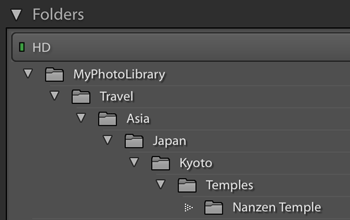
The following examples are for an image in the deepest level (in the “Nanzen Temple” folder):
You can leave off the + if you like, so you can refer to the root folder as {FolderName=0} or {FolderName=+0}. | ||||||||||||||||||||||||||||||||||||||||
| CollectionNames |
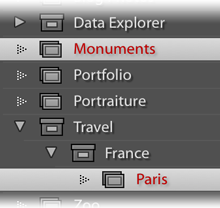
As an example, a photo of the Eiffel Tower included within the two highlighted collections seen in the screenshot at right produces “Monuments, Paris”. You can use a special form where you can dress up each collection name: with our example, {CollectionNames="%s"} results in: In this special form, the text after the equal sign is used, with the “%s” marking where the name itself should be placed. In the example, that text is so each keyword gets wrapped in double quotes. Also see the CN table and the CNf function, available to the special {LUA} token. | ||||||||||||||||||||||||||||||||||||||||
| CollectionFullNames |
Like {CollectionNames} above, but each name is the full hierarchical name of the collection, such as “Travel > France > Paris” for the “Paris” collection. Therefore, our sample Eiffel Tower photo in the screenshot above produces “Monuments, Travel > France > Paris”. The special form mentioned with CollectionNames above also works here. Also see the CFN table and the CFNf function, available to the special {LUA} token. | ||||||||||||||||||||||||||||||||||||||||
| Image | |||||||||||||||||||||||||||||||||||||||||
| Filetype | One of: “JPEG”, “RAW”, “DNG”, “TIFF”, “PSD”, “DNG”, or “Video” | ||||||||||||||||||||||||||||||||||||||||
| OriginalWidth | The width of the (possibly pre-crop) original master image (not the exported one), in pixels | ||||||||||||||||||||||||||||||||||||||||
| OriginalHeight | The height of the (possibly pre-crop) original master image (not the exported one), in pixels | ||||||||||||||||||||||||||||||||||||||||
| Cropped | Either “cropped” or “uncropped”. | ||||||||||||||||||||||||||||||||||||||||
| CroppedWidth | The width of the (possibly post-crop) library image (not the exported one), in pixels | ||||||||||||||||||||||||||||||||||||||||
| CroppedHeight | The height of the (possibly post-crop) library image (not the exported one), in pixels | ||||||||||||||||||||||||||||||||||||||||
| AspectRatio | This becomes “Portrait” if the cropped image is more tall than wide, “Square” if the cropped with and height are the same, and “Landscape” if wider than tall. You can substitute your own phrases for each by using the form {AspectRatio=X,Y,Z}, where X, Y, and Z are used for Portrait, Square, and Landscape, respectively. | ||||||||||||||||||||||||||||||||||||||||
| Lens / Camera / Exposure | |||||||||||||||||||||||||||||||||||||||||
| Aperture | The photo's aperture value, formatted like “f/4.5” | ||||||||||||||||||||||||||||||||||||||||
| ApertureNum | The photo's aperture value, as a raw number | ||||||||||||||||||||||||||||||||||||||||
| CameraMake | The photo's “Make” metadata item in Lightroom's database. | ||||||||||||||||||||||||||||||||||||||||
| CameraModel | The photo's “Model” metadata item in Lightroom's database. | ||||||||||||||||||||||||||||||||||||||||
| CameraName | The Make and Model combined in a way that is natural to a reader. For example, if Make is “EASTMAN KODAK COMPANY” and Model is “KODAK XYZ123 ZOOM DIGITAL CAMERA”, CameraName is “Kodak XYZ123 Zoom”. I have a lot of camera-specific rules about how to combine the make and model sensibly, so if you find one for which I don't do a good job, please send me a sample image so that I can inspect its metadata. | ||||||||||||||||||||||||||||||||||||||||
| CameraSerialNumber | The photo's “Serial Number” metadata item in Lightroom's database. | ||||||||||||||||||||||||||||||||||||||||
| Exposure | The photo's exposure data, like “1/250 sec at f/5.0”. You can supply an argument to change how the shutter speed and aperture are combined: “SS” within the argument is replaced by the shutter speed text, and “AP” is replaced by the aperture text. A bare {Exposure} is the same as {Exposure=SS at AP}. You might, for example, use {Exposure=SS @ AP} so as to end up with “1/250 sec @ f/5.0”. | ||||||||||||||||||||||||||||||||||||||||
| ExposureBias | The photo's exposure-bias setting, like “-1 EV”. | ||||||||||||||||||||||||||||||||||||||||
| ExposureBiasNum | The photo's exposure-bias setting, as a raw number. | ||||||||||||||||||||||||||||||||||||||||
| ExposureProgram | The photo's exposure-program setting, like “Aperture priority”. | ||||||||||||||||||||||||||||||||||||||||
| Flash | One of “no flash”, “flash fired”, or “unknown flash”. | ||||||||||||||||||||||||||||||||||||||||
| FocalLength | Focal Length, as a number | ||||||||||||||||||||||||||||||||||||||||
| FocalLength35 | Focal Length in 35mm format, as a number | ||||||||||||||||||||||||||||||||||||||||
| FocalLength35MM | Focal Length in 35mm format (with locale-specific “mm” appended) | ||||||||||||||||||||||||||||||||||||||||
| FocalLengthMM | Focal Length (with locale-specific “mm” appended) | ||||||||||||||||||||||||||||||||||||||||
| ISO | The photo's ISO (sensor sensitivity) number. You can provide an argument to change how the number is displayed; within it, any “#” is replaced by the ISO sensitivity number. For example “{ISO=ISO #}” becomes something like “ISO 1200” when the photo has ISO data, but becomes nothing when it doesn't. (Compare that to “ISO {ISO}”, which becomes “ISO ” when the photo has no ISO data. | ||||||||||||||||||||||||||||||||||||||||
| Lens | The photo's lens information, like “24-70mm f/2.8”. | ||||||||||||||||||||||||||||||||||||||||
| LensInfo | Like {Lens} except that for zoom lenses it also includes the focal length that the photo was shot, such as “24-70mm f/2.8 @ 50 mm”. You can provide an argument to configure how the basic lens info is presented along with the focal length: “LENS” is replaced by the basic lens info (the same as the {Lens} token), while “FL” is replaced by the focal-length info. A bare “{LensInfo}” is the same as “{LensInfo=LENS @ FL}”. You might instead use “{LensInfo=LENS at FL}” if you prefer “at” to “@”, as in “24-70mm f/2.8 at 50 mm”. | ||||||||||||||||||||||||||||||||||||||||
| MeteringMode | The photo's metering-mode setting, like “Pattern”. | ||||||||||||||||||||||||||||||||||||||||
| ShutterSpeed | The shutter speed, formatted like “1/60 sec”. | ||||||||||||||||||||||||||||||||||||||||
| ShutterSpeedNum | The shutter speed as a floating-point number of seconds; Use the “Places” filter to limit precision. | ||||||||||||||||||||||||||||||||||||||||
| SubjectDistance | The subject distance as reported by the lens, formatted like “1.2 m”. Often wildly inaccurate. | ||||||||||||||||||||||||||||||||||||||||
| SubjectDistanceNum | The subject distance as reported by the lens, as a floating-point number. Often wildly inaccurate. | ||||||||||||||||||||||||||||||||||||||||
| Attributes | |||||||||||||||||||||||||||||||||||||||||
| CopyName | The name of the copy (master or virtual) being exported, if any | ||||||||||||||||||||||||||||||||||||||||
| Rating | The number of stars assigned to the image: “0” through “5”. You can also use with an argument, e.g. {Rating=*} or {Rating=great } to have, for example, a three-star photo result in “***” or “great great great”. In either case, a photo with a zero rating results in nothing, but you can combine tokens (as described below) along these lines: {Rating=*|"unrated"}. | ||||||||||||||||||||||||||||||||||||||||
| FlagStatus | This becomes “Pick” if the image is flagged as a pick, nothing if the image is not flagged, and “Rejected” if the image is flagged as rejected. You can substitute your own phrases for each by using the form {FlagStatus=X,Y,Z}, where X, Y, and Z are used for Pick, nothing, and Rejected, respectively. For example: “{FlagStatus=Super!,okay,no good}” or “{FlagStatus=,, (rejected)}” | ||||||||||||||||||||||||||||||||||||||||
| ColorLabel | The “Label” metadata item | ||||||||||||||||||||||||||||||||||||||||
| EditCount | A number that goes up each time a change is made in Lightroom to the image or its data. | ||||||||||||||||||||||||||||||||||||||||
| UUID | Lightroom's internal unique identifier for the photo, an essentially-random 36-character sequence of letters, numbers, and hyphens, such as “FB4D3F92-455F-47CA-8B7B-7C885F7244FD”. | ||||||||||||||||||||||||||||||||||||||||
| Location | |||||||||||||||||||||||||||||||||||||||||
| Latitude | Latitude, as a floating-point number. Use “Places”, e.g. {Latitude:Places=4}, to limit precision. | ||||||||||||||||||||||||||||||||||||||||
| Longitude | Longitude, as a floating-point number. Use “Places”, e.g. {Longitude:Places=4}, to limit precision. | ||||||||||||||||||||||||||||||||||||||||
| GPSCoords | The photo's geoencoded coordinates in decimal format, such as “40.689253,-74.046694” | ||||||||||||||||||||||||||||||||||||||||
| GPSCoordinates | The photo's geoencoded coordinates in degree-minute-second format, such as “35°1'11.51" N 135°46'16.05" E” | ||||||||||||||||||||||||||||||||||||||||
| PlusCode |
The Plus Code for the geoencoded location. The default precision is 12, so for the Statue of Liberty {PlusCode} becomes “87G7MXQ4+M5PM”. Use in the form {PlusCode=10} to set more or less precision. You can get the short form of a PlusCode by providing a reference location; For example, {PlusCode=ref=40.72,-74.00} returns short codes for locations in and around New York City, but long codes otherwise. You can combine combine precision with a reference location: {PlusCode=10,ref=40.72,-74.00}. | ||||||||||||||||||||||||||||||||||||||||
| GeoHash | The geohash for the geoencoded location. | ||||||||||||||||||||||||||||||||||||||||
| Altitude | The photo's geoencoded altitude, as a number, in meters. Use “Places”, e.g. {Altitude:Places=0}, to limit precision. | ||||||||||||||||||||||||||||||||||||||||
| GPSAltitude | The photo's geoencoded as a description, e.g. “27.3 m” | ||||||||||||||||||||||||||||||||||||||||
| ImageViewDirection | The direction that the camera was facing when the image was taken, e.g. “North”, “West”, “South-East”, etc. | ||||||||||||||||||||||||||||||||||||||||
| ImageViewBearing | The compass bearing that the camera was facing when the image was taken, as a number of degrees from North. | ||||||||||||||||||||||||||||||||||||||||
| SpeedKPH | If the photo was geoencoded via tracklog with my “Geoencoding Support” plugin, this becomes a string like “24.7 kph” | ||||||||||||||||||||||||||||||||||||||||
| SpeedMPH | Like {SpeedKPH}, but MPH (e.g. “15.3 mph”) | ||||||||||||||||||||||||||||||||||||||||
| SpeedKnots | Like {SpeedKPH}, but in knots (e.g. “13.3 knots”) | ||||||||||||||||||||||||||||||||||||||||
| TempC |
If the photo was geoencoded via tracklog with my “Geoencoding Support” plugin, and that tracklog included temperature information, this becomes a string like “24°C”. If provided the argument “raw” (that is, “{TempC=raw}”) then whatever is in the plugin's “Temperature” field is passed through unchanged (even if it's Fahrenheit). If any other argument is given, that argument is used, but with each “#” character in it replaced by the temperature number: for example, “{TempC=it was # degrees}” might become “it was 24 degrees”. | ||||||||||||||||||||||||||||||||||||||||
| TempF |
If the photo was geoencoded via tracklog with my “Geoencoding Support” plugin, and that tracklog included temperature information, this becomes a string like “75°F”. If provided the argument “raw” (that is, “{TempF=raw}”) then whatever is in the plugin's “Temperature” field is passed through unchanged (even if it's Celsius). If any other argument is given, that argument is used, but with each “#” character in it replaced by the temperature number: for example, “{TempF=it was # degrees}” might become “it was 75 degrees”. | ||||||||||||||||||||||||||||||||||||||||
| IfGeoencoded | If used in the form {IfGeoencoded=some text here}, the token is replaced by the text after the “=” if the photo is geoencoded, or replaced by nothing if not. If used in the form {IfGeoencoded=some text here;for non-geoencoded} with a semicolon, the text after the semicolon is used when the photo is not geoencoded. | ||||||||||||||||||||||||||||||||||||||||
| Location | The “Location” metadata item | ||||||||||||||||||||||||||||||||||||||||
| City | The “City” metadata item | ||||||||||||||||||||||||||||||||||||||||
| State | The “State” metadata item | ||||||||||||||||||||||||||||||||||||||||
| Province | A synonym for {State} | ||||||||||||||||||||||||||||||||||||||||
| Country | The “Country” metadata item | ||||||||||||||||||||||||||||||||||||||||
| CountryCode | The photo's “Image > ISO Country Code” metadata item in Lightroom's database. | ||||||||||||||||||||||||||||||||||||||||
| “Artwork or Object” | |||||||||||||||||||||||||||||||||||||||||
| Artworks | IPTC Extended “Artwork or Object” records, presented as a comma-separated set of “Title/Copyright/Creator/Date/Source/InventoryNum”, though missing items are omitted. {Artworks=1} shows just the first recorded artwork, {Artworks=2} shows just the second, etc. | ||||||||||||||||||||||||||||||||||||||||
| ArtworkTitle | The list of “Artwork or Object” titles registered for the photo, separated by commas. {ArtworkTitle=1} shows just the first title, {ArtworkTitle=2} just the second, etc. | ||||||||||||||||||||||||||||||||||||||||
| ArtworkCopyright | Like {ArtworkTitle}, but for the artwork copyright. | ||||||||||||||||||||||||||||||||||||||||
| ArtworkCreator | Like {ArtworkTitle}, but for the artwork creator. | ||||||||||||||||||||||||||||||||||||||||
| ArtworkDateCreated | Like {ArtworkTitle}, but for the artwork date created. | ||||||||||||||||||||||||||||||||||||||||
| ArtworkSource | Like {ArtworkTitle}, but for the artwork source | ||||||||||||||||||||||||||||||||||||||||
| ArtworkInventoryNum | Like {ArtworkTitle}, but for the artwork inventory control number. | ||||||||||||||||||||||||||||||||||||||||
| Other Metadata | |||||||||||||||||||||||||||||||||||||||||
| Artist | The “Artist” metadata item | ||||||||||||||||||||||||||||||||||||||||
| Caption | The “Caption” metadata string | ||||||||||||||||||||||||||||||||||||||||
| Category | The photo's “IPTC > Category” metadata item in Lightroom's database. | ||||||||||||||||||||||||||||||||||||||||
| Copyright | The “Copyright” metadata item (usually the name of a person or company). You can provide an argument to change how the copyright name is presented; in it, “NAME” is replaced by the name from the photo metadata, “YYYY” is replaced by the year of the photo-capture time, and “yyyy” is replaced by the current year. So, a bare {Copyright} is the same as {Copyright=NAME}, but also consider {Copyright=©NAME} to end up with something like “©Jeffrey Friedl”, or perhaps {Copyright=Copyright YYYY NAME} to end up with “Copyright 2019 Jeffrey Friedl”. These have advantage over “©{Copyright}” and “Copyright {YYYY} {Copyright}” in that they remain blank/empty when the photo has no copyright info. | ||||||||||||||||||||||||||||||||||||||||
| CopyrightUrl | The photo's “Copyright Info Url” metadata item in Lightroom's database. | ||||||||||||||||||||||||||||||||||||||||
| Creator | The photo's “Contact > Creator” metadata item in Lightroom's database. | ||||||||||||||||||||||||||||||||||||||||
| CreatorAddress | The photo's “Contact > Address” metadata item in Lightroom's database. | ||||||||||||||||||||||||||||||||||||||||
| CreatorCity | The photo's “Contact > City” metadata item in Lightroom's database. | ||||||||||||||||||||||||||||||||||||||||
| CreatorCountry | The photo's “Contact > Country” metadata item in Lightroom's database. | ||||||||||||||||||||||||||||||||||||||||
| CreatorEmail | The photo's “Contact > E-Mail” metadata item in Lightroom's database. | ||||||||||||||||||||||||||||||||||||||||
| CreatorJobTitle | The photo's “Contact > Job Title” metadata item in Lightroom's database. | ||||||||||||||||||||||||||||||||||||||||
| CreatorPhone | The photo's “Contact > Phone” metadata item in Lightroom's database. | ||||||||||||||||||||||||||||||||||||||||
| CreatorState | The photo's “Contact > State / Province” metadata item in Lightroom's database. | ||||||||||||||||||||||||||||||||||||||||
| CreatorUrl | The photo's “Contact > Website” metadata item in Lightroom's database. | ||||||||||||||||||||||||||||||||||||||||
| CreatorZip | The photo's “Contact > Postal Code” metadata item in Lightroom's database. | ||||||||||||||||||||||||||||||||||||||||
| DescriptionWriter | The photo's “IPTC > Description Writer” metadata item in Lightroom's database. | ||||||||||||||||||||||||||||||||||||||||
| Genre | The photo's “Image > Intellectual Genre” metadata item in Lightroom's database. | ||||||||||||||||||||||||||||||||||||||||
| Headline | The “Headline” metadata item | ||||||||||||||||||||||||||||||||||||||||
| Instructions | The photo's “Workflow > Instructions” metadata item in Lightroom's database. | ||||||||||||||||||||||||||||||||||||||||
| JobIdentifier | The photo's “Workflow > Job Identifier” metadata item in Lightroom's database. | ||||||||||||||||||||||||||||||||||||||||
| Keywords |
The list of the photo's marked-for-export keywords, separated by commas. (Actually, there's a comma+space pair between each keyword, so it's “plant, rose, flower” and not “plant,rose,flower”.) Supports special filters: The ChildOf and DescendantOf filters, used in the form “{Keywords:ChildOf=parent}” to include only keywords that are direct children of the named parent keyword. (DescendantOf, obviously, allows indirect children as well.) The H filter has each keyword expand hierarchically, with each level separated by the text argument of the filter. For example, {Keywords:H= >> } might result in a “San Francisco” keyword expand to “USA >> California >> San Francisco”. The HR filter is the same as the H filter, except that the hierarchical order is reversed. Continuing with the previous example, {Keywords:HR= << } might result in “San Francisco << California << USA”. Filters can be stacked up to two deep: {Keywords:DescendantOf=USA:H= >> }. However, some combinations of filters won't parse properly, due to my poor design very early on, sorry. Note: in implementing these special filters, I had to use a different method to access the photo keywords than when no filters are used, and this can result in two differences: one is that without filters, Lightroom includes keywords even if they're not assigned to the photo, if that unassigned keyword has a descendant keyword that is assigned. When a filter is used, only keywords explicitly added to a photo are included. Secondly, the order in which keywords appear may differ depending on whether filters are used. If you don't use filters, you can use a special form where you can dress up each keyword: for example, {Keywords=[%s]}) might result in “[Paris], [landmark], [tower]”. In this special form, the text after the equal sign is used, with the “%s” marking where the keyword itself should be placed. In the example, that text is “[%s]”, so each keyword gets wrapped in square brackets. | ||||||||||||||||||||||||||||||||||||||||
| KeywordsAll | The same as Keywords, but also includes keywords not marked for export | ||||||||||||||||||||||||||||||||||||||||
| IfKeyword |
If used in the form {IfKeyword=keyword;some text here}, the token is replaced by the text after the “=” if the photo has been tagged with the named keyword (even if that keyword is not marked in Lightroom as one to be exported). If no text is given after the semicolon, the keyword itself is used: {IfKeyword=public;} becomes "public“ or nothing. If used in the form {IfKeyword=keyword;some text here;the not-keyworded text}, with an extra semicolon-separated phrase, the token becomes the not-keyworded if the photo is not tagged with the named keyword. | ||||||||||||||||||||||||||||||||||||||||
| IfExportedKeyword | Like IfKeyword, but considers only keywords that have been marked in Lightroom for export. | ||||||||||||||||||||||||||||||||||||||||
| OtherCategories | The photo's “IPTC > Other Categories" metadata item in Lightroom's database. | ||||||||||||||||||||||||||||||||||||||||
| Provider | The photo's “Workflow > Provider” metadata item in Lightroom's database. | ||||||||||||||||||||||||||||||||||||||||
| RightsUsageTerms | The photo's “Workflow > Rights Usage Terms” metadata item in Lightroom's database. | ||||||||||||||||||||||||||||||||||||||||
| Scene | The “Scene” metadata item | ||||||||||||||||||||||||||||||||||||||||
| Software | The photo's “Software” metadata item in Lightroom's database. | ||||||||||||||||||||||||||||||||||||||||
| Source | The “Source” metadata item | ||||||||||||||||||||||||||||||||||||||||
| SubjectCode | The photo's “IPTC > IPTC Subject Code” metadata item in Lightroom's database. | ||||||||||||||||||||||||||||||||||||||||
| Title | The “Title” metadata item | ||||||||||||||||||||||||||||||||||||||||
| PersonShown | The “Person Shown” metadata item | ||||||||||||||||||||||||||||||||||||||||
| People | See here. | ||||||||||||||||||||||||||||||||||||||||
| NameOfOrgShown | The “Name of Organization Shown” metadata item | ||||||||||||||||||||||||||||||||||||||||
| CodeOfOrgShown | The “Code of Organization Shown” metadata item | ||||||||||||||||||||||||||||||||||||||||
| Event | The “Event” metadata item | ||||||||||||||||||||||||||||||||||||||||
| AdditionalModelInfo | The “Additional Model Info” metadata item | ||||||||||||||||||||||||||||||||||||||||
| ModelAge | The “Model Age” metadata item | ||||||||||||||||||||||||||||||||||||||||
| MinorModelAge | The “Minor Model Age” metadata item | ||||||||||||||||||||||||||||||||||||||||
| ModelReleaseStatus | The “Model Release Status” metadata item | ||||||||||||||||||||||||||||||||||||||||
| ModelReleaseID | The “Model Release ID” metadata item | ||||||||||||||||||||||||||||||||||||||||
| ImageSupplierImageId | The “Image Supplier ImageId” metadata item | ||||||||||||||||||||||||||||||||||||||||
| SourceType | The “Source Type” metadata item | ||||||||||||||||||||||||||||||||||||||||
| PropertyReleaseID | The “Property Release ID” metadata item | ||||||||||||||||||||||||||||||||||||||||
| PropertyReleaseStatus | The “Property Release Status” metadata item | ||||||||||||||||||||||||||||||||||||||||
| DigImageGUID | The “Digital-Image GUID” metadata item | ||||||||||||||||||||||||||||||||||||||||
| PlusVersion | The “Plus Version” metadata item | ||||||||||||||||||||||||||||||||||||||||
| Online Presence | |||||||||||||||||||||||||||||||||||||||||
| ExposureManagerUrl | The url of the image at ExposureManager (only if previously uploaded with my Upload-to-ExposureManager plugin) | ||||||||||||||||||||||||||||||||||||||||
| FacebookUrl | The url of the image at Facebook (only if previously uploaded with my Upload-to-Facebook plugin) | ||||||||||||||||||||||||||||||||||||||||
| PhotobucketUrl | The url of the image at Photobucket (only if previously uploaded with my Upload-to-Photobucket plugin) | ||||||||||||||||||||||||||||||||||||||||
| PicasawebUrl | The url of the image at PicasaWeb (only if previously uploaded with my Upload-to-PicasaWeb plugin) | ||||||||||||||||||||||||||||||||||||||||
| SmugMugUrl | The url of the image at SmugMug (only if previously uploaded with my Upload-to-SmugMug plugin) | ||||||||||||||||||||||||||||||||||||||||
| ZenfolioUrl | The url of the image at Zenfolio (only if previously uploaded with my Upload-to-Zenfolio plugin) | ||||||||||||||||||||||||||||||||||||||||
| FlickrUrl | The url of the image at Flickr (only if previously uploaded with my Upload-to-Flickr plugin) | ||||||||||||||||||||||||||||||||||||||||
| IpernityUrl | The url of the image at Ipernity (only if previously uploaded with my Upload-to-Ipernity plugin) | ||||||||||||||||||||||||||||||||||||||||
| TumblrUrl | The url of the image at Tumblr (only if previously uploaded with my Upload-to-Tumblr plugin) | ||||||||||||||||||||||||||||||||||||||||
| GoogleDriveUrl | The url of the image at Google Drive (only if previously uploaded with my Upload-to-Google-Drive plugin) | ||||||||||||||||||||||||||||||||||||||||
| OnlineID | Flickr plugin only. The Flickr ID of the image. This allows you to create a description preset along the lines of: <a href="http://BigHugeLabs.com/flickr/onblack.php?id={OnlineID}">View on Black</a>
which creates a result at Flickr like this, which includes a link with this result. | ||||||||||||||||||||||||||||||||||||||||
| Urls | The list of URLs saved among plugin custom metadata (such as the various URLs listed above), one per line. (An example of this in use can be seen with my Bag-o-Goodies plugin. | ||||||||||||||||||||||||||||||||||||||||
| Export Type | |||||||||||||||||||||||||||||||||||||||||
| ExportFormat | The kind of export file format being produced (JPEG, PSD, etc) | ||||||||||||||||||||||||||||||||||||||||
| ExportQuality | When the export format is JPEG, the quality setting (0 - 100) | ||||||||||||||||||||||||||||||||||||||||
| ExportBitDepth | When the export format is TIFF or PSD, the target bit depth (8 or 16) | ||||||||||||||||||||||||||||||||||||||||
| ExportColorSpace | When the export format is not DNG or ORIGINAL, the target color space (e.g. “sRGB”) | ||||||||||||||||||||||||||||||||||||||||
| ExportSharpeningLevel | The export-sharpening level setting (blank if sharpening is off, “Low”, “Standard”, or “High”) | ||||||||||||||||||||||||||||||||||||||||
| ExportSharpeningMedia | The export-sharpening media type (blank if sharpening is off, “Screen”, “Matte Paper”, “Glossy Paper”) | ||||||||||||||||||||||||||||||||||||||||
| Publish | |||||||||||||||||||||||||||||||||||||||||
| PublishCollectionName | The name of the publish collection via which an image is being processed, blank otherwise. Note: this always appears blank in previews shown in the Publishing Manager dialog... it has a value only during an actual publish operation, so while it should work when composing captions and such for uploads, you won't be able to see it until the upload. You can use arguments like “+0” or “-3”, as described for FolderName, to pluck out specific parts of a publish collection-set hierarchy. Due to how Lightroom's plugin infrastructure is built, supporting this properly is a real pain in the neck and I may have missed some situations. If you find it's not showing where you expect, please send me a note with a clear description of the situation. | ||||||||||||||||||||||||||||||||||||||||
| PublishCollectionDepth | The depth of the publish collection via which an image is being processed. A publish collection at the root of its publish service gets “1”. A publish collection within a root-level publish collection set gets “2”, and so on. Zero (“0”) if not within the context of a publish collection. Note: this always appears blank in previews shown in the Publishing Manager dialog... it has a value only during an actual publish operation, so while it should work when composing captions and such for uploads, you won't be able to see it until the upload. Due to how Lightroom's plugin infrastructure is built, supporting this properly is a real pain in the neck and I may have missed some situations. If you find it's not showing where you expect, please send me a note with a clear description of the situation. | ||||||||||||||||||||||||||||||||||||||||
| PublishServiceTitle | The title of the overall publish service via which an image is being processed, blank otherwise. Note: this always appears blank in previews shown in the Publishing Manager dialog... it has a value only during an actual publish operation, so while it should work when composing captions and such for uploads, you won't be able to see it until the upload. Due to how Lightroom's plugin infrastructure is built, supporting this properly is a real pain in the neck and I may have missed some situations. If you find it's not showing where you expect, please send me a note with a clear description of the situation. | ||||||||||||||||||||||||||||||||||||||||
| System | |||||||||||||||||||||||||||||||||||||||||
| LrVersion | The version of Lightroom running, such as “5.4” | ||||||||||||||||||||||||||||||||||||||||
| LrVersionMajor | The major number of the Lightroom version, such as “5” for Lr5.4 | ||||||||||||||||||||||||||||||||||||||||
| LrVersionMinor | The minor number of the Lightroom version, such as “4” for Lr5.4 | ||||||||||||||||||||||||||||||||||||||||
| LrVersionRevision | The sub-minor number of the Lightroom version, usually “0”. | ||||||||||||||||||||||||||||||||||||||||
| LrVersionBuild | The build number of the current Lightroom install (usually a six-digit number). | ||||||||||||||||||||||||||||||||||||||||
| CatalogName | The name of the current catalog (the filename without leading path and without the “.lrcat” extension). | ||||||||||||||||||||||||||||||||||||||||
| CatalogPath | The full path to the current catalog file. | ||||||||||||||||||||||||||||||||||||||||
| OperatingSystem | Either “Windows” or “OS X” | ||||||||||||||||||||||||||||||||||||||||
| OS | Either “Win” or “Mac” | ||||||||||||||||||||||||||||||||||||||||
| Special | |||||||||||||||||||||||||||||||||||||||||
| PluginProperty=field | Allows
you to access the per-image custom metadata kept by a plugin, where
field is the plugin's id and the metadata field id, joined with a
dot. For example,
| ||||||||||||||||||||||||||||||||||||||||
| Empty | An empty string, perhaps useful for testing. Also, when placed between joining characters, it blocks their squelching. | ||||||||||||||||||||||||||||||||||||||||
| " text " | The text as provided. It may not contain the following characters: { | } " | ||||||||||||||||||||||||||||||||||||||||
| Hyphen | Inserts a hyphen that is never squelched. | ||||||||||||||||||||||||||||||||||||||||
| Comma | Inserts a comma that is never squelched. | ||||||||||||||||||||||||||||||||||||||||
| Space | Inserts a space that is never squelched. | ||||||||||||||||||||||||||||||||||||||||
| Newline | Inserts a newline character that is never squelched; not all fields/usages can properly handle a newline character, so take care. | ||||||||||||||||||||||||||||||||||||||||
| LUA | See the section below for details on this advanced, complex token. | ||||||||||||||||||||||||||||||||||||||||
| Exiftool=fieldcode |
(Currently available only in some plugins: Bag-o-Goodies, Collection Publisher, and Folder Publisher) Inspects the master image file for the given Exiftool field code. For this token to work, the master image file must be available, of course. You can see the field codes for a given image file with my Metadata Viewer plugin, by toggling the “show field” control in the upper right from “name” to “code”. | ||||||||||||||||||||||||||||||||||||||||
Token Basics
As mentioned above, tokens are identified within a template by wrapping them with { ... }. The value generated by the token has leading and trailing spaces removed before being inserted into the result. For example, if the “Caption” metadata item is the string “My Vacation ”, the value actually used for the Caption token (which appears as “{Caption}” in the template) is “My Vacation”.
Optional “If Exists...”
You can have something depend on a value existing in the first place. For example, consider want to put quotes around the caption, as with:
The caption is “{Caption}”
This produces pleasing results when the image has a caption, but if there is no caption, it produces the result:
The caption is “”
However, consider the following:
{Caption?The caption is “{Caption}”}
This uses a special token form:
{ token ? value to use if the named token is not empty }
This produces nothing when there is no caption, but the desired “The caption is...” value when there is a caption.
Another example is “{ISO?ISO{ISO}}” which perhaps looks confusing. It produces nothing when the image has no ISO sensor-sensitivity metadata, but text like “ISO3200” when it does. The token has three “ISO” in it: the first is a token name, which, because it is followed by a question mark, means to ignore everything if the token has no value. The second “ISO” is just text to include in the value, and that's followed immediately by the third “ISO” as “{ISO}”, which is a straight-up token to reference the ISO metadata value.
Combining Tokens
You may list multiple tokens within { ... }, separated by | (a vertical bar). In such a case, the first token that results in non-empty text is used. Tokens may result in an empty value if the photo is missing the associated metadata. For example, if a photo is missing the “date taken” metadata, the YYYY token is empty. Thus, the previous copyright example may be better written as:
Copyright {YYYY|yyyy} {Artist}
In this case, if the YYYY token is empty, the yyyy token (the current year, which can never be empty) is used.
Continuing with this example, because the Artist token results in an empty item if there is no artist metadata, this example might be written as:
Copyright {YYYY|yyyy} {Artist|"by the photographer"}
to become
Copyright 2008 by the photographer
when there is no artist metadata.
Token Filters
Filters allow you to modify the text that a token generates. For nexample, applying the S2U filter (“Space to Underscore”) to the “Caption” example given earlier results in a value of “My_Vacation”. To indicate that a filter should be applied to a token, append it to the token name with a colon. This example appears would appear in a template as “{Caption:S2U}”.
Token filters:
| S2U | Space to Underscore | Any sequences of spaces (and/or underscores) are replaced by a single underscore |
| S2D | Space to Dash | Any sequences of spaces (and/or dashes) are replaced by a single dash |
| U2S | Underscore to Space | Any sequences of underscores (and/or spaces) are replaced by a single space |
| D2S | Dash to Space | Any sequences of dashes (and/or spaces) are replaced by a single space |
| DU2S | Dash/Underscore to Space | Any sequences of dashes, underscores, and/or spaces are replaced by a single space |
| NS | No Spaces | All spaces are removed |
| S2X | Spaces to Nothing | (synonym for the NS filter) |
| LO | Letters Only | All spaces and punctuation are removed, leaving only letters (and numbers) |
| F2D | Forward slash to Dash | Forward-slash characters (“/”) are replaced by dash characters (“-”) |
| F2S | Forward slash to Space | Forward-slash characters (“/”) are replaced by space characters |
| F2X | Forward slash to nothing | Forward-slash characters (“/”) are removed |
| B2D | Backward slash to Dash | Backward-slash characters (“\”) are replaced by dash characters (“-”) |
| B2S | Backward slash to Space | Backward-slash characters (“\”) are replaced by space characters |
| B2X | Backward slash to nothing | Backward-slash characters (“\”) are removed |
| A2D | Any slash to Dash | Both kinds of slash characters are replaced by dash characters |
| A2S | Any slash to Space | Both kinds of slash characters are replaced by space characters |
| A2X | Any slash to nothing | Both kinds of slash characters are removed |
| PF | Plain Fractions | Converts the typographic fractions found in some metadata to plain ASCII, e.g. converts “½” to “1/2” |
| Places=num | specify numeric precision | If the item is number, formats it to num decimal places. If the item is not a number, makes it empty. |
| Length=num | specify max length | If the item is longer than num characters long, it is truncated to the first num characters. Treats the text as UTF-8. |
| After=text | Use value to the right of text | If the given text is found in the value that the token generates, strip it and all that appeared before (to the left), leaving only what appears to the right of text in the value. If the text is not found in the value, the result of the token is empty. For example, if you tend to use captions like “My trip to Paris” and “My trip to the Canadian Rockies”, and you wanted shorter text, you might consider using {Caption:After=trip to} to result in values like “Paris” and “the Canadian Rockies”. If you wanted to implement an idea such as "Strip the '...trip to' text from the caption if it's there, and use the unadulterated caption if not", you would append an unadorned Caption token as described in the “Combining Tokens” section above, resulting in {Caption:After=trip to|Caption}. |
| UC | Upper Case | Capitalizes the item |
| UCFirst | Upper Case (first character) | Capitalizes the first character of the item. |
| UCWords | Upper Case Words | Capitalizes the first character of the item, and any character after a space or hyphen. |
| LC | Lower Case | Ensures the item is all lower case. |
| LCFirst | Lower Case (first character) | Lowers the case of the first character of the item. |
| EMBED | Embed value and reparse | When used in the “additional keywords” section of an uploader plugin, causes the token to not be treated as a single unit, but subject to one more level of inspection. For example, if your title metadata field has “one two three” (without quotes) and in the “additional keywords” field you put “{Title}”, the result is one additional keyword: “one two three”. However, if you use “{Title:EMBED}”, the result is three keywords: “one”, “two”, and “three”. |
| evenIfPrivate | Forcefully reference a location-related value, even if other privacy-related settings would have excluded it. E.g. even though a photo is geoencoded, {GPSCoords} might be blank if privacy settings elsewhere indicate that the location should not be shared; but even in that case, {GPSCoords:evenIfPrivate} would show the location. |
Squelching Superfluous Joining Characters
Within a template, joining characters are special:
- space
- comma
- hyphen/minus
- colon
- the <br> and <br/> sequences
After a photo-specific value has been computed from a template, all leading and trailing joining characters are removed, and embedded repetitions are replaced by a single item.
As an example of the first case, consider
Copyright {YYYY|yyyy} {Artist}
when there is no artist metadata. Without these special rules, this would result in the derived value having trailing space, but the special squelching rules remove it.
As another example, consider the template:
{Location}-{Country}-{State}-{City}-{Caption}
for a photo that has “Location” and “Caption”, but no “Country,” “City,” or “State”. Assuming that location and caption are “Home” and “Having Fun” respectively, it becomes:
Home-Having Fun
which is better than it would be without these special rules:
Home----Having Fun
Note that space, comma, and hyphen/minus are only special when they're part of the template itself. When they are part of the value derived from a token (such as the space in “Having Fun” above), they are never considered for squelching.
As such, you can use either {-} or {"-"} to include a hyphen/minus that will never be squelched. Similarly, you can use {,} or {","} for a comma.
The special {Empty} token
The {Empty} token produces no text, but has the side effect in that it interrupts the squelching of joining characters. Without it, the sequence “<br><br>” becomes “<br>” but with it, “<br>{EMPTY}<br>” becomes “<br><br>”.
The special {NOJOINERS} token
As mentioned above, leading and trailing joining characters are stripped, but sometimes you want them stripped whenever they appear in a certain context. For example, the template
<span class='where'>{City}, {State}</span>
results in something like “<span class='where'>Paris, </span>” if City is “Paris” but State has no value. In this case you'd like to mark the start and end of the <span> as being places where no joining characters should accumulate, just as they shouldn't accumulate at the start and end of the whole specification.
To do this, put the special {NOJOINERS} token in these spots, e.g.
<span class='where'>{NOJOINERS}{City}, {State}{NOJOINERS}</span>
The exact rules for how joining characters are squelched are complex, but they are designed to produce a common-sense result. If you run into one that doesn't work as you'd like, let me know.
The Special {LUA=...} Token
This advanced programming-like feature allows you to execute arbitrary Lua code, in an environment where the tokens above have been prepopulated into variables. For example,
{LUA=CreatorPhone}
and
{LUA=return CreatorPhone}
are exactly the same as the {CreatorPhone} token, but, for example
{LUA= if CreatorPhone ~= '' then return sprintf("Contact: %s", CreatorPhone) end }
becomes the string “Contact: text-from-CreatorPhone” if the CreatorPhone token is not empty, nothing if it is.
The special Lua environment, in the latest version of plugins running in the latest version of Lightroom, includes:
Variables exist for almost all of the tokens (except DaysSince, IfGeoencoded, etc. — tokens that require an extra argument). Each one is a string; if the token has no value, its variable in the special Lua environment is the empty string ''.
The Boolean locationIsPrivate, which is true if the photo is geoencoded and its location is within an area marked “private” in the Map Module, false otherwise. (Always false prior to Lr4.1.)
The standard Lua functions tonumber(), tostring(), type(), unpack(), ipairs(), and pairs().
The standard Lua name spaces string, table, and math. The os namespace is partially included: os.date(), os.time(), and os.tmpname().
The Lightroom SDK namespaces LrDate, LrLocalization, LrMath, LrMD5, LrPathUtils, LrStringUtils, and LrSystemInfo. SDK docs can be downloaded here.
The Booleans WIN and MAC, which indicate the type of host operating system, and sprintf(), which is a synonym for string.format().
The function TBL(...), which returns a new table, populating it with any arguments provided. This is to help avoid curly braces in inlined Lua.
The function ne(item), meaning “non-empty”. It returns nil if the item is nil or tostring(item) evaluates to a zero-length string.
The function nb(item), meaning “non-blank”. It returns nil if the item is nil or tostring(item) evaluates to a string that has no non-whitespace characters.
The function uc(item), which gives the upper-case version of whatever is passed to it. There's also ucFirst(item), which uppercases only the first character, and the lowercase versions lc(item) and lcFirst(item).
The variable photoTime, which returns the Cocoa timestamp of the photo in question, if any. This is suitable for passing to Lightroom's LrDate.timestampToComponents() and LrDate.timeToUserFormat() functions, among others. Add 978307200 to get a Unix Time.
The variable currentTime, which returns the current Cocoa timestamp; identical to LrDate.currentTime().
The function date_diff(), which returns a string indicating the number of years/months/days separating its two arguments. Each argument can be a Cocoa timestamp like the photoTime or currentTime variables above, a string in the form “YYYY-MM-DD”, or a table of numbers: {year, month, date, hour, minute, second}. The hour/minute/second are optional.
For example, the following might be used to indicate the age of a child (born on October 22, 2009) as of the photo date: {LUA= "Aged " .. date_diff("2009-10-22", photoTime)}. For a photo taken Jan 1, 2013 it returns the string “Aged 3 years, 2 months, 10 days” on an English system.
This does exactly the same thing: {LUA= "Aged " .. date_diff({2009,10,22}, photoTime)}
There's actually a third argument to date_diff() that indicates a timezone in which to interpret dates provided via string or table like the two examples above. The default is the current timezone of the computer. If you provide a timezone, it should be as a number of seconds east of UTC.
A table KW that has keys for every keyword applied to the photo (the values are true), and a similar table KWE with keys for exported keywords. Thus, the code snippet KW.private is true if the keyword “private” has been applied to the photo, nil otherwise.
The function KWf() — the name comes from KeyWord formatting — that does something with each keyword marked for export. Called in the form KWf(format, joiner), the first argument is text; within that text, the sequence “%s” is replaced by a keyword. After all such replacements, they're all joined together by the joiner text.
For example, KWf("[%s]", " -- ") might result in “[Paris] -- [landmark] -- [tower]”, and KWf("%s", "|") might result in “Paris|landmark|tower”.
A table CN that has keys for every Collection Name that the photo is included in (the values are true). Smart collections and publish collections are not considered. Comparable to the {CollectionNames} token.
The function CNf() for Collection Name formatting. Used exactly like the KWf() function, but works with items in the CN table.
A table CFN that has keys for every Collection Full Name that the photo is included in (the values are true). Smart collections and publish collections are not considered. See the {CollectionFullNames} token for more info.
The function CFNf() for Collection Full Name formatting. Used exactly like the KWf() function, but works with items in the CFN table.
A table PCH, short for “Publish Collection Hierarchy”, that contains information about the current publish operation. (The table is empty except during publish operations.)
If, for example, within a publish service you have a publish collection set named “Travel”, and within that another set named “Asia”, and within that, the final collection is “Japan”, then during publish of “Japan” the PCH table contains three strings: { “Travel”, “Asia”, “Japan” }
The function load(), which executes Lua code in a named file, as discussed below.
The special PP(id) pseudo-function that returns the value of the photo's Plugin Property named by the id. For example, PP('info.regex.lightroom.gps.Speed') is the same as the {SpeedKPH} token. Due to esoteric technical limitations in Lightroom, this is not actually implemented as a Lua function, but rather it's pre-detected in the Lua snippet and has its value substituted in place, prior to the Lua snippet being interpreted as Lua code. As such, it's not available within a file imported via load(), so if you want to use it within such a file, you have to cache the value in a variable prior to the load().
The table PEOPLE, which includes one entry per person tagged in the photo. Each entry is a table with fields name, nickname, bday (Coco timestamp of their birthday, or nil if not known), ts (Coco timestamp of their birthday, or the current timestamp if not known), and keyword (the LrKeyword object). Most fields will be empty if the person keywords has not been registered via my People Support plugin.
Here are some examples. Some have been broken into multiple lines for display, with pretty indenting, for easier reading one this page; when inputting into the plugin, you'll have to put it all on one big long (ugly) line....
{LUA=if Artist ~= "" then return sprintf("Copyright %s", Artist) end}
Becomes “Copyright ....” with the name of the Artist if there is an Artist token.{LUA=if Artist ~= "" and Copyright = "" then return sprintf("Copyright %s", Artist) end}
Like the one above, but only if there is no Copyright token.{LUA=if Artist ~= "" then return sprintf("Copyright %s %s", yyyy, Artist) end}
Becomes "Copyright #### ...." with the current year and the name of the Artist, if there is an Artist token.{LUA=if Artist ~= "" then
if yyyy == YYYY or YYYY == "" then
return sprintf("Copyright %s %s", yyyy, Artist)
else
return sprintf("Copyright %s-%s %s", YYYY, yyyy, Artist)
end
end}
Like the one above, but the reference to the year in the copyright statement becomes a range if the photo has a date associated with it and that date is not the current year, e.g. "Copyright 2006-2010 Jeffrey Friedl" for a photo taken in 2006 and being processed in 2010.{LUA=if Artist ~= "" then
when = YYYY==yyyy or YYYY=="" and yyyy or YYYY.."-"..yyyy
return sprintf("Copyright %s %s", when, Artist)
end}
Exactly like the one just above.{LUA=if GPSCoordinates ~= "" then return sprintf("geo:lat=%s;geo:lon=%s", Latitude, Longitude) end}
If the photo is geoencoded, becomes GPS machine tags.{LUA=if KW.private and not KWE.private then return "private, but not reporting as such" end}
Becomes “private, but not reporting as such” if marked with the keyword “private”, but that keyword is not marked for export.
Loading From a File
In Lightroom 3 and later, the load() function loads Lua code from a file. You can load a library of routines and then make reference to the routines later in the {LUA= ... }, or you can simply return the value of load(), which is the value returned at the end of the file:
{LUA= return load("/full/path/to/your/lua/file.lua") }
This allows you to keep the tokens that appear in little plugin fields more manageable, yet lets you easily access arbitrarily-complex logic.
Real-World {LUA} Example
As one example, in my PicasaWeb (Google Plus, sort of) publish service for my “Selected Blog Photos” gallery on G+, I want the image caption to mention the url and title of the blog post that the photo was part of, and to mention the date of the blog post in English and Japanese. To do this, I created a file (“PicasaWeb.lua”) with this contents:
local Month = { "Jan", "Feb", "Mar", "Apr", "May", "Jun", "Jul", "Aug", "Sep", "Oct", "Nov", "Dec" }

function comment()
   if not JobIdentifier then
      return ""
   end

   --
   -- JobIdentifier should have one or more urls like "http://regex.info/blog/2012-06-09/2015"
   --
   -- Grab the date from the final one
   --
   local url = JobIdentifier:match(".*(http://%S+)")
   if not url then
      return ""
   end

   local Yx,Mx,Dx = url:match(".*blog/(20%d%d)%-(%d%d)-(%d%d)/")
   if not Dx then
      return ""
   end
   local rows = {
      sprintf("This photo appeared in an article on my blog on %s %d, %s.", Month[tonumber(Mx)], tonumber(Dx), Yx),
      sprintf("この写真は%d月%d日ブログの記事に載りました。",                     tonumber(Mx),  tonumber(Dx))
   }
   if Headline then
      table.insert(rows, sprintf('"%s"', Headline))
   end
   table.insert(rows, url)

   return table.concat(rows, "\n")
end

return comment()
and access it from a Caption preset in the plugin with this template token:
{LUA= load("/Users/jfriedl/Dropbox/Lightroom/LuaStuff/PicasaWeb.lua")}
Hi Jeffrey! I noticed a problem using the SST1 variable, it doesn’t work! 🙂
I get “Unknown token “SST1” but SST2 and 3 work fine.
Geez, I’m not sure what drugs I must have been on. I think SST2 was broken in that it gave the same result as SST3. In any case, during a moment of clarity I think I’ve fixed them for most of my plugins. (A few still need updates; let me know if I’ve not updated the one you need.) Thanks for the report. —Jeffrey
Hi – love this plugin – thanks so much. Is there an escape character such that i can include brackets in the command, such that I can use exiftool commands that themselves require (as far as i know) braces (e.g., “-subject<${subject;NoDups}")? If no escape character, any clever syntax I can use to get around the issue of the plugin trying to recognize the brace as signaling a token? Thanks so much!
Unfortunately, no. The way that the token language evolved over time has left it quite fragile, and so I’m reticent to make big changes. There may be a way around it (perhaps using a file holding exiftool args), but I suppose it depends on how you’re using it, and what you want to acheive. Perhaps drop an email with more info… —Jeffrey
Hi Jeffrey,
I am trying to add the keywords into the filename by using the Enhanced File Renaming feature, but the {Keywords} is retured with comma, is there anyway to use the “-” instead?
Here is my template:
{YYYY}/{City}{“-“}{YYYY}{MM}/{YYYY}{MM}{DD}-{Title:NS}-{LUA=return KWf(“%s”, “-“)}
I saw you have a function call KWf() can format the keywwords like “Paris|landmark|tower”, and should be load like {LUA= return KWf(“%s”, “-“)}, but this is not work and I am unable to save the settings.
One more question, Is it possible to remove the joiner if the previous value does not exist, for example, in this {YYYY}/{City}{“-“}{YYYY}{MM}, if the {City} is empty, how can I remove “-” after?
Can you please give me some idea how to do this via Enhancement File renaming?
Thanks, George
Your first template example works for me. Perhaps send a plugin log when it fails for you so that I can check it out. For the second thing, use {City?{City}{"-"}} —Jeffrey
Thanks for your help, no idea why but the syntax {LUA=} is works after I re-install the Adobe Lightroom and the plugins,
Regards, George
Hello Jeffrey,
while struggling to create an exiftool command line to be used with your “Run Any Command” plugin I was stumbling over the comment from Rob on this page (from October 9th 2019). I have the same need as he has, creating an exiftool command which contains curly braces like in “-subject<${keywords}”. As this interferes with your template token language, and there seems to be no way to escape those braces, I am using this {LUA=} token to work around this limitation:
{LUA= ‘”‘ .. “-subject<${keywords}” .. ‘”‘} with “dumb quotes” of course.
Maybe this could be helpful for others too.
However, if we had some special tokens like {{} and {}}, which just yield a { and } would make things easier.
Best regards
Jacques
Is there a way to make the whole path lowercase, I can get the filename lowercase, but I need the whole path lowercase
I’m not sure which path you’re referring to, nor in what context, but (for example) {FullExportedFile:LC} gives the full path of the exported copy, lowercased. —Jeffrey
Is there a way to create a preset to invoke “apply personalised auto tone”?
This would be ideal in combination with the new camera raw default settings on import.
Thanks, Edwin
(Solothurn Switzerland)
No, sorry, Lightroom doesn’t allow for it. —Jeffrey
Hi, I am very happy with your tool. But know I have to solve a big problem.
I need to change some special german charactes during export in the filename and Foldername.
E.g. \Brüssel Äpfel\Brüssel Mögen Tour.jpg
should be exported as:
\Bruessel Aepfel\Bruessel_Moegen_Tour.jpg
So, all spaces should be “_” and some characters have to be changed. “ä” “ö” “ü” “ß” “+” “&” should become “ae” “oe” “ue” “ss” “_und_” “_und_”
Is this easy possible with a function?
Thx – and Stay healthy! Stefan
This is much more difficult than one should think it should be. How to integrate with Lightroom so that it gets the new names depends on where you’re trying to use it, but in any case there’s the problem with identifying the characters that you want to target. Lua, the underlying language for Lightroom plugins, doesn’t understand Unicode, so it doesn’t understand that “ä” is one character. And even if it did, “ä” might not actually be one character… Unicode allows it to be expressed in two ways (as the single-character “ä”, and as the combination of “a” and a zero-width umlaut). It just makes everything a mess. You could probably use the LUA tag to get something that mostly seems to work, but it wouldn’t be guaranteed to work in all cases. —Jeffrey
Hi,
Is there a way to re-validate the exported jpgs against the plugin’s understanding of the export? I have managed to delete some of my exported jpgs, but publisher doesn’t think anything needs to be re-published, so to avoid just re-publishing everything (3000+) images for each of the LR catalogs I have (10+) is there a way to detect just those that are missing?
Just to say I’ve been using the folder plugin for ages now and it’s great.
Regards,
Paul.
I assume that you’re talking about Folder Publisher or Collection Publisher…. and
unfortunately, no, there’s not a way to do that, but it’s a good idea and I’ll give it some thoughtI just added it; update to the latest version, and you’ll find a new button in the section of the publish-service settings dialog where you set the target root folder. —JeffreyHello, and thank You for Your plug-ins. I installed Your Run Any Command but I am an absolute novice and in need of some help. How do I make LR to actually do something? I should do this: on export LR should add the exported images to a certain dumb collection. But I could not find any help concerning the actual commands how to do this? What are commands I use, what is the syntax? I do not not how to begin. As You see I have absolutely no experience in this but I realize that I could do much more with the plug-in.
Could You please help me a bit? Just give me a push:)
Yours
Väinö Louekari
Just leave the command stuff blank, and choose your target dumb collection from the dropdown near the bottom. —Jeffrey
Hi Jeffrey, hello from Montgomery Township, New Jersey, which is a rural town next to Princeton.
First the OS and Lightroom info:
* macOS Catalina 10.15.4
* Adobe Lightroom Classic CC 9.2.1
* “Metadata Wrangler” Export Filter 20200319.186
I’m having a problem that I can’t seem to resolve.
I export images using the “Metadata Wrangler” Lightroom Plugin to set the “Title” using the following template tags:
{Title?{Title}|}{CameraName?{CameraName}|}{LensInfo?{LensInfo}|} {ShutterSpeed?{ShutterSpeed}}
Everything looks great except for the shutter speed. The shutter speed displays as an HTML entity type fraction, for example, ¼ in the form field even before the image is exported. Is that the correct behaviour? Based on your description above, I would expect shutter speed to display as just 1/4 (that is 1 slash 4).
The reason I bring this up is that when I uploaded these images to WordPress, the images do not display correctly. When I remove the shutter speed,, the image uploads and displays successfully.
I have sent you the log via email.
Check Lightroom’s preferences, on the “Interface” tab, the “Use typographic fractions” option. If you turn that off, does it fix things? —Jeffrey
Hi Jeff,
In version 9.2.1 there is no “Use typographic fraction” on the “Interface” tab.
Image of the tab here:
https://drive.google.com/file/d/1QkRWZvaaZ70ZtxG_pvHMlPAqmhcWH_qZ/view.
Want to add any comments?
Cheers
Wow, I didn’t realized that the option is a MacOS-only option. I can’t imagine why that would be; I’ve reached out to Adobe to ask. —Jeffrey
Hello Jeff,
I’m writing you from Maricopa County, AZ, currently the capital of the pandemic Covid-19.
Hopefully, the internet tubes won’t carry the virus to your current location, wherever you are.
I made a mess of my LightRoom photos. That is easy to understand when the person is almost 80 years old.
I need a tool in LR that will allow me to filter files using the field from IPTC “Date Created”. The current filtering option does not have this option; it only has the “Date” field.
I found that other applications I used corrupted the metadata, rewriting the Date field with the date the Metadata was saved by the application. Fortunately, most files still have the correct date in the Create Date field when the image was captured; having that tool will help me a great deal.
I don’t know if a I could write the code I need to create that tool but, if you could help me with that, I will very much appreciate your assistance.
Well, That’s all for now. Keep safe.
Looking forward to reading your reply.
R.
If you’re speaking of the date within each master image file, you can copy the IPTC Date Created into the EXIF Date field via the ExifTool command-line program. The incantation would along the lines of “exiftool -'EXIF:CreateDatefiles “. However, even if you update the dates within the master image files, Lightroom will never see the update unless you remove and re-import the files. Even doing a metadata sync won’t get the new dates into Lightroom. )-: —Jeffery
bit confused. Is it possible to geoencode AND put what3words into caption/keywords or whatever… whats the token. Im feeling very blond hehe
There’s no Template Token for what3words, because in order to compute it the plugin has to call out to their servers, and technical limitations with how Lightroom works makes this very difficult to handle as a token. That’s why it’s a separate process in the “Etc” tab. However, if you know that you’ve put the w3w code into a specific metadata field, you can then access that metadata field via a template token…. —Jeffrey
I upgraded to LR10 and to your latest Plugin. I use in LR9 the Enhanced File Renaming option to change the folder tree from LR to my export folder so only the folder underneath the pictures will be exported (e.g. LR_Pictures/2020/2020-10-10 Munich/picture1.jpg -> 2020-10-10 Munich/picture1.jpg).
I use the parameter {FolderName}/{FILENAME} but the export creates the full structure. The preview of the result is correct.
What did I wrong?
What you describe sounds like something that would work in my Collection Publisher plugin, but would have never worked in my Folder Publisher plugin. (The whole point of Folder Publisher is to retain the file structure.) But if you’ve not made a mistake about which plugin, please send a plugin log, being sure to cite a specific example of exactly what you were expecting and what actually happened. —Jeffrey
Hi Jeffrey,
I’m writing from Fairfax, Virginia, located outside of Washington, DC. I’ve just started working with Metadata Wrangler and I’m really enjoying the capabilities of this plugin!
I’m using macOS Catalina version 10.15.7, Lightroom Classic release 10.0, and Metadata Wrangler version 20201017.189. I’ve got a couple of token formatting questions.
When using the {GPSCoordinates} token is there a way to limit the total number of digits? For example can the GPS location 37°56’43.9442″ N 23°38’39.9981″ E be shortened to 37°56’43.94″ N 23°38’39.99″ E?
Also, similar to the Khürt Williams question back on May 3, I’ve got the “Use typographic fractions” option turned off, but {ShutterSpeed} still exports as a typographic fraction. Any ideas?
The token {LUA=GPSCoordinates:gsub('(%.%d%d)%d+', '%1')} should give you the coordinates that you want. Lightroom doesn’t honor the “Use typographic fractions” option for plugin metadata requests, but I just added something to work around it: {ShutterSpeed:PF} should work (after upgrading your version of whatever plugin you’re using it in). —Jeffrey
Thank you so much, Jeffrey! That worked perfectly!!
Hi Jeffrey,
(1) I’m using Template Token to rename files when exporting collections with your collection publisher – I found strange thing when using {HH} with some files :
{HH} and {T2} refer to the same hour of the day (ie 10) but with {ISO8601Date} the hour is different (ie 19).
In my case the {ISO8601Date} is correct – it shows the same time like LR. Might be correlated with timezones / time shifting
(2) how can I export {HH} and {ISO8601Date} to a txt file to check the differences? I used LUA code and “collect data for spreadsheet export” but after using “data explorer” with >1k files there seems a problem with the export buttons in the generated output window
Any ideas? THX
The way Lightroom handles dates is a royal mess. It could be a timezone issue (between the timezone where the photo was taken and what your computer is set to now), or it could be that you used Lightroom to update the time. Or just yet another Lightroom bug. You can try using my Geoencoding plugin to set the timezone for the relevant photos to see whether that fixes things. If it doesn’t perhaps export a few of the images to a stand-alone catalog and send it to me to test with? As for looking for photos that this happens to, using Data Explorer with “{LUA=ISO8601Date:sub(12,13)==HH}” should do it. —Jeffrey
Hey All, trying to figure out if there is a token I can use to get the “Preserved File Name”? I want to write that data to the Headline field, but can’t seem to figure out how to make that token. Thank you.
I’m not familiar with that field; Lightroom doesn’t support it. If it’s included in the metadata of the original master image, or in an exported copy, you can conceivably use my Run Any Command plugin to invoke ExifTool to copy the data around where you want. —Jeffrey
Feature Request
Hi Jeffery, I am using several plugins, to interoperate between Lightroom, WordPress and Alamy.
My goal is to link images presented in WordPress pages to Alamy selling pages.
The Fieldname produced by the LR Plugin Alamy Lightroom Bridge is called “Alamy URL”
I am using WP/LR Sync to publish from LR to WordPress. This Plugin understands the following list of custom fields: https://meowapps.com/wplr-sync-custom-fields/
Something that could fill the gap, would be, if your “write data filed” could read the Alamy URL and write it to any of the available fields
As per the PluginProperty token, I’d guess it’d be along the lines of {PluginProperty=com.jkeir.lightroom.alamyupload.url}, but you’ll have to ask the plugin author whether that last “url” part identifies the field you want, and change it if not. —Jeffrey
Is it possible to use these tokens in Lightroom’s built-in Metadata Presets?
No, my plugin’s tokens are mine. Adobe could choose to provide similar ones, but they choose to provide only what they choose to provide. —Jeffrey
Hi Jeffrey.
I’m using your Folder publisher plugin and I’m trying to get it to include keywords to be included in the file name, up to a set maximum length, without breaking the maximum character limit in Windows. For some reason this doesn’t seem to work.
Here’s what I’ve put into the Enhanced File Renaming:
P{YYYY}{MM}{DD} {HH}.{MM}.{SS} ({Keywords:Length=100})
I know this topic has been posted before, but it still seems not to be working.
I’m using LR Classic CC version 7.2
Would be very greatful for any suggestion as to how I could do this.
I think I’ve fixed it. Either that, or made it worse. Due to poor design on my part more than a decade ago, the code in this area is just horrible, and really fragile. If I were to fix it and make it right, I might break things that people rely on, so I have to tread gingerly. —Jeffrey
I really love to use your plugins, almost every week I enhance my workflow with your tools. Respect for your excellent documentation and very stable software but I got stuck on the following. I tried many times but I just can’t figure out to use two functions at once for a single parsed value.
In a Headline field I use a format like: My Text intro – and this is de text to follow
I want to strip after the space next to the hyphen and set the first character of the first word (and…) in uppercase.
How do I use both {Headline:After=- } and {Headline:UCFirst} is this example?
Looks like a simple task but I just can’t find the correct answer neither a simular documented sample. I’m very curious what the method is and it would help the online knowlegde here.
Regards, Richard
Yeah, sorry, I made some boneheaded decisions a decade ago when I first created these things, and locked myself into this horrible token sublanguage. You can’t combine “After=” with “UCFirst”. )-: However, you can get around it with a LUA token:
{LUA=return utf8.ucFirst(Headline:gsub('^.-%-%s*', ''))}—JeffreyIs there a substring function? I accidentally named my files incorrectly.
Ex. PHOTO_12345 Should be PHOTO_22345. The “_1” should be “_2”. I was hoping to extract the “2345” portion and then just add a “2” when I renamed the file.
You can use the LUA token to access the power of the underlying language, e.g. “
{LUA=Filename:gsub('PHOTO_1', 'PHOTO_2')}” —JeffreyHello Jeffrey,
Thanks again for this plugin 🙂
I have a question, I have been using the {People} template for “People Shown” IPTC Field. But the suggestion is to use “,” between name in this field. So instead “Anna Fredrick and John Fredrick”, “Anna Fredrive, John Fredrick”. Is it possible modify the the “and” into “,”?
Thank you!
That makes sense. I’ve added a “separated by” bit to the code, so it’ll get rolled out with each plugin during its next update. You’ll want to use
{People=;separated by ", "}—JeffreyThank you Jeffrey! I appreciate your help! 🙂
I have some LR keywords containing capital word OFF, it might be JimOFF etc. meaning those photos will not end up in certain exports if I choose to add that rule in LR (not containing OFF). Now with this plugin I would like to add a special keyword to exported photos, a “noOFF” for those pics not having the OFF anywhere in the LR keywords. This way I would be able to filter photos in a synced iPhone etc. so that no “OFF” photos show up by searching for “nooff” in the iPhone.
I did not find a way to add a keyword with a rule “contains” like *OFF in the plugin. I tried {IfKeyword=*OFF;OFF;noOFF} but that did not do the trick, every photo got the “noOFF” and also the one with the original LR keyword JimOFF.
Is there a way to do this? BTW I am already very happy with the ability to add ratings to keywords for the same purpose, for a synced iPhone.
I assume you’re speaking of the “Snapshot on Export” plugin, and its abilityt o add a keyword. Unfortunately, there’s no way to make the keyword-addition dynamic based on other aspects of the photo, sorry. —Jeffrey
Regarding my keyword “OFF” issue. I am using the Metadata Wrangler plugin which I just found when I was wondering how to add rating keywords for LR Published Services exports for Photos app for iPhone synchronization (as iTunes Folder Sync is very unreliable). Photos sync in iTunes seems to work better. So I am very happy I can add “5star” and “4star” etc. keywords at the export automatically from my ratings.
But I also have keywords in LR ending with the word OFF. Let’s say I have a coworker who mostly is in pictures regarding work and I mostly present photos at work. Some photos are from vacations and I have given those an extra keyword “JimOFF” so that I can have exports with only work related photos (in LR Smart Folder “does not contain OFF”). Now for Photos and iPhone I would like all my pics to have either yesOFF on noOFF keyword. Then I can search on my iPhone for photos “noOFF” and only work photos would show. Or vice versa, searching for lets say “yesOFF” would let me share fun moments out of work.
So, can the IfKeyword have a “contains” or “does not contain” option so that I could make it search for etc. “JimOFF” and then an extra keyword like “yesOFF” would be written in the exported photo and if no “OFF” word is found then “noOFF” would be the written keyword.
One more thing, sure, I can search on my iPhone for “OFF” keywords already. But as the other photos don’t have “noOFF” keyword I cannot search for those. Either I find the “OFF” photos or all including also the OFF photos. I want to find the the ones without the OFF. That is where I need to be able to add the “noOFF” keyword.
You can use the special LUA token for this:
{LUA= for kw in pairs(KW) do if kw:match('OFF') then return 'YesOFF' end end return 'NoOFF'}If the photo has any keyword with the three-letter sequence “OFF” in it, this becomes “YesOFF”. Otherwise, it becomes “NoOFF”. —Jeffrey
I am trying to set up your export to tweet plugin.
I am entering the following into the token space ‘{Title|Filename}, Shot at {Keywords:DescendantOf=.places}, {YYYY}.{Keywords:NS=#%s}’
intending the keywords to come out as hashtags. However I have only been able to get either spaces removed from the keywords, or a # added before the keyword. I can’t work out how to get both working together. Also I can’t work out how to remove the commas between each keyword (if that is indeed possible).
Could you tell me what I am doing wrong please? This sort of thing is not my forte lol.
Thanks
Lisa
Officially the “=#%s” thing doesn’t work with filters such as “:NS” (because the code was designed poorly early on, and grew into a horrendous patchwork of kuldge), but I just added another patch that should get it working in this case. Currently it’s not possible to change the commas inserted between each keyword. —Jeffrey